
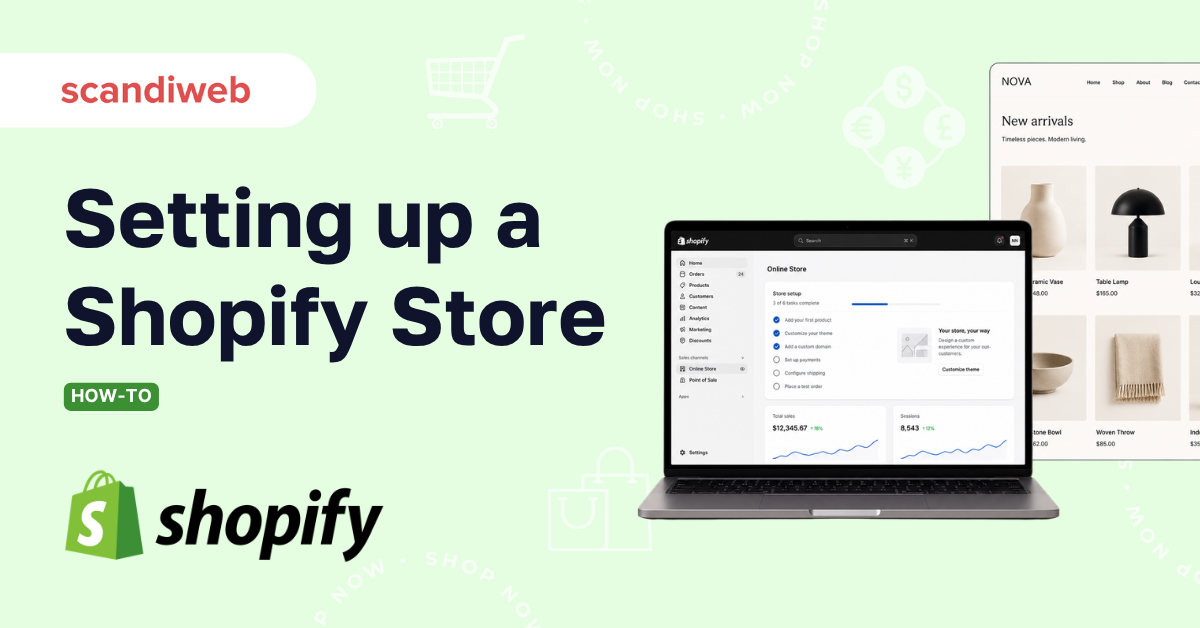
Should you build your first online store on Shopify, and once you commit, what actually needs setting up before you can take your first order? This guide walks through setting up a Shopify store step by step, then answers the questions our Shopify team fields most often from merchants on pricing, payments, international selling, and performance. Shopify processed $378 billion in gross merchandise volume in 2025 and powers more than 2.4 million live stores across 175+ countries, so these are decisions a very large number of merchants make every year.
🚀 Quick takeaway
Setting up a Shopify store breaks down into about ten steps: plan, create your account and pick a plan, add products, choose and customize a theme, set up payments and shipping, connect a domain, add policy pages, test, then launch. The work is less about code and more about decisions, and most merchants can complete it within a few days.
How to set up a Shopify store, step by step
Here is the full sequence from a blank account to a live store. None of it requires writing code.
Step 1: Plan your store before you sign up
Decide what you are selling, who you are selling to, and how you will source and ship it before you touch the platform. Settle on a business name and a short list of products, and sketch the pages you will need. Ten minutes of planning here saves hours of rework once the store is live.
Step 2: Create your account and choose a plan
Sign up at shopify.com with your email and store name, which starts a free trial. You do not need to lock in a paid plan immediately, but pick the tier that fits your stage early so checkout and reporting behave the way you expect. Plan guidance and current pricing are in the cost section below.
Step 3: Add your products
From the admin, go to Products and add each item with a clear title, a description written for shoppers rather than search engines, and high-quality images. Set prices, SKUs, and inventory, and add variants for size or color where they apply. Group related items into collections so customers can browse by category.
Step 4: Choose and customize your theme
Pick a theme from the Shopify Theme Store as your starting base, then customize it in the theme editor: add your logo, set brand fonts and colors, and build out the homepage, product pages, and navigation menu. Start from a solid base rather than the flashiest demo. More on choosing a theme is below.
Step 5: Set up payments
Activate Shopify Payments under Settings > Payments so you can accept cards without a third-party gateway, and enable wallets like Shop Pay, Apple Pay, and Google Pay to reduce checkout friction. If you sell higher-ticket products, turn on Shop Pay Installments so customers can pay over time.
Step 6: Configure shipping
Under Settings > Shipping and delivery, set your shipping zones and rates. You can charge flat rates, free shipping above a threshold, or carrier-calculated rates, and you can use rate tables to match cost to weight, price, or destination. Set this before launch so customers see accurate totals at checkout.
Step 7: Connect a custom domain
Buy a domain through Shopify or connect one you already own under Settings > Domains. A branded domain (yourstore.com) builds trust and is better for SEO than the default myshopify.com URL. Set your primary domain so all traffic resolves to one address.
Step 8: Add essential pages and policies
Create the pages customers and Shopify both expect: About, Contact, and your store policies (refund, privacy, terms, and shipping). Shopify can generate policy templates you then tailor. These pages reduce support questions and are a trust signal at checkout.
Step 9: Test your store
Place a test order to confirm the full path works: add to cart, checkout, payment, order confirmation email, and the order appearing in your admin. Check the store on mobile, since most traffic will be there, and click through navigation and links to catch anything broken.
Step 10: Remove the password and launch
New stores sit behind a password page. Once testing passes, go to Online Store > Preferences and remove the password to make the store public. After launch, the work shifts to getting found and converting traffic, which is where the sections below come in.
How much does a Shopify store cost in 2026?
Shopify plan fees start at $39 per month on Basic and rise with the features and lower card rates you get at each tier. Annual billing brings the monthly cost down. Here is how the core plans compare in 2026.
| Plan | Basic | Shopify | Advanced | Shopify Plus |
|---|---|---|---|---|
| Monthly fee | $39 | $105 | $399 | From $2,300 |
| Annual billing (per month) | $29 | $79 | $299 | Custom |
| Online card rate | 2.9% + 30¢ | 2.7% + 30¢ | 2.5% + 30¢ | Most competitive |
| Staff accounts | Limited | 5 | 15 | Unlimited |
| Products | Unlimited | Unlimited | Unlimited | Unlimited |
| Professional reports | Not included | Included | Included | Included |
| Custom report builder | Not included | Not included | Included | Included |
| Third-party calculated shipping | Not included | Not included | Included | Included |
Fees and rates are current Shopify pricing as published on shopify.com/pricing and can change. Shopify occasionally renames the mid-tier plan, so check the live page before you commit.
How do I know which Shopify plan is right for me?
Start with Basic if you are launching and want to test the market. The clearest reasons to move up a tier are lower card rates once your sales volume makes the difference material, the need for more staff accounts, and access to professional reports. Identify the two or three features you actually need, then pick the lowest plan that includes them rather than the highest plan you can afford.
How much do Shopify apps cost?
Many Shopify apps are free, and paid apps commonly run from a few dollars to around $50 per month each. A handful of specialized apps cost more. The practical risk is not any single price but stacking ten subscriptions that quietly add up, so review your app list every quarter and remove what you no longer use.
Payments and paying over time on Shopify
Shopify Payments is built into the platform, so most merchants can accept cards without a third-party gateway. Online card rates run from 2.9% + 30¢ on Basic down to 2.5% + 30¢ on Advanced, with the most competitive rates on Plus.
Can customers pay in installments?
Yes. Shop Pay Installments, powered by Affirm, lets customers split a purchase into four interest-free payments or pay monthly over a longer term. You are paid in full upfront, usually within one to three business days, and Shopify handles the financing. It is a useful option for higher-ticket products where the price is the main hesitation at checkout.
Can I set different prices for the same product in different markets?
Yes. Shopify supports up to 50 markets with price differentiation per market, and several countries can be combined under a single market. For example, Germany, Italy, Spain, France, and other euro countries can sit under one EU market, while a catch-all “Other countries” market in USD serves the rest. That lets you serve more than 50 countries despite the market ceiling.
Selling internationally with Shopify Markets
Shopify Markets manages international selling from a single admin, and Shopify Payments supports 130+ currencies natively. Two questions come up almost every time a merchant goes cross-border.
What is the SEO-friendly way to set up international domains?
If you are setting up Shopify Markets for the first time, subfolders are usually the best option. A subfolder is a path within your primary domain, for example johns-apparel.com/en-ca for Canada and johns-apparel.com/fr-fr for France. Subfolders require minimal setup, direct visitors to the right language and region, and inherit your primary domain’s existing search authority instead of starting from zero. If you want to pressure-test the rest of your setup for search, our Shopify SEO checklist walks through the on-page basics.
How do I handle VAT for different countries?
With Shopify Markets you can specify the VAT rate per country, and the correct rate is applied automatically at checkout. This keeps tax handling accurate as you sell across multiple European countries from one store.
Will my store’s load times vary by region?
No significant difference is expected between regions. Shopify serves stores through a global content delivery network backed by Cloudflare, with servers worldwide, so load times stay consistent regardless of where a customer is shopping from.
Performance, security, and technical questions
These are the questions developers and technically minded founders raise once the storefront basics are settled.
Does Shopify’s CDN cost extra, and can I use my own?
The CDN is included in every Shopify plan at no additional cost, and it is backed by Cloudflare. You can technically route through a different CDN, but it is not recommended, since the built-in network is already a first-rate solution and the added complexity rarely pays off. If you want to push speed further within Shopify’s setup, our guide to store performance covers what actually moves the needle.
Why doesn’t minification always work on Shopify?
Shopify automatically minifies CSS and JavaScript that use valid syntax up to ES5 when the storefront requests them, which shortens load times. It serves the original file instead in two cases: when minifying would produce a larger file because the file is already compressed more efficiently, and when the file already carries a .min.js or .min.css extension.
Do I need an EV SSL certificate to make my store secure?
No. Every Shopify plan includes a free SSL certificate that secures your store. An EV SSL certificate can add a layer of visible trust for some customers, but it is not required for a secure, functioning Shopify store. Treat it as optional.
Why don’t Shopify URLs end in .html, and is that bad for SEO?
It is not bad for SEO. Shopify uses a clean URL structure that keeps addresses short and readable. Including .html would only make URLs longer without any search benefit, so leaving it off helps both usability and SEO.
Do Shopify Plus users get more bandwidth?
Shopify Plus adds custom data transfer limits, a dedicated account manager, and advanced features that help optimize larger stores. That said, all Shopify plans come with unlimited bandwidth, and exceeding data transfer limits is not a common problem for most businesses. Weigh Plus against your actual scale and budget rather than bandwidth alone.
Themes, customization, and getting found
How do I find the right theme for my store?
The Shopify Theme Store now lists well over a thousand themes, all built on Online Store 2.0, alongside countless third-party options. The goal is to choose the best base to build on rather than the flashiest demo. Decide on the look you want and the functionality you need first, then shortlist themes that deliver both. Our roundup of the best Shopify themes is a useful starting shortlist.
Can I use tables to set shipping rates?
Yes. Shopify makes it straightforward to set shipping rates using rate tables, so you can match costs to weight, price, or destination without custom development.
What if I already have a store on another platform?
Then your setup starts with migration rather than a blank store. The priorities shift to moving products, customers, and order history cleanly, preserving your URLs and search rankings, and rebuilding integrations. Our step-by-step guide to migrating to Shopify covers the sequence and the common pitfalls.
Common mistakes to avoid when setting up a Shopify store
- Launching with thin product descriptions. Copy lifted from a supplier hurts both conversions and SEO. Write descriptions that answer real buyer questions.
- Skipping the test order. Many stores go live without confirming the full checkout path, then lose early orders to a broken payment or shipping rule.
- Ignoring mobile. Most traffic is mobile, so a layout that only looks right on desktop costs sales.
- Over-installing apps. Every app adds weight and cost. Add only what earns its place, and audit the list regularly.
- Leaving the default domain. Staying on myshopify.com weakens trust and SEO. Connect a branded domain before launch.
- Forgetting policy pages. Missing refund, privacy, and shipping policies create friction at checkout and can block payment provider approval.
Frequently asked questions
How long does it take to set up a Shopify store?
A basic store can be set up in a day or two once you have your products and images ready. A polished, fully customized store usually takes one to a few weeks depending on catalog size and design needs.
Do I need coding skills to set up a Shopify store?
No. The full setup, from account to launch, is done through Shopify’s admin without code. Coding only becomes relevant for advanced theme customization or custom app development.
How much does it cost to start a Shopify store?
Plans start at $39 per month on Basic ($29 on annual billing), plus card processing fees and any paid apps or themes. Budget for a domain (around $10 to $20 per year) and optional design or development help.
Can I set up a Shopify store for free?
You can build and explore a store during the free trial, but you need a paid plan to launch and accept orders. There is no permanently free Shopify plan.
Planning your Shopify build and want it done right the first time? scandiweb has launched and scaled Shopify and Shopify Plus stores for brands across more than 175 countries. Tell us where you are and our team will map the setup with you – talk to our Shopify development team.