Where exactly do you log in to a Magento store, and why is plain yourstore.com/admin showing a 404? It is the first question almost every new store owner asks, and the answer surprises people: Magento (Adobe Commerce) deliberately hides the login behind a path you cannot guess. Once you know where to look, accessing the admin panel takes about a minute.
This guide walks you through finding your admin URL, logging in, setting up two-factor authentication, reading the dashboard, resetting a forgotten password, and fixing the login problems that trip people up most often. It applies to both Magento Open Source and Adobe Commerce, which run on the same admin.
🚀 Quick takeaway
Your Magento admin URL is not yourstore.com/admin. Since Magento 2.0, the installer creates a random admin path, so the real address looks like yourstore.com/admin_a1b2c3. Find it in app/etc/env.php or by running php bin/magento info:adminuri, open it over HTTPS, enter your credentials, and complete the mandatory two-factor authentication.
What is the Magento admin panel?
The Magento admin panel, sometimes called the dashboard or backend, is the secure control center where you manage your entire store. From a single login, you handle products, orders, customers, content, promotions, reports, and every configuration setting that shapes the storefront.
It matters because nothing about your store changes without it. Whether you are launching a catalog, processing refunds, or adjusting tax rules, the admin panel is the one place where work happens. Adobe Commerce powers more than 130,000 active storefronts worldwide as of 2025, according to Store Leads, and each one runs on the same admin you are about to open.
How do I find my Magento admin URL?
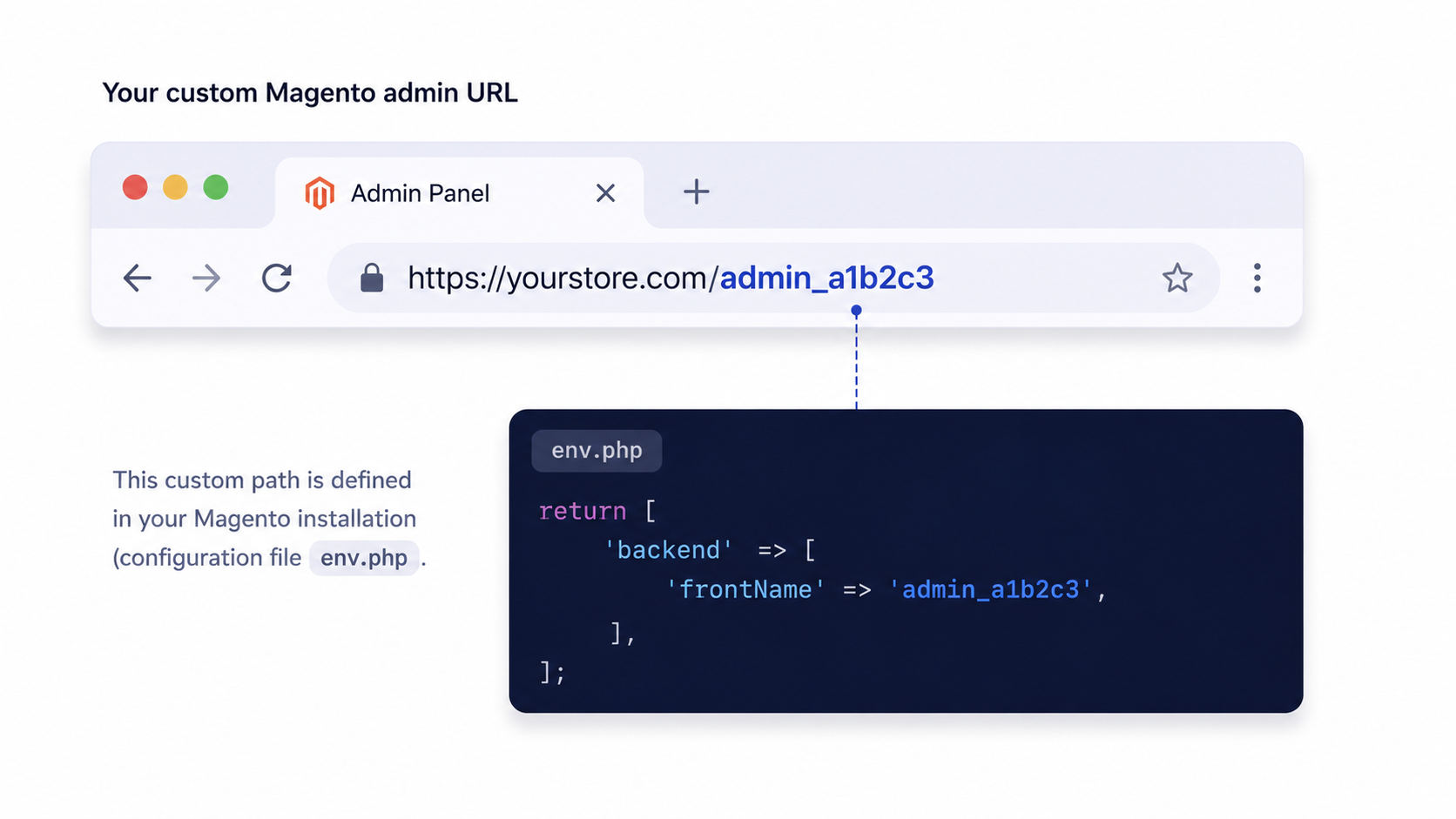
Your admin URL is your store domain plus a custom admin path, for example, yourstore.com/admin_a1b2c3. Magento randomizes this path during installation, so /admin alone almost never works.
There are three reliable ways to find the exact path.
- Check the configuration file. Open app/etc/env.php on your server and look for the backend frontName value. The URL becomes yourstore.com/[frontName].
- Run the command line. From your Magento root, run
php bin/magento info:adminuri. It prints the current admin path directly. - Ask your host or developer. On managed hosting, the admin URL is often listed in your hosting dashboard, and your development partner will have it on file.
If you inherited the store and have none of the above, your hosting or maintenance team can retrieve the path in seconds. Keeping that URL documented and private is itself a small security measure.
How to log in to the Magento admin panel
Once you have the URL, logging in is a short, repeatable sequence. Follow these steps in order.
Step 1: Open your admin URL over HTTPS
Type your full admin address into the browser, for example, https://yourstore.com/admin_a1b2c3, and press Enter. The admin requires a secure connection, so always use HTTPS rather than HTTP. You should land on the Magento login screen.
Step 2: Enter your username and password
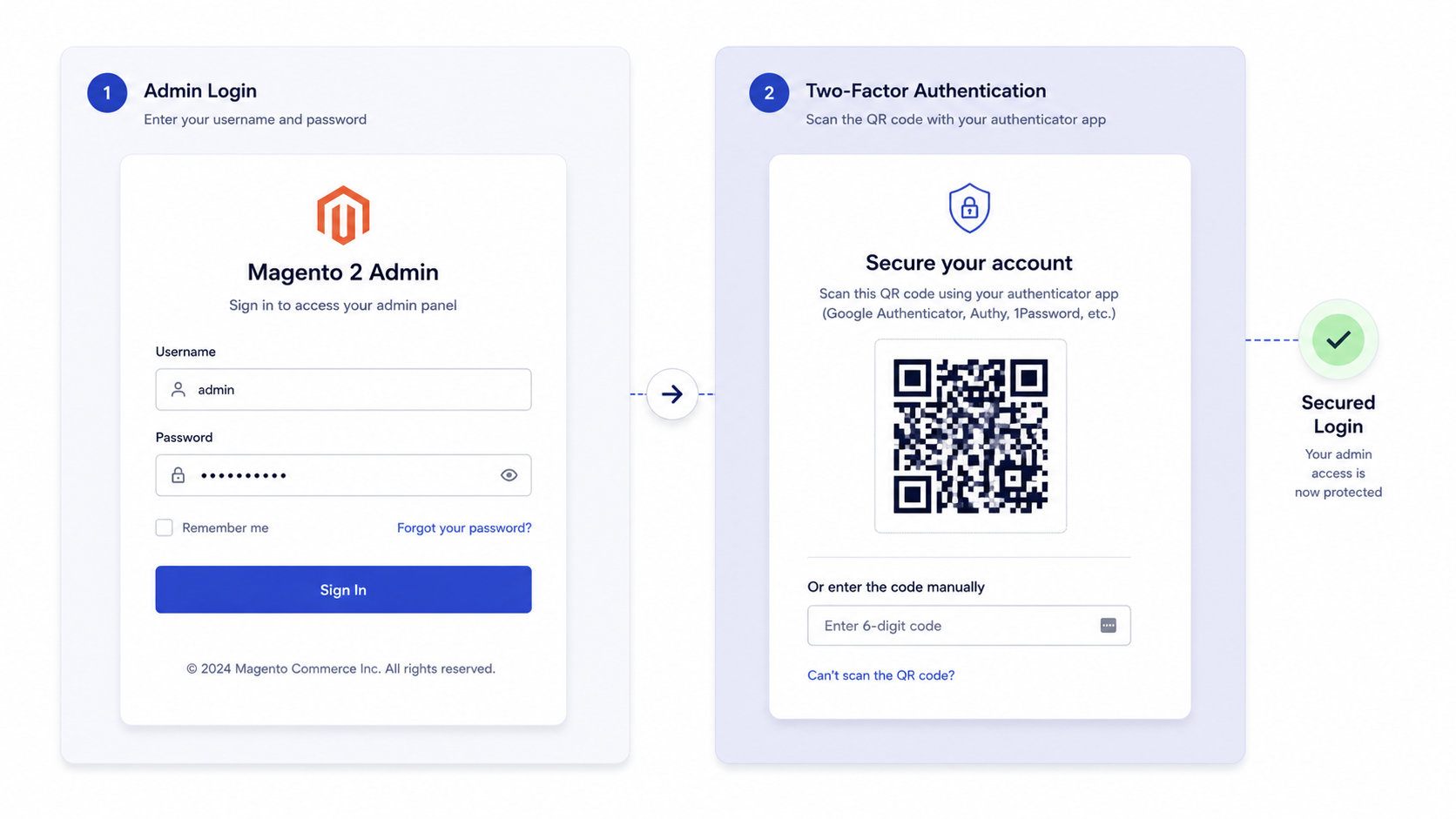
Type the username and password for your admin account. These are the Magento admin login credentials created during setup, not your hosting or Adobe account. If a CAPTCHA appears, complete it before continuing.
Step 3: Set up two-factor authentication
On Magento 2.4 and later, two-factor authentication is mandatory and enabled by default, a change Adobe introduced in version 2.4.0. On your first login, you are prompted to pick a provider such as Google Authenticator, Authy, or Duo, scan a QR code with the app, and enter the six-digit code. After that, you supply a fresh code each time you log in.
Step 4: Reach the dashboard
Once your code is accepted, you will be taken to the Magento dashboard. This is your home base for running the store, and it loads automatically after every successful login from then on.
What does the Magento dashboard show?
The dashboard gives you a view of store health, with sales totals, recent orders, top search terms, and bestselling products, plus the full navigation menu down the left side.
That left-hand menu is where the real work is, right down to the website, store, and store view hierarchy under Stores. Here is what each main area covers.
| Admin menu | What you manage there |
|---|---|
| Sales | Orders, invoices, shipments, credit memos, and refunds |
| Catalog | Products, categories, and inventory |
| Customers | Customer accounts and customer groups |
| Marketing | Promotions, cart price rules, and SEO tools |
| Content | Pages, blocks, and media gallery |
| Reports | Sales, product, and customer analytics |
| Stores | Configuration, taxes, currencies, and attributes |
| System | User roles, permissions, backups, and integrations |
How do I reset a forgotten Magento admin password?
Use the Forgot Your Password link on the login screen, enter the email tied to your admin account, and follow the reset link that Magento emails you. If email is not configured, an administrator can reset it from the command line.
The two common routes are below.
- From the login screen. Click Forgot Your Password, enter your admin email, and submit. Open the email Magento sends and use the link to set a new password.
- From the command line. If the outgoing email is not working, a developer can create or update an admin user with
php bin/magento admin:user:createor reset an existing account directly in the database.
If reset emails never arrive, the problem is usually mail configuration rather than your account, which is a good moment to loop in whoever handles your store maintenance.
How to fix common Magento login issues
Most login failures trace back to a handful of causes. Work through them in this order before assuming something is broken.
Wrong admin URL or 404 error
A 404 almost always means the admin path is wrong. Recheck app/etc/env.php or run php bin/magento info:adminuri to confirm the exact path, then clear the cache and try again over HTTPS.
Account locked after failed attempts
Magento locks an admin account after several failed login attempts, six by default. You can wait for the lockout window to pass, or have a developer unlock it instantly with php bin/magento admin:user:unlock username.
Secure URL or SSL warnings
The admin is designed to run over HTTPS, and modern browsers block or warn on insecure logins. If you see SSL or mixed-content warnings, confirm a valid certificate is installed, and that base URLs point to https. This often falls to your hosting and DevOps setup.
Session or cookie loops
If the login screen reloads without an error, your browser session is likely stuck. Clear cookies for the domain, try a private window, and confirm the store base URL matches the address in your browser exactly. A mismatch between www and non-www is a frequent culprit.
How to keep your Magento admin secure
Getting in is only half the job. Because the admin controls everything, hardening it is essential, especially as eCommerce remains a heavy target for credential attacks. A few basics cover most of the risk.
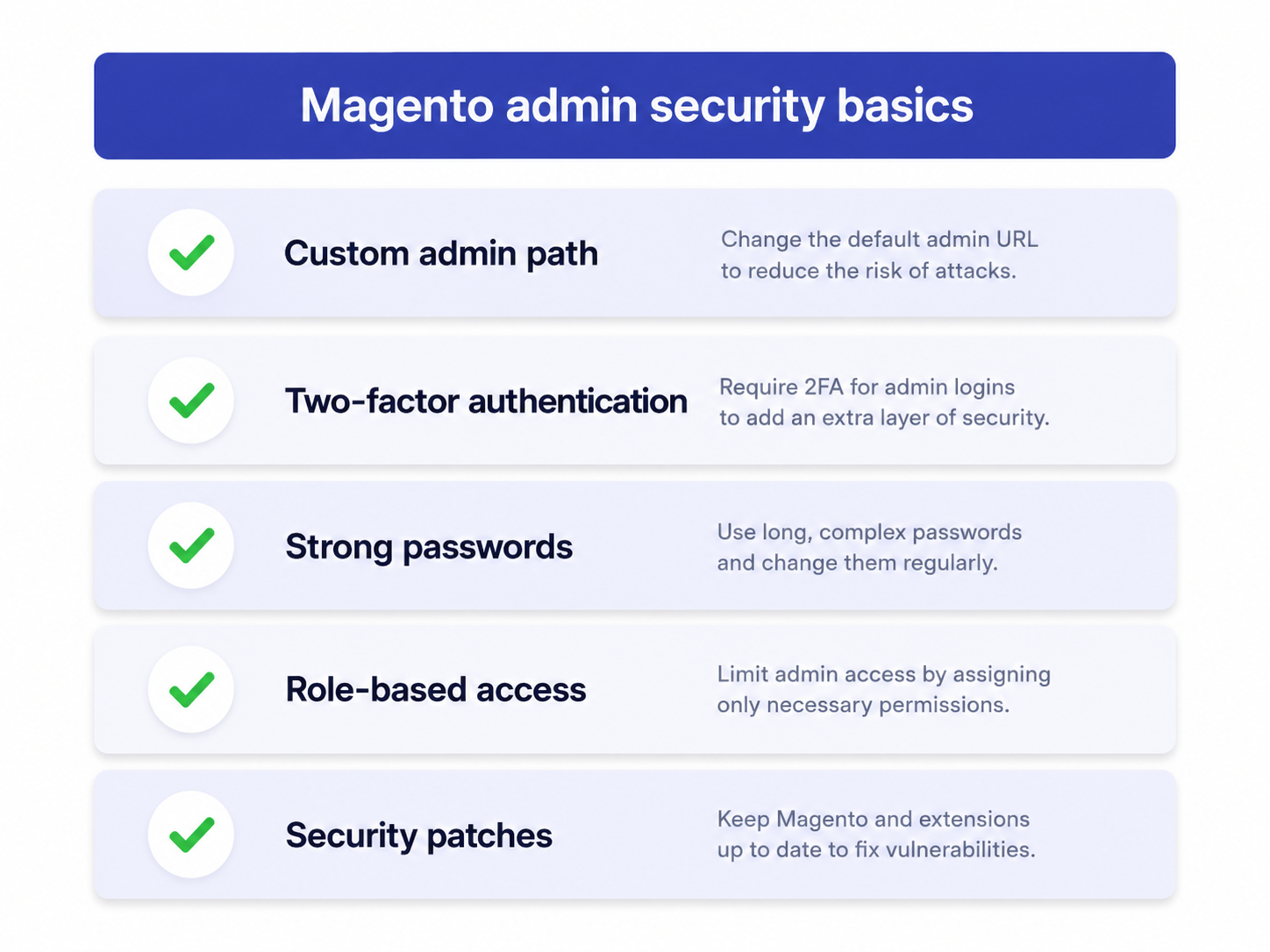
- Keep a custom admin path. Never revert to /admin. A non-obvious path under Stores > Configuration > Advanced > Admin stops casual bot scans.
- Leave two-factor authentication on. It is mandatory on 2.4+ for a reason. Do not disable the module on a live store.
- Enforce strong, unique passwords. Long passphrases per user, never shared logins.
- Use role-based access. Grant each team member only the permissions they need under System > Permissions > User Roles.
- Stay patched. Apply Adobe security updates promptly, since most breaches exploit known, unpatched issues.
If managing this yourself feels risky, a partner running your Magento development can lock the admin down and keep it patched.
Frequently asked questions
What is the default Magento admin URL?
There is no fixed default. Since Magento 2.0 the installer generates a random admin path, so your URL looks like yourstore.com/admin_a1b2c3 rather than yourstore.com/admin. Check app/etc/env.php or run php bin/magento info:adminuri to find it.
Why does yourstore.com/admin show a 404?
Because the real admin path is randomized for security. Typing /admin will not work unless that exact word was set as the path. Use the actual frontName from your configuration instead.
How do I find my Magento admin username and password?
They were set when the store was installed. If you do not have them, click Forgot Your Password on the login screen to reset the password by email, or ask a developer to create or reset an admin user from the command line.
Can I turn off two-factor authentication in Magento?
It is technically possible to disable the module, but you should not on a live store. Two-factor authentication is mandatory on Magento 2.4 and later precisely because it blocks unauthorized admin access. Disable it only in a local development environment if absolutely necessary.
How do I unlock a locked Magento admin account?
Wait for the lockout window to expire, or have a developer run php bin/magento admin:user:unlock followed by the username to restore access immediately.
Is the Magento admin the same as my Adobe account?
No. Your store admin login is separate from the Adobe ID you use for licensing or downloads on Adobe Commerce. The admin panel uses credentials specific to your store.
Does this guide apply to both Magento Open Source and Adobe Commerce?
Yes. Both editions share the same admin panel, login flow, and two-factor authentication requirement, so every step here works for either one.
Want to stay in full control of your store admin without the guesswork? Get hands-on help from scandiweb and keep your Magento backend secure, accessible, and running smoothly.