
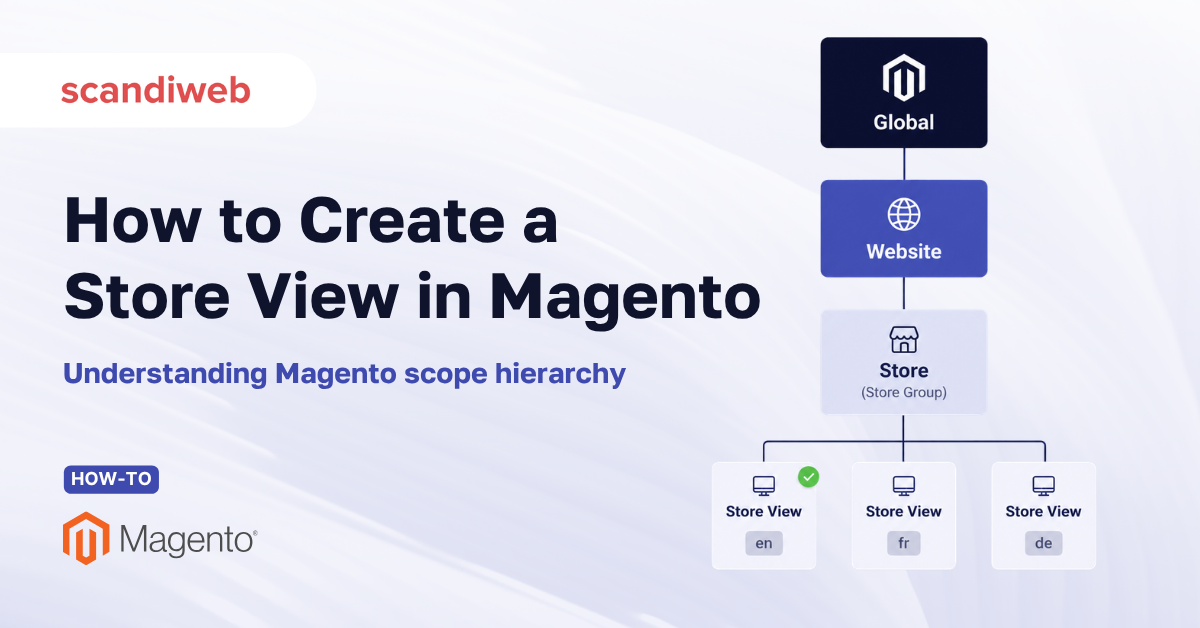
In Magento (Adobe Commerce), a single installation is organized into four nested scopes:
- Global level that governs the whole system
- One or more websites
- Store (also called a store group) under each website
- One or more store views under each store.
In this guide, we’ll explain each scope and show how to create a store view in Magento 2. Each level decides which settings are shared and which can be overridden, so a website controls payment and customer scope, a store controls the catalog, and a store view controls the language and currency a shopper sees.
That hierarchy is the single most useful concept to understand before you launch a second language, a regional storefront, or a separate B2B channel. Get it right, and one backend cleanly serves many storefronts, as opposed to duplicating catalogs and rebuilding the same store twice.
🚀 Quick takeaway
Use a website when you need separate customers, prices, or payment methods. Use a store when you need a different product catalog under the same website. Use a store view when the catalog stays the same but the language or currency changes. To add a language, you almost always want a new store view (not a new website).
Magento scope hierarchy, level by level
Adobe Commerce documentation describes the model as a cascade: global to website to store to store view. Settings flow downward, and lower levels can override what they inherit. Picture one installation, one admin login, and one database powering everything below.
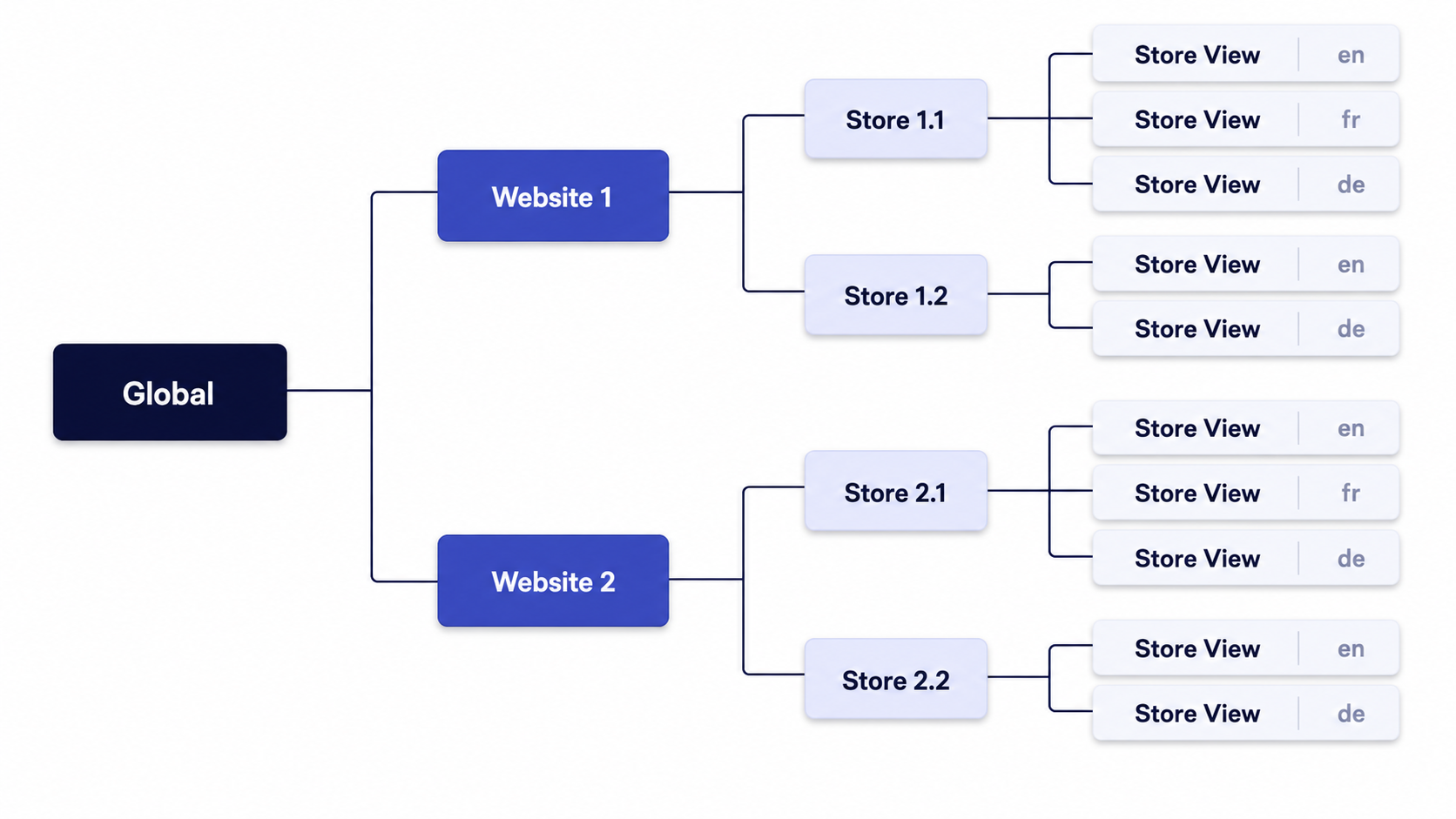
Global scope
Global covers system-wide settings that apply across the entire installation, such as locale defaults, security policies, and the product attribute set. Anything you set here is the baseline every website inherits unless it is overridden lower down.
Website scope
A website is the top configurable level beneath global. It is where Magento separates the things that define a distinct commercial entity: customer accounts, base currency, product prices, payment methods, shipping, and tax. Customers created on one website do not automatically exist on another, which makes the website the right boundary for a separate brand, a separate region, or a distinct B2B channel that needs its own pricing and login.
Store (store group) scope
A store, often called a store group, falls under a website and is defined by one thing above all: its root category. The root category determines the catalog and top navigation a shopper sees. Stores under the same website share customers, checkout, and the admin, but each can present a different product selection and menu. This is how a single website can run, for example, a main catalog and an outlet catalog side by side.
Store view scope
A store view is the lowest level and the version of the storefront a customer actually loads. Store views handle presentation: language (translations), the displayed currency symbol, and theme details. The catalog stays the same as the parent store, but each view shows it in a different language. A language switcher in the header simply moves the shopper between store views.
| Scope | What it controls | Shared with siblings? | Typical reason to add one |
|---|---|---|---|
| Global | System defaults, attributes, security | Yes, by everything | One-time platform setup |
| Website | Customers, prices, currency, payments, tax | No | New brand, region, or B2B channel |
| Store (group) | Root category and main menu | Customers and checkout shared | Different catalog under one website |
| Store view | Language, currency symbol, theme | Catalog shared with parent store | New language for the same catalog |
What does each Magento scope level actually change?
The website level changes commercial rules (who the customer is and what they pay), the store level changes the catalog they browse, and the store view changes the words and currency symbol on the page. Most settings in Stores > Configuration can be set at one of these levels using the scope switcher in the top-left corner.
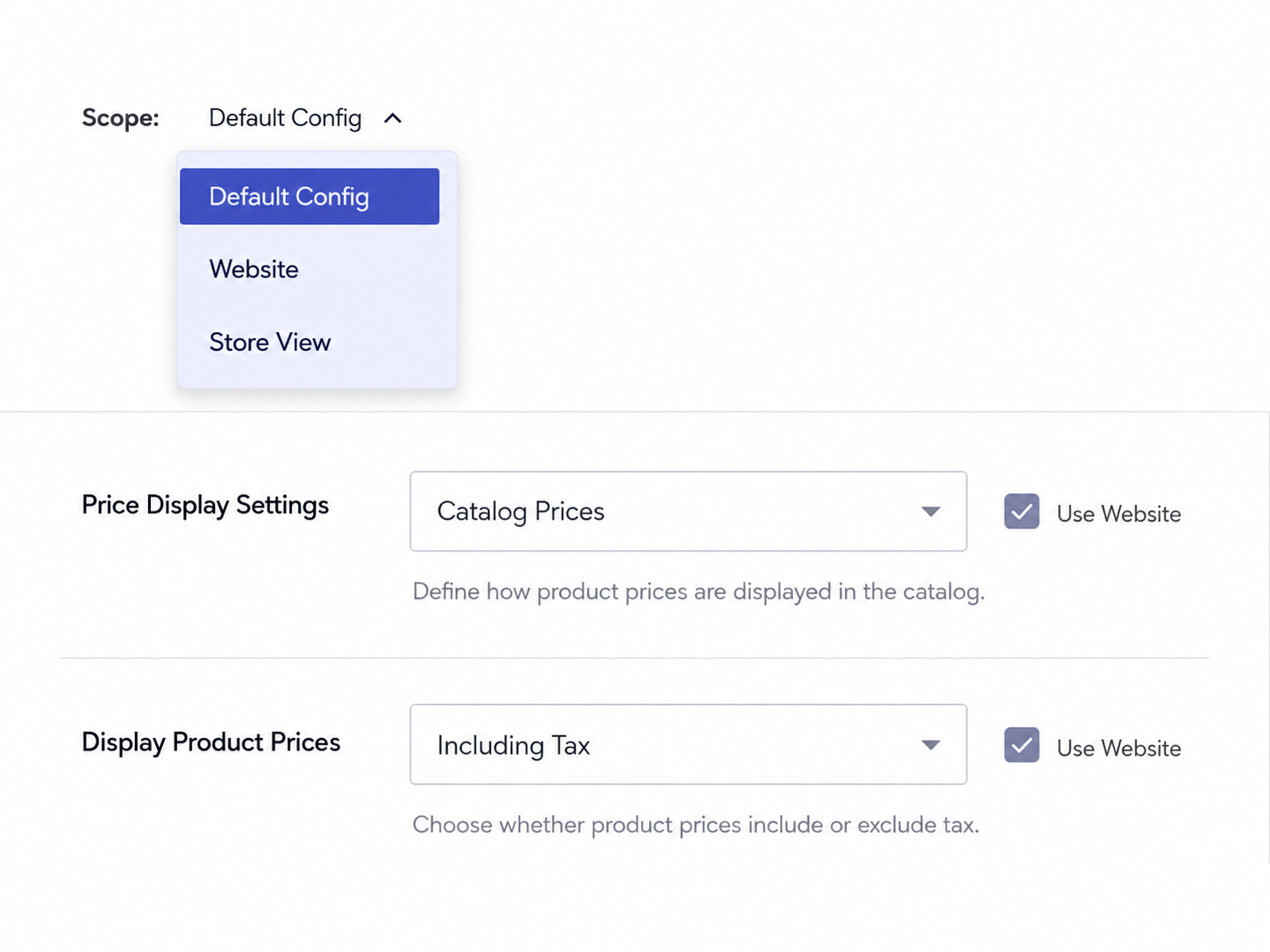
One detail catches many teams off guard: price scope. By default, product prices are set at the website level, so two store views under the same website share the same price unless you raise price scope to the website per region. If you need genuinely different prices for the United States and Europe, you usually need separate websites, not just separate store views.
When do you add a website, a store, or a store view?
Add a website when customers or prices must differ, add a store when the product catalog must differ under the same website, and add a store view when only the language or currency display changes. Going international is no longer optional for growth brands, so most teams reach for store views first.
CSA Research, surveying 8,709 consumers across 29 countries, found that 76% prefer to buy products with information in their own language, and 40% will not buy from sites in other languages at all. Shopify’s 2026 global eCommerce research similarly reports that a majority of cross-border shoppers expect to see pricing in their local currency before they trust a checkout. Those expectations map cleanly onto the hierarchy:
- Same catalog, new language: add a store view (for example, a German view under your European store). Same products, translated content, German interface.
- Different catalog, same company: add a store under the existing website (a main line and a clearance line with different root categories).
- Different region with its own currency, prices, and customers: add a website (a US site and an EU site, each with its own base currency and payment providers).
- Separate B2B and B2C channels: commonly a separate website so wholesale buyers get their own login, catalog visibility, and contract pricing.
How to create a store view in Magento 2
Creating a store view takes about five minutes in the admin, plus a base URL and a cache refresh. The steps below assume the parent website and store already exist.
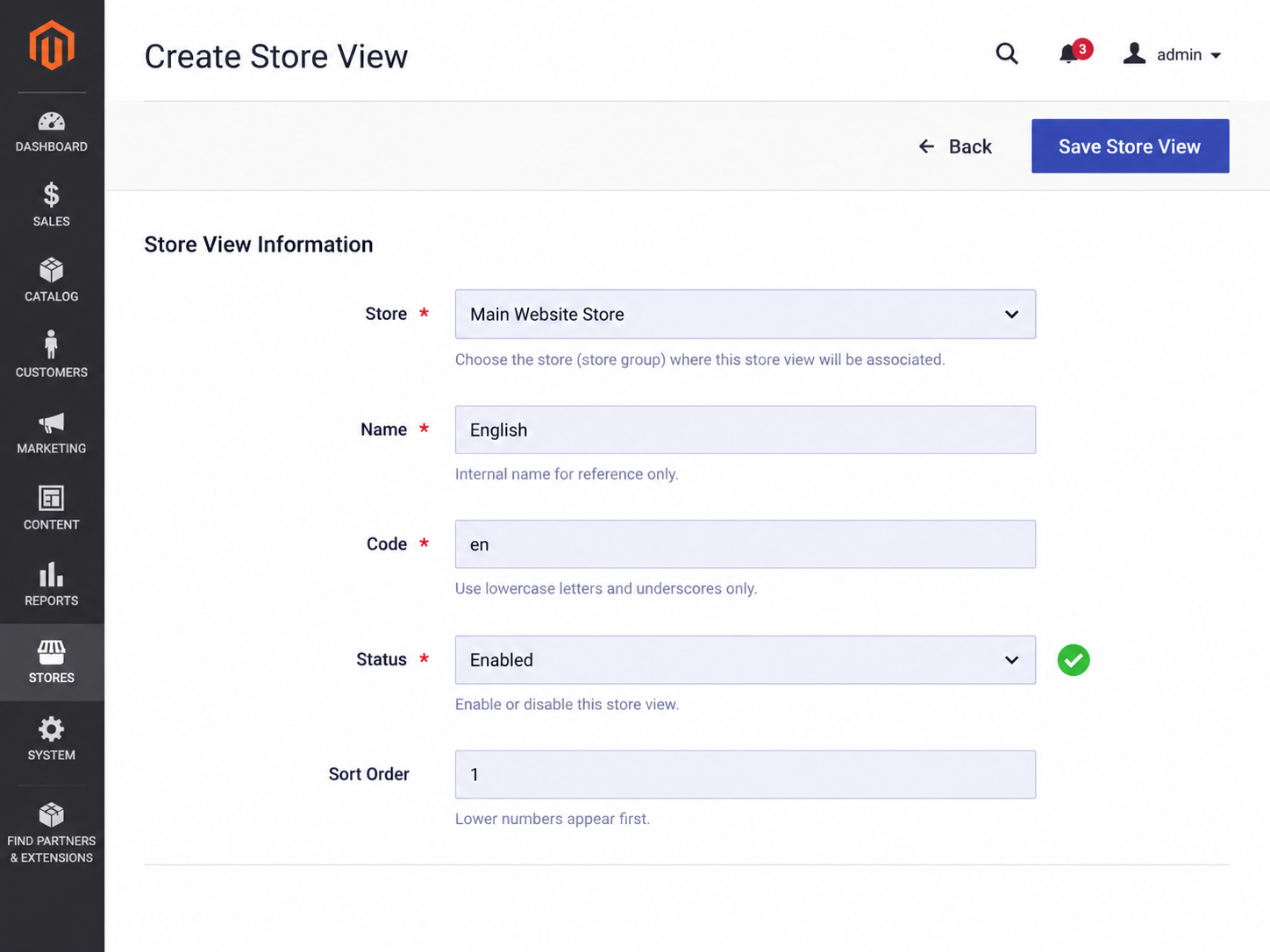
- Open All Stores. From the admin sidebar, go to Stores > Settings > All Stores.
- Start a new view. Click the Create Store View button in the top right.
- Choose the parent store. In the Store dropdown, select the store this view belongs to. This links the view to the right catalog.
- Name the view. Enter a clear Name, such as “German” or “English (UK)”. This is what appears in the storefront language switcher.
- Set the code. Enter a unique, lowercase Code with no spaces, for example
deoren_uk. The code cannot be changed casually later, so choose carefully. - Enable it. Set Status to Enabled. Leave it disabled if you want to build content before going live.
- Set sort order. Enter a Sort Order number to control where the view appears in the switcher list.
- Save. Click Save Store View.
- Set the locale and base URL. Go to Stores > Configuration, switch the scope (top-left) to the new store view, then set the language under General > Locale Options and, if the view uses its own domain or path, the base URL under General > Web.
- Refresh the cache. If prompted, go to System > Cache Management and flush the cache so the new view appears on the storefront.
Once the view is live, you translate content (product names, CMS pages, attribute labels) at the store view scope, and the storefront serves the right language automatically. For stores feeding data from an ERP, PIM, or translation service, the store view code is the key those integrations use to route localized content to the right view.
Should you add a website, a store, or a store view?
Work top down and ask three questions in order. If customers or prices must differ, add a website. If only the catalog or main menu differs, add a store. If only the language or currency display changes, a store view is enough.
- Do customers or prices need to differ? If yes, you need a new website.
- Does the product catalog or main menu need to differ? If yes, you need a new store under the website.
- Is only the language or currency display changing? If yes, a new store view is enough.
Working top down keeps your structure clean and avoids the most common mistake: spinning up a full website when a single store view would have done the job.
Frequently asked questions
What is the difference between a Magento website, store, and store view?
A website controls customers, prices, currency, and payments. A store (store group) under it controls the catalog and main menu through its root category. A store view under the store controls language and currency display. They nest in that order.
How do I create a store view in Magento 2?
Go to Stores > Settings > All Stores, click Create Store View, choose the parent store, enter a name and a unique lowercase code, set the status to Enabled, then save. Finish by setting the locale and base URL at the store view scope and flushing the cache.
What is a Magento 2 store view code and can I change it?
The store view code is a unique lowercase identifier (such as de or en_uk) that Magento uses internally and in URLs and integrations. Changing it after launch can break links and data mappings, so set it deliberately the first time.
Do store views share the same product catalog and prices?
Yes. Store views under the same store share the catalog, and by default product prices are set at the website level, so views under one website share prices. To charge different prices per region, raise price scope or use separate websites.
Should I add a website or a store view for a new language?
For a new language with the same products and prices, add a store view. Reserve a new website for cases that need separate customers, currencies, payment methods, or pricing.
What is Magento single-store mode?
Single-store mode hides the website, store, and store view scope options in the admin to simplify the interface for merchants running only one storefront. You can turn it off under Stores > Configuration > General when you are ready to add more.
Why is my new store view not showing on the storefront?
The two usual causes are status left as Disabled and a stale cache. Confirm the view is Enabled, set its base URL at the store view scope, then flush the cache under System > Cache Management.
Planning multiple languages, regions, or a separate B2B channel from one backend? Talk to scandiweb to structure your stores so one installation serves every storefront cleanly.