
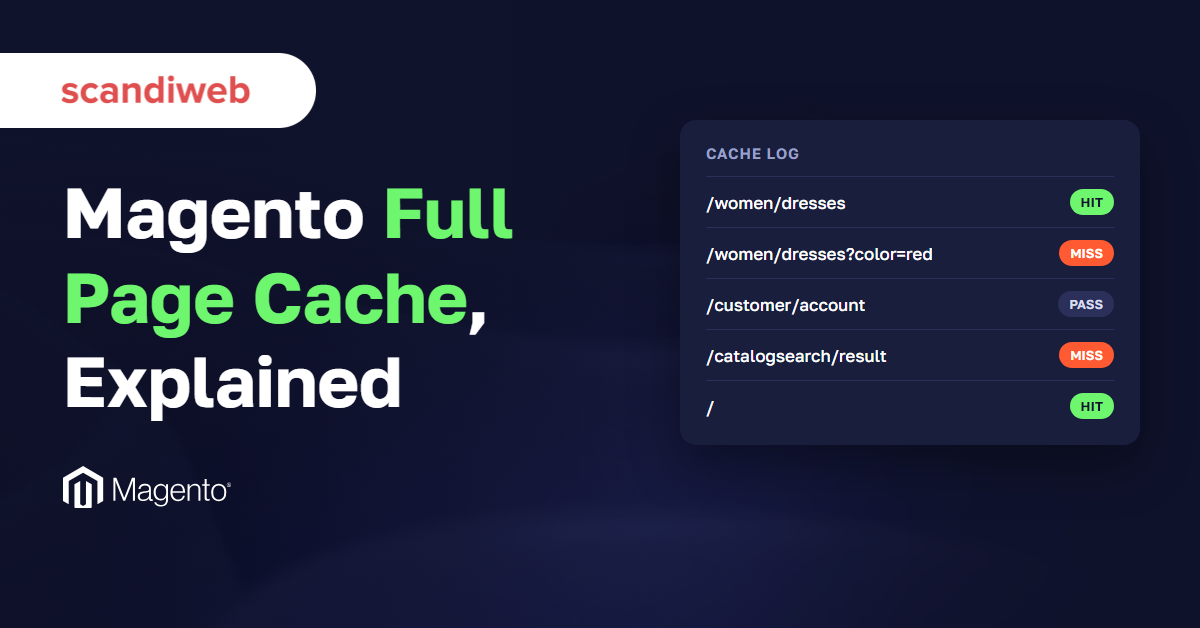
Magento (Adobe Commerce) builds every page from scratch: it runs PHP code, queries the database and assembles the HTML, and all of that takes time. The Magento full page cache saves a finished copy of each page and hands that copy to the next shopper, so Magento can skip the build.
Most stores keep that cache in Varnish, a caching server placed in front of Magento. Varnish answers repeat requests itself, so they never reach Magento at all, and Adobe strongly recommends it for live stores.
A saved copy only helps when one exists for that exact page and that kind of visitor, and on a busy store more requests miss it than most teams expect. Slow catalog pages for logged-in customers and slow category pagination both came up in Magento support requests we handled over the past year, and both trace back to how the cache works.
What is the Magento full page cache?
The Magento full page cache stores the finished HTML of a page so the next visitor with the same context gets it without Magento building the page again. It holds category, product and CMS pages, keyed by URL and context, for guests and logged-in shoppers alike. Cart, checkout and account pages are always built fresh.
The rest of Magento caching stores smaller pieces, such as merged configuration. The admin grid lists this one as Page Cache.
How Magento cache works on a single request
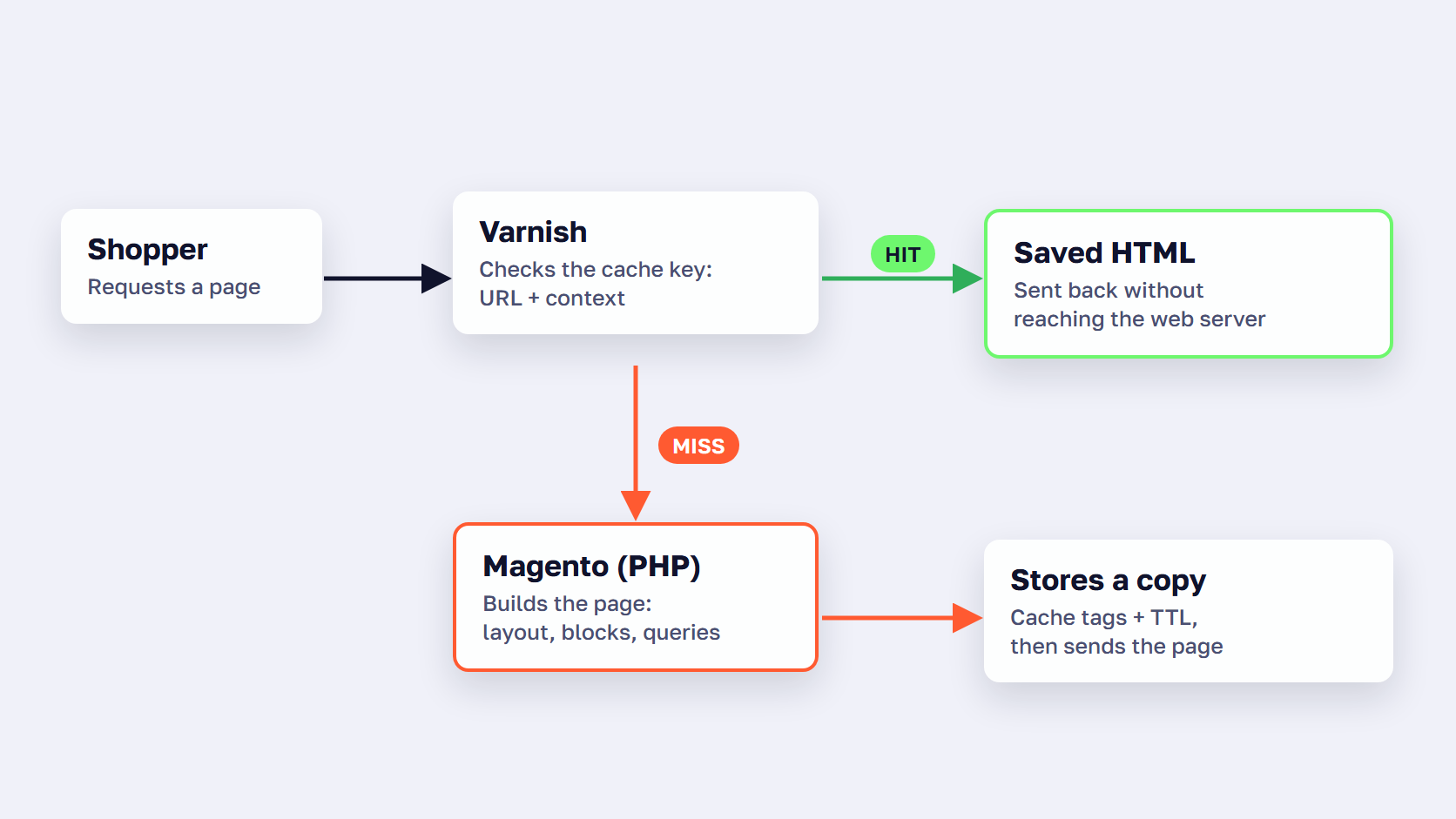
A shopper requests a category URL. Varnish, or the built-in cache, builds a key from that URL and a hash of the HTTP context: customer group, store, language, currency and whether the shopper is logged in. Magento carries that context in the X-Magento-Vary cookie, and Adobe’s page on HTTP context variables lists the full set.
If a saved page matches the key, the cache returns its HTML and Magento does not run. If nothing matches, the request goes to Magento, which builds the page in PHP: it loads the layout, renders each block and runs the database queries behind them. The finished HTML is saved with its cache tags and a TTL, then returned. The next visitor with the same URL and context gets the saved copy.
Only GET and HEAD requests can be cached. A form post goes to PHP every time.
Public and private content: hole punching in Magento 2
Everyone in the same context gets the same cached HTML, so Magento keeps personal data out of it. Public content, the page itself, is stored server side in the cache. Private content such as the customer name, cart, wishlist and address is stored client side and loads in the browser after the page arrives, from customer-data sections. A POST or PUT request invalidates those sections, so the cart updates after an add to cart without touching the cached page.
With Varnish, a block can also carry its own TTL. The top menu in the default theme is marked ttl="3600", so Varnish can cache it apart from the page through ESI and refresh it on its own schedule.
Adobe warns against adding a context variable per user. Every context variable is part of the cache key, so a per-user variable gives each user a separate copy of every page, and the cache stops sharing anything.
🚀 Quick takeaway
Two shoppers on the same category URL share one cached copy only when their customer group, store, currency and login state match. Every other combination is built and saved separately.
Magento full page cache vs Varnish
Magento’s built-in full page cache is a PHP reverse proxy that stores pages in the file system, the database or Valkey/Redis, so every hit still runs PHP. Varnish is a separate caching server in front of the web server, and a hit never reaches the web server. Adobe strongly recommends Varnish in production. Commerce Cloud uses Fastly.
The table shows where the two options differ.
| Built-in full page cache | Varnish | |
|---|---|---|
| Where it runs | Inside Magento, as a PHP reverse proxy | Separate server in front of the web server |
| A cache hit | Still runs PHP | Never reaches the web server |
| Storage | File system, database or Valkey/Redis | Varnish’s own cache storage |
| Purging | Magento cleans entries by cache tag | Magento sends purges, VCL bans by tag |
| Setup | Works out of the box | Install Varnish, export the VCL, set purge hosts |
| Adobe’s guidance | Development and testing | Strongly recommended in production |
The built-in option is fine on a laptop or a staging server. Production gets Varnish: a repeat request for a cacheable page costs no PHP, database or web server time, and Adobe’s Varnish configuration page calls the built-in cache much slower.
Magento Varnish is a separate HTTP cache that Magento purges by tag whenever it cleans, flushes or refreshes its own cache. The Caching Application setting is the only switch between the two.
Where Fastly fits on Adobe Commerce Cloud
On Adobe Commerce Cloud, full page caching uses Fastly instead of Varnish, so there is no Varnish to install or configure. The cache key and the private-content rules in this article still apply, because Magento sets the headers and the context cookie in the same way.
🚀 Quick takeaway
Open Stores > Settings > Configuration > Advanced > System > Full Page Cache on production. If Caching Application says Built-in, every cache hit still runs PHP.
Magento cache management: cache types, clean and flush
Magento cache management happens in System > Tools > Cache Management or with bin/magento cache commands. The admin lists every cache type, such as Configuration, Layouts, Blocks HTML output and Page Cache, with its status. Refresh any type marked invalidated, clean caches after code or configuration changes, and flush the whole storage only when cleaning fails.
The cache types that matter for page speed
Five types decide most of what a shopper waits for in Magento 2 cache management.
| Admin name | CLI code | What it holds | Clean it after |
|---|---|---|---|
| Configuration | config | Merged configuration | Configuration changes |
| Layouts | layout | Compiled layouts | Layout XML changes |
| Blocks HTML output | block_html | HTML fragments per block | Template changes |
| Page Cache | full_page | Whole pages | Code changes that affect HTML output |
| Translations | translate | Translation files | Translation changes |
The Cache Management grid lists more types than these, and the exact set depends on the edition and the modules installed. Adobe’s Cache Management page describes each one.
Clean vs flush: which one to run
The two buttons at the top of the grid do different things. Flush Magento Cache runs cache:clean: it removes items by their Commerce tag, from enabled types only, and leaves anything else in the storage alone. Flush Cache Storage runs cache:flush: it empties the whole storage, including files that other applications keep in the same place.
Clean after routine changes, such as a template or configuration edit. Flush only when cleaning does not fix the problem, and schedule it off-peak, because Adobe warns that clearing caches at peak can raise the load enough to take the site down until the operation completes. If you need to clear the cache in Magento 2 from the admin, refresh the affected type rather than everything, and read our post on when to flush the whole cache storage before doing it on a live store.
What “One or more of the Cache Types are invalidated” means
The red banner in the admin reads “One or more of the Cache Types are invalidated”, followed by the list of types, and asks you to go to Cache Management and refresh them. It means the stored data for those types may no longer match the database. Catalog changes are the usual cause, because an edit to one entity can affect other pages and invalidate several caches at once. Configuration saves and deploys do the same.
To fix it, open Cache Management, tick the invalidated types, set Actions to Refresh and click Submit, or run bin/magento cache:clean full_page. Reindexing does not require a cache flush, so leave the cache alone when you reindex. If the banner comes back every few minutes, find what keeps invalidating it, such as an import, a cron job or frequent product saves, instead of refreshing all day. Keeping the Magento indexers on Update on Schedule, which Adobe recommends for performance, removes one common cause.
🚀 Quick takeaway
Flush Magento Cache runs cache:clean. Flush Cache Storage runs cache:flush and empties the whole storage, including anything other applications keep there.
How to enable, disable and configure full page cache in Magento 2
To enable full page cache in Magento 2:
- Go to System > Tools > Cache Management, select Page Cache, set Actions to Enable and click Submit.
- Or run
bin/magento cache:enable full_page. - Under Stores > Settings > Configuration > Advanced > System > Full Page Cache, set Caching Application to Varnish Caching.
- Save the configuration.
Enable full page cache in the admin
Go to System > Tools > Cache Management, tick Page Cache, set Actions to Enable and click Submit. Then open Stores > Settings > Configuration > Advanced > System > Full Page Cache and set Caching Application to Built-in or Varnish Caching.
If Enable and Disable are missing from the Actions dropdown, the store is in production mode. Since Magento 2.2, production mode allows enabling and disabling cache types from the command line only, so the admin offers Refresh and nothing else.
Enable or disable full page cache from the command line
Run the commands as the file system owner, from the Magento root:
bin/magento cache:status
bin/magento cache:enable full_page
bin/magento cache:disable full_page
cache:status lists every type with 1 for enabled and 0 for disabled. Enabling a type clears it, so expect the first requests after cache:enable to miss. Omitting the type applies the command to all types.
Disable full page cache in Magento 2 only to turn off the cache during development, when every change has to show at once. Never do it on a live store: every request then goes to PHP, and the server carries the full build cost for every page. Adobe’s Manage the cache page lists the remaining options.
Magento full page cache settings worth checking
All of these live under Stores > Settings > Configuration > Advanced > System > Full Page Cache.
Caching Application: Varnish Caching for production. From the CLI, run bin/magento config:set --scope=default --scope-code=0 system/full_page_cache/caching_application 2.
TTL for public content: 86400 seconds by default, the longest a page stays in the cache without a purge.
Varnish Configuration: access list and backend host (both default to localhost), backend port (8080), grace period (300 seconds, how long Varnish may serve an expired copy while Magento builds a fresh one) and handles param size (100, the most layout handles the ESI endpoint processes). Export the VCL from the same screen and install it on the Varnish host. Then set purge hosts with bin/magento setup:config:set --http-cache-hosts so Magento can purge Varnish when its own cache cleans. Varnish 8 is the version for Magento 2.4.9.
If you stay on the built-in cache, give it its own storage. Adobe recommends a dedicated instance each for sessions, the default cache and the full page cache. To use Redis for the full page cache on 2.4.8 and earlier, run bin/magento setup:config:set --page-cache=redis --page-cache-redis-server=127.0.0.1 --page-cache-redis-db=1, with a database number no other cache uses. On 2.4.9, Valkey replaced Redis in the CLI tooling, so use the Valkey options in Adobe’s CLI reference.
What the Magento full page cache can’t serve
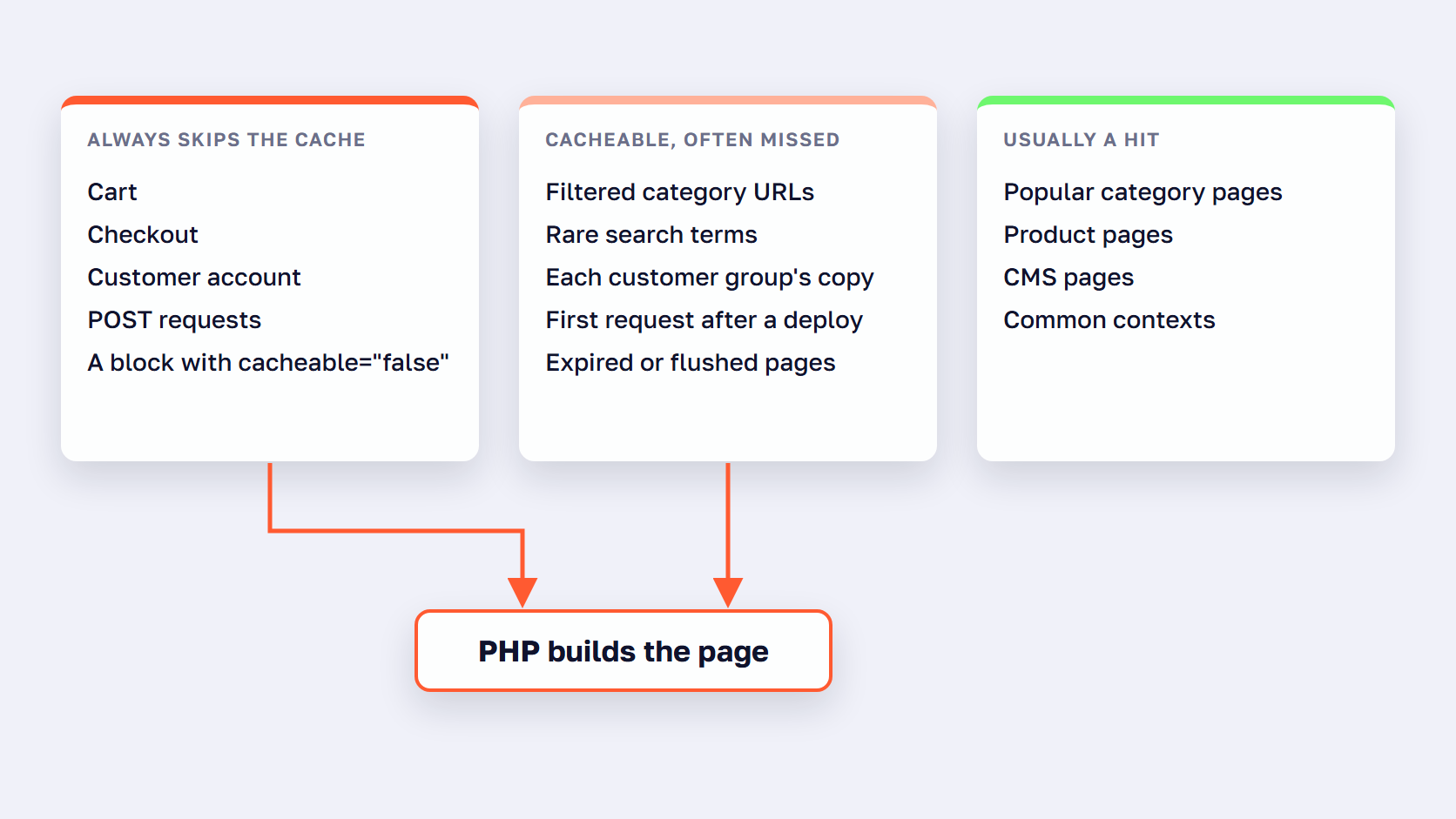
The Magento full page cache never serves cart, checkout or customer account pages, POST requests, or any page with a block marked cacheable="false". It can hold filtered category pages, search results and customer-group versions, but each URL and context needs its own entry, so many of them miss. Every miss goes to PHP.
Requests that always skip the cache
Three groups never touch the cache. Cart, checkout and customer account pages: the default Varnish configuration that comes with Magento passes any URL containing /customer or /checkout straight to the backend, and Adobe’s own examples of uncacheable pages are cart, checkout and compare. POST and every other method besides GET and HEAD: the same VCL only caches those two, so an add to cart or a form submit always runs PHP. Any page with one block marked cacheable="false": Adobe’s rule is that one uncacheable block makes the whole page uncacheable, and that attribute often arrives in a third-party module’s layout file rather than your own code.
The first two groups are by design. The third is the one to check, because it can quietly turn a category or CMS page into one that builds in PHP on every request.
Requests the cache can hold but often misses
Four kinds of request are cacheable and still miss often.
The first request after a deploy, flush or TTL expiry. Cleaning, flushing and refreshing the Magento cache all purge Varnish too, and so does editing a category, price, product or promotional pricing rule. After each one, the first shopper on each page waits for the build and the second gets the copy.
Filtered category pages. Each filter combination is its own URL, so it gets its own cache entry, and combinations multiply with every attribute you expose in layered navigation. The default VCL strips gclid, gbraid, gclsrc and utm_ parameters, so an ad click shares the cache with a direct visit. Filter parameters stay in the key because they change the page.
Search results. In Magento 2.4 the default VCL has no bypass for search URLs and the search results layout has no uncacheable block, so results pages are cacheable, one entry per search term. Popular terms hit. Rare terms miss, and a first-time search always does.
Logged-in customers and B2B customer groups. The context hash gives each customer group, store and currency its own copy of every page. A B2B store that puts companies or price lists in separate customer groups fills many small caches rather than one big one, and a buyer in a quiet group gets a miss on pages that guests see from the cache all day.
🚀 Quick takeaway
One block marked cacheable="false" makes the whole page uncacheable. Search your custom modules and theme layouts for it before you tune anything else. If the cache checks out, look at the other causes of a slow Magento site.
How to find and fix full page cache misses
To fix Magento full page cache misses:
- Confirm Page Cache is enabled and set to Varnish.
- Check the
X-Magento-Cache-Debugheader for MISS, then HIT. - Remove
cacheable="false"from catalog and CMS layouts. - Stop flushing caches at peak hours.
- Warm key URLs after deploys.
- Make the uncached page build faster.
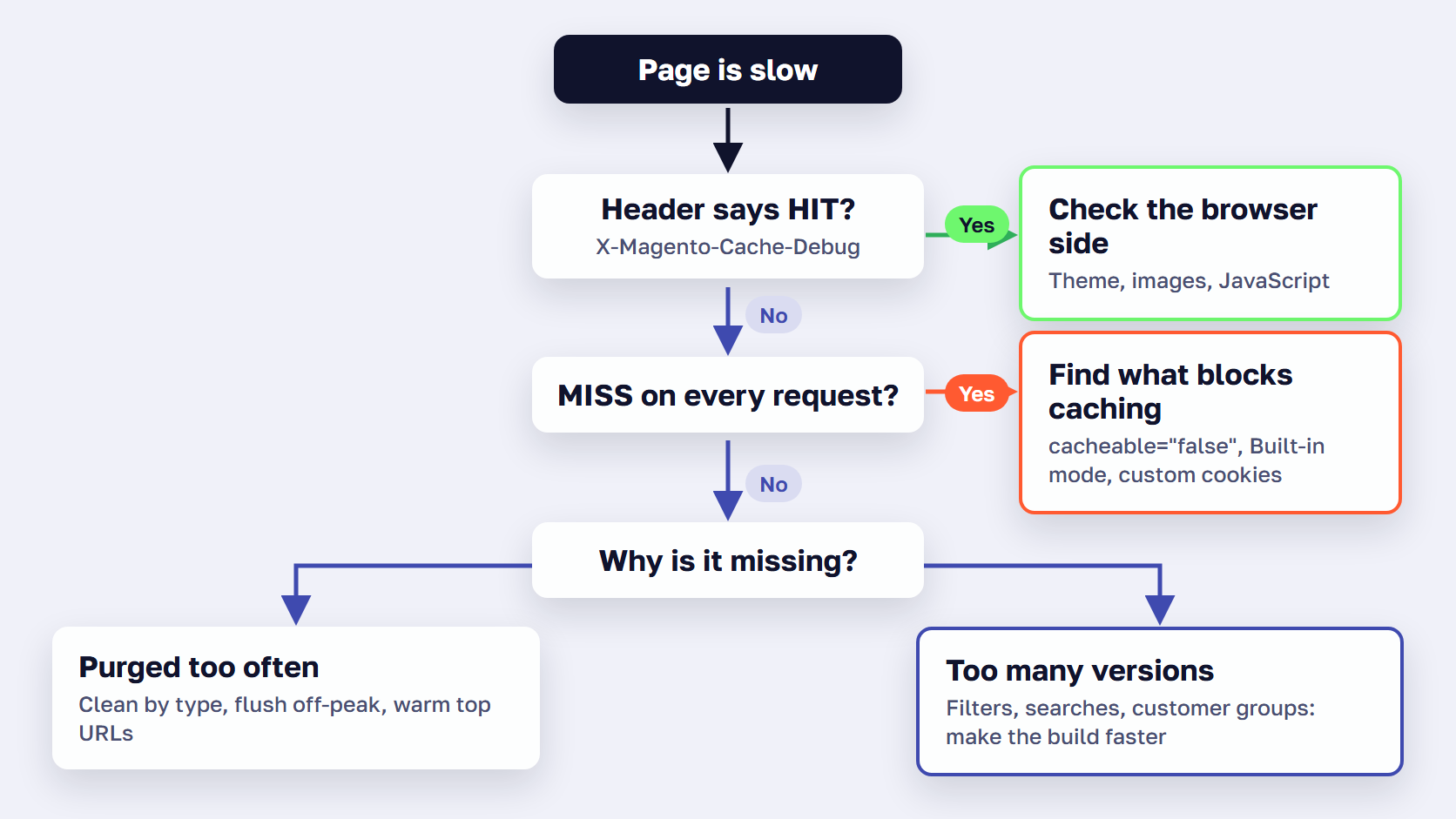
Check whether a page came from the cache
Magento adds its debug headers in developer mode only, so run this on staging or in a short developer-mode window, never on a live production store. Request the page twice with curl -I and read two headers. X-Magento-Cache-Debug shows MISS on the first request and HIT on the second. If the Magento 2 full page cache is not working at all, it shows MISS every time. X-Magento-Cache-Control shows the TTL, for example max-age=86400, public, s-maxage=86400. Adobe’s Verify Varnish configuration page says a cacheable page should load in less than 150 ms when Varnish works, and that var/page_cache should stay empty.
Then test the miss path: log in, open a filtered category URL right after a cache clean, and run a rare search. Compare those timings with field data from PageSpeed Insights and Google’s guide of 0.8 seconds or less for a good TTFB. If a page misses that mark, our guide to reducing server response time covers the fixes. To run the same comparison on every page type, see how to audit Magento performance. If the header says HIT and the page is still slow, the wait is in the browser, in the theme, images or JavaScript, and a frontend such as Hyvä is the place to look.
Fix the misses you can remove
Work through these in order.
- Remove
cacheable="false"from blocks on catalog, product and CMS pages. Move whatever personal data the block showed into private content, so it loads in the browser. - Switch production from Built-in to Varnish Caching. A built-in hit still runs PHP.
- Clean by type instead of flushing, and schedule any flush off-peak.
- Find what keeps invalidating the cache. Imports, mass product saves and cron jobs that touch the catalog purge pages all day.
- Keep custom cookies and context variables out of the cache key. Each new variable multiplies the number of copies.
- Warm the top URLs after each deploy, briefly. A warmer refills the most visited pages so the first shoppers get hits, and it has done its job once the cache is full. Our guide to the Magento 2 cache warmer covers how to run one without slowing the store.
Make the uncached page build faster
Some misses stay. Rare searches, filter combinations and customer groups cannot all be warmed, because there are too many of them and the list changes every day. Our comparison of Magento speed optimization extensions sorts the options by the layer each one speeds up. For those requests, the time Magento takes to build the page is the time the shopper waits, and no cache setting changes it.
Expedio is scandiweb’s software for that part of the request. It speeds up how Magento builds each page on the server by applying Liquid, the open-source template language created at Shopify, and its core is open source. It works on Magento 2 Open Source, Adobe Commerce and Commerce Cloud, with Luma, Hyvä or a custom theme, on any hosting, and it leaves the theme, design, data, admin, catalog, prices, checkout and orders as they are. The page build gets at least 2x faster, and the same server handles 3x the traffic before response times start to rise. In a benchmark on one merchant’s Hyvä store, measured as server response time with no full page cache, category pages opened with all caches empty took a median of 57 ms instead of 181 ms, 3.2x faster. At peak traffic, filtered category pages answered 3.0x faster and search results 3.8x faster. The method and caveats are in the Expedio benchmark.

🚀 Quick takeaway
Test a page twice: once as a guest on a cached URL, once logged in on a filtered URL right after a cache clean. The gap between the two is the work the cache was hiding.
Frequently asked questions about Magento full page cache
Does the Magento full page cache work for logged-in customers?
Yes, for catalog and CMS pages. Magento keys each cached page by URL plus a context hash from the X-Magento-Vary cookie, which covers the customer group, store, currency and whether the shopper is logged in. Personal details such as the name and cart load separately in the browser. Each customer group fills its own copy, so stores with many B2B groups see more misses.
Should I use Varnish or the built-in full page cache in production?
Use Varnish. Adobe strongly recommends Varnish in production and calls the built-in full page cache, whether it writes to the file system or the database, much slower. A Varnish hit is answered without reaching the web server, while the built-in cache still runs PHP for every hit. On Adobe Commerce Cloud, Fastly does the full page caching instead.
How long does Magento keep a page in the full page cache?
For 86,400 seconds, or 24 hours, by default. That is the TTL for public content under Stores > Settings > Configuration > Advanced > System > Full Page Cache. A page can leave the cache sooner: editing a product, category, price or promotional pricing rule purges the related pages, and cleaning or flushing the Magento cache purges Varnish too.
Are search results pages cached in Magento 2?
They can be. In Magento 2.4, the default Varnish configuration does not bypass search URLs, and the search results layout has no uncacheable block. Each search term is a separate URL, though, so only repeated searches find a cached copy. A rare or first-time search misses, and Magento builds the results page in PHP.
Does flushing the Magento cache slow the store down?
For a while, yes. After a flush, PHP has to build every page again until shoppers or a cache warmer refill the cache, so server load and response times rise. Adobe advises scheduling cache flushes for non-peak times. Use cache:clean for routine changes, and keep cache:flush, which empties the whole cache storage, for cases where cleaning does not help.
Do I need a cache warmer if I already run Varnish?
A warmer helps after deploys and flushes, when Varnish starts empty. It requests your most visited URLs so the first shoppers get cached pages. It adds server load while it runs and cannot reach every filter combination, search term or customer group. For those requests, shoppers wait for the uncached page build, so its speed still matters.
Magento full page cache: what to fix first
The Magento full page cache is the first speed fix for any store with real traffic, and the order of work after turning it on matters more than any single setting. Run Varnish in production rather than the built-in cache. Remove the misses you cause yourself: uncacheable blocks that a module added, flushes at peak, imports that invalidate the cache every few minutes. Warm the pages that matter after each deploy. Then look at the requests that will always miss, filtered pages, rare searches and quiet customer groups, and make the uncached build itself faster, because that is the time those shoppers wait.
The full page cache is one layer of the work to speed up Magento, alongside the server, database and frontend.
If the cache is on and logged-in, filtered or search pages are still slow, ask our Magento team to measure which requests miss and what each one costs your store.