
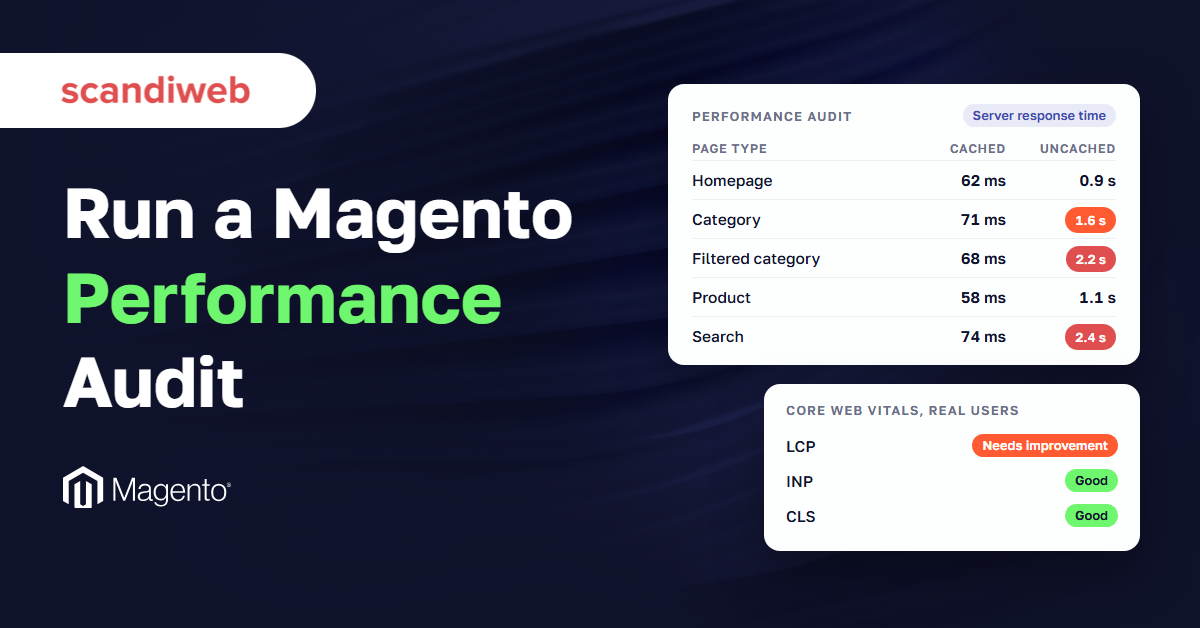
A speed test of your Magento homepage times one of the easiest pages your store has to serve. Most visitors arrive there logged out, so Magento (Adobe Commerce) can answer from its full page cache, a set of finished pages kept ready to send, without building anything. Shoppers wait on the pages a homepage test never reaches: a filtered category, a search nobody has run this week, the catalog a logged-in trade customer sees.
Auditing Magento performance means timing those pages as well. It measures how long the server takes to start sending each page, called time to first byte (TTFB), both from the cache and built from scratch. It also reads Google’s Core Web Vitals, three scores for loading, responsiveness and visual stability, taken from real Chrome users’ visits. In September 2026, only 23% of Magento sites had a good TTFB on mobile, against 46% of websites overall.
What does auditing Magento performance cover?
Auditing Magento performance means measuring how fast your store answers and renders for real shoppers, page type by page type, and ties each slow number to a cause. It times server response on cached and uncached pages, reads Core Web Vitals from real-user data, tests the server under rising traffic, and checks the setup behind all three.
A speed score gives you one number for one URL on one run. The audit covers six page types in four states, and every slow number in it comes with a likely cause and the team that fixes it.
Performance audit vs code audit
A code audit reads the code: security holes, coding standards, extension quality, slow database queries. A performance audit starts from measurements of what shoppers get and works back toward a cause. The two meet when the numbers point at a specific module, template or query. When they do, the next step is a Magento code audit, which reads the code behind the slow page. A general Magento audit mixes both. This checklist covers the measurement half.
🚀 Quick takeaway
One speed score covers one URL, one load and one test device. An audit covers every page type, from the cache and built from scratch, plus 28 days of real-user data.
The Magento performance checklist
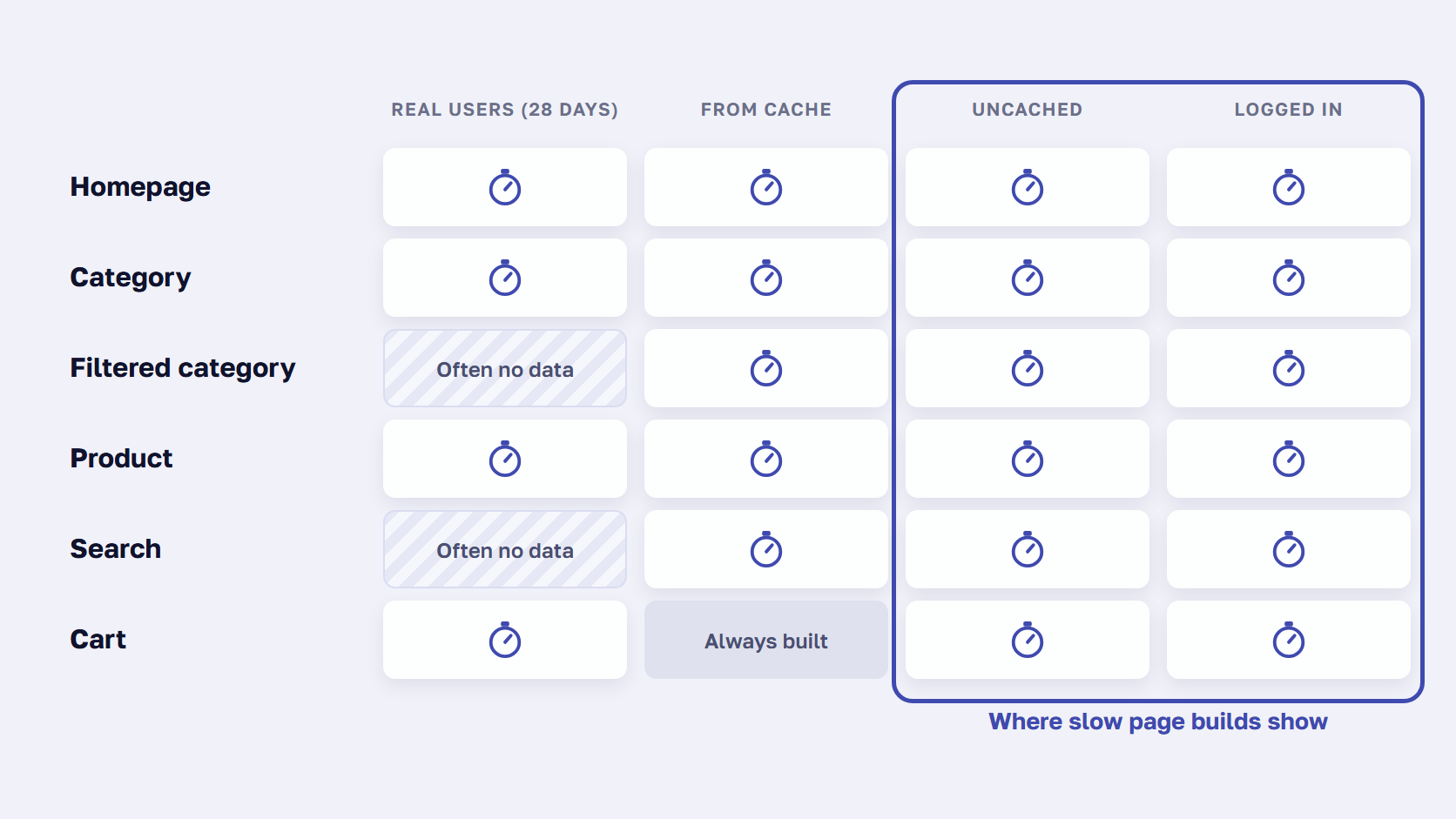
Use this checklist for a Magento store performance check in one pass. Each row is one measurement, how to take it, and what a healthy result looks like. Run it on one URL per page type: homepage, category, filtered category, product, search results and cart, logged out and logged in.
Copy it into a spreadsheet and fill in a column per page type.
| # | Check | How to run it | Healthy result |
|---|---|---|---|
| 1 | Core Web Vitals, real users | PageSpeed Insights field data or Search Console, mobile and desktop | LCP 2.5 s or less, INP 200 ms or less, CLS 0.1 or less, at the 75th percentile |
| 2 | TTFB, real users | PageSpeed Insights field data, “TTFB (experimental)” | 800 ms or less at the 75th percentile |
| 3 | Server response from the cache | Load each URL twice, time the second load (curl or DevTools) | Under 150 ms for cacheable pages with Varnish |
| 4 | Cache hit or miss | X-Magento-Cache-Debug header, on staging in developer mode | HIT on the second load of category, product and CMS pages |
| 5 | Server response uncached | Same URL with a made-up query parameter, new value each run | No official target. Compare with row 3 and the 800 ms line |
| 6 | Logged in | Same URLs as a logged-in customer, one per main customer group | Close to the logged-out uncached time |
| 7 | Search results | A search term nobody has used since the last cache clean | Close to the uncached category time |
| 8 | Cart | Add a product and open the cart (always built by Magento) | Close to your other uncached times |
| 9 | Under load | Load test on a staging copy, raising requests per second | Flat response times past your real peak traffic |
| 10 | Application mode | bin/magento deploy:mode:show | production |
| 11 | Cache setup | bin/magento cache:status, and Full Page Cache in the Admin | All cache types enabled, Varnish selected (Fastly on Commerce Cloud) |
| 12 | Indexers and PHP | bin/magento indexer:show-mode, PHP version vs Adobe’s requirements | Update by Schedule, PHP 8.5 on 2.4.9, 8.4 or 8.3 on 2.4.8 |
For row 11, the Admin path is Stores > Settings > Configuration > Advanced > System > Full Page Cache.
🚀 Quick takeaway
To time an uncached page, add a made-up parameter such as ?audit=7 and change the number on each run. Don’t use utm_ or gclid parameters: Magento’s default Varnish configuration strips those, so the request can still be served from the cache.
How to audit Magento performance, step by step
To audit Magento performance:
- List one URL per page type.
- Read Core Web Vitals and TTFB from field data.
- Time each page from the cache.
- Time it uncached and logged in.
- Test the server under rising traffic.
- Check the setup behind every page.
1. List one URL for each page type
Pick six URLs from the live store: the homepage, the first page of a busy category, the same category with two filters applied, a best-selling product, a search for a term shoppers use, and the cart with one product in it. Then add the category and product URLs again as a logged-in customer, one test account per main customer group.
Pick busy, real URLs. Google only keeps real-user data for pages with enough visitors, per the Chrome UX Report methodology, and it doesn’t say how many. A rare filter combination or a fresh search usually has no page-level field data, so you time those yourself in steps 3 and 4.
2. Read Core Web Vitals and TTFB in PageSpeed Insights
PageSpeed Insights is Google’s free speed test, and it also shows what real Chrome users experienced on the page. Its top section is that field data: the past 28 days of visits at the 75th percentile, the value three quarters of visits came in under. When a page has too few visits, PageSpeed Insights falls back to data for the whole site and says so, so check the label first. TTFB appears there marked experimental.
The lower section is one lab test on a simulated device. It helps you find causes and flags a server that took more than 600 ms to respond, but it is one run on one machine, so don’t treat it as the result.
For each page type, record LCP, INP, CLS and TTFB on mobile and on desktop against Google’s thresholds. Your Magento 2 PageSpeed Insights results for a category page and a product page will often differ more than the homepage suggests.
Search Console’s Core Web Vitals report shows the same real-user data with URLs grouped by similar experience, which often lines up with your page types, and a group takes the status of its slowest URL. For how to read both views without chasing the lab score, see what PageSpeed Insights can tell you.
3. Time each page from the cache
Load each URL twice and time the second request. From a terminal, curl prints the time to first byte and the total:
curl -s -o /dev/null -w "TTFB %{time_starttransfer}s total %{time_total}s\n" "https://www.example.com/women/tops.html"Without a terminal, open the page in Chrome DevTools, go to the Network tab, click the first request and read the “Waiting (TTFB)” line. Run each page 3–5 times and note the middle value. Our guide to reducing server response time covers each timing in more depth, including the Server-Timing header.
Varnish is the cache server Adobe recommends in front of Magento. Adobe’s line for a working Varnish setup is that any page with cacheable blocks should load in less than 150 ms.
To confirm the page came from the cache, check the X-Magento-Cache-Debug header: MISS on the first load, HIT on the second. The header only appears in developer mode, so do this on staging. Our guide to the Magento full page cache walks through the full check.
4. Time each page uncached and logged in
A cache hides a slow page build from every visitor it can serve, so time the page with the cache out of the way. Three ways to do that: add a made-up query parameter such as ?audit=101 and change the number on each run, so Magento sees a new URL and builds the page again. Log in as each test customer and load the category and product URLs again, since each customer group keeps its own cached copies. Search for a term nobody has used since the last cache clean, because results are cached per term.
The cart is always built by Magento, so its times are uncached by definition. If you clear the cache to force a miss, do it on staging, or at a quiet hour at worst: Adobe’s cache management guidance says to schedule flushes outside peak times. On Adobe Commerce Cloud, full page caching uses Fastly, so check how your setup handles query strings with your team.
5. Test the server under rising traffic
Magento performance testing under load shows how many shoppers at once the server handles before every page slows down. Run it on a staging copy with production data, never on the live store. With a load-testing tool such as k6, JMeter or the one your host provides, raise the requests per second step by step and note the point where response times start to climb. Compare that point with your real peak, the busiest hour of your biggest sales day in your analytics. If the two are close, the server has no headroom for the next campaign.
6. Check the setup behind every page
Five settings explain a lot of slow numbers, and a developer can check them in a few minutes: bin/magento deploy:mode:show should say production, since default mode is not optimized for production. bin/magento cache:status should show a 1 next to every cache type. Full Page Cache in the Admin should be set to Varnish, or Fastly on Commerce Cloud, because the built-in cache is much slower. bin/magento indexer:show-mode should show Update by Schedule, which moves reindexing to cron. And the PHP version should be one Adobe lists for your release in its system requirements. A wrong answer here explains slow cached pages before you look anywhere else.
🚀 Quick takeaway
Google’s real-user data drops query strings from URLs, so filtered versions of a category that put their filters in the query string count toward the plain category URL. Time the filtered URLs yourself to see them on their own.
What the numbers tell you, and what to fix
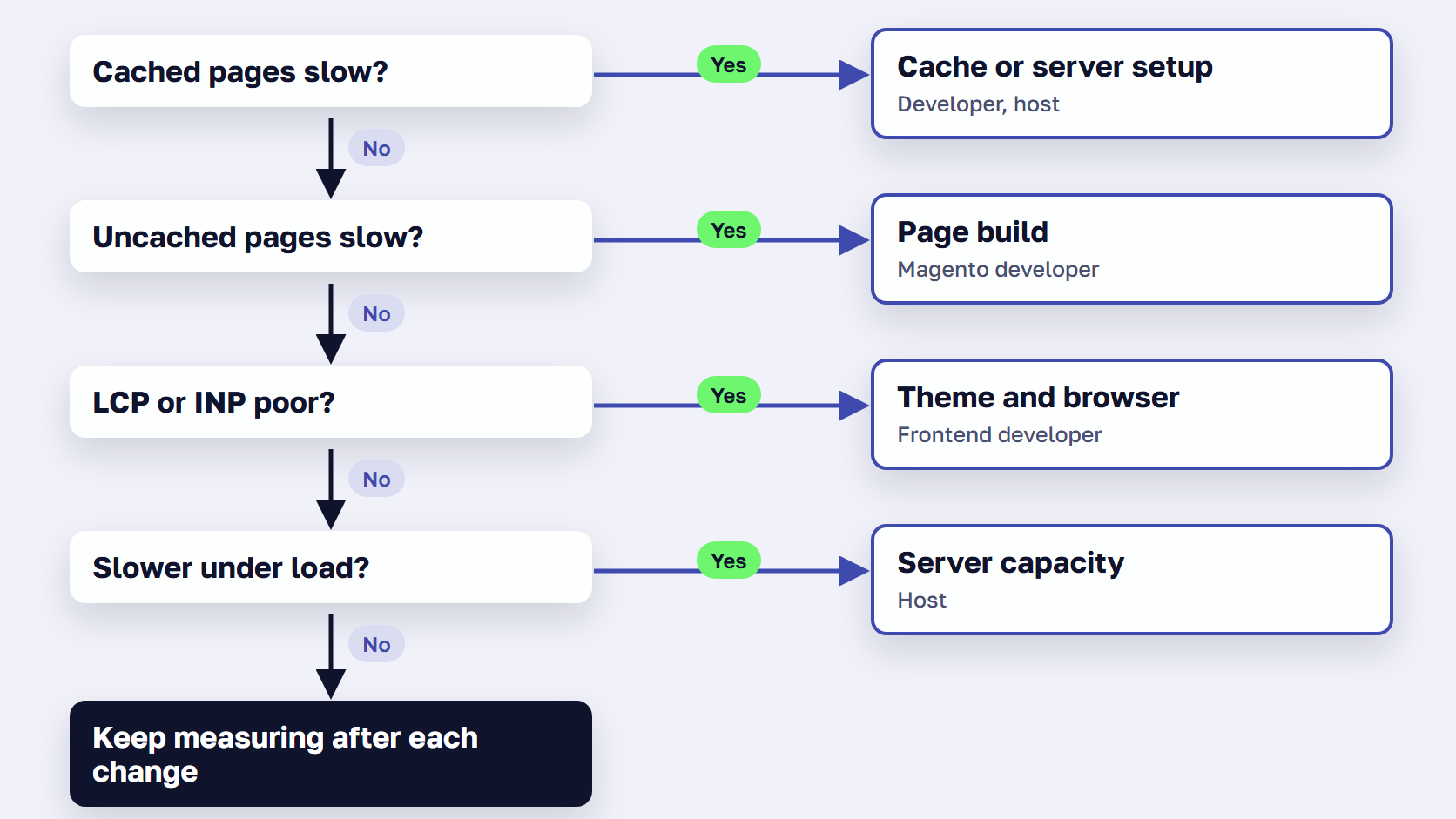
The pattern across your numbers points to the fix. A slow cached page points to the cache or the server setup. A fast cached page with slow uncached versions points to the page build. Good server times with poor Core Web Vitals point to the theme and the browser. Times that climb with traffic point to capacity.
These are the patterns we see most often in our store health checks, with the fix that usually comes first and who owns it.
| What you see | What it means | Fix first | Who fixes it |
|---|---|---|---|
| Cached pages fast, uncached category, filter and search pages slow | Cache misses expose a slow page build | Profile the build, cut cache variants, speed up the page build | Magento developer |
| The same page slow on every load, header says MISS | The cache isn’t serving it: no Varnish, an uncacheable block, or a cache type turned off | Run Varnish, remove the uncacheable block, enable cache types | Magento developer |
| Every page slow, cached ones too, even at quiet hours | The setup under the store: developer mode, old PHP, a small or shared server | Production mode, supported PHP, dedicated resources | Developer and host |
| Fast at low traffic, response times climb with load | The server runs out of capacity at peak | More capacity, or less work per request | Host and developer |
| Logged-in pages slower than logged-out ones | Each customer group keeps its own cache copies, so misses are more frequent | Merge groups that share prices, speed up the build | Developer and store admin |
| Good TTFB, poor LCP or INP | The time goes in the browser: theme JavaScript, images, third-party tags | Hyvä, or trim scripts, images and tags | Frontend developer |
| Lab tests fast, field data poor | Shoppers have slower phones or networks, or visit pages you didn’t test | Test more URLs, check mobile on its own, add a CDN | Host and frontend developer |
| Slow right after deploys or cache flushes, then fine | The cache starts empty and refills from shopper visits | Flush by tag, deploy off-peak, warm the top pages | DevOps or host |
Start with the first row that matches, because the rows combine: a store in developer mode on old PHP shows slow uncached pages too, and that row’s fix comes after the setup fix. For the causes behind each pattern, read our guide to why a Magento site gets slow.
🚀 Quick takeaway
If the cached page is slow too, fix the cache and the server setup first. A faster page build only helps the requests that reach Magento’s PHP code.
How to fix slow uncached Magento pages
When uncached pages are slow and cached ones are fast, the time goes into building the page: running PHP code, rendering layout blocks and querying the database. You can make that happen less often, with fewer cache variants, or make it take less time, with profiling, leaner code and a faster page build.
The first route is fewer misses. Merge customer groups that exist only for reporting and share the same prices, and keep filter combinations out of crawl paths so crawlers don’t fill the cache with pages no shopper opens.
The second route is a faster build. Profile one slow page with New Relic or Blackfire, which breaks the build into layout, blocks, templates and database queries, then remove or replace the blocks and modules that take the longest.
Expedio, scandiweb’s Magento module with an open-source core, takes the second route. It speeds up how Magento builds each page on the server by applying Liquid, the open-source template language created at Shopify, and makes that build at least 2x faster. It runs on Magento Open Source, Adobe Commerce and Commerce Cloud, with Luma, Hyvä or a custom theme, on any hosting, and leaves the theme, data, admin and checkout as they are.

We tested Expedio the way this checklist tests a store. In a benchmark on one merchant’s Hyvä store, measured as server response time, two copies of the store ran side by side on one server with no page cache, across eight page types. On 100 category pages, each opened once from cold, stock Magento took a median of 181 ms and Expedio 57 ms, and a full category page ran 30 database queries instead of 655. The same server also handled 3x the traffic before response times started to rise. The Expedio benchmark has the full method and its limits.
When to bring in a professional audit
Bring in a professional Magento performance audit when the checklist shows a problem you can’t trace, such as slow uncached pages with no obvious cause, or when you need firm numbers before a peak season, an upgrade or a hosting move. A professional audit adds code profiling, load testing on a copy of the store, and a ranked list of fixes.
Where you timed a page, a professional audit profiles it, reads the MySQL slow query log, and runs load tests on a copy of the store with your real catalog. The report ranks every finding by severity and estimated effort, with a recommended fix for each, so your developers can start at the top.
Server response time is a standard line in our store health checks, and our Magento support team can run the deeper audit with you, from profiling to a ranked list of fixes. If your peak season is close, run the audit before your Black Friday code freeze, so there is time to act on what it finds.
🚀 Quick takeaway
Keep each audit’s numbers. The next audit, after an upgrade, a new extension or a hosting move, is only useful if you can compare it with a baseline.
Frequently asked questions about auditing Magento performance
What does a Magento performance check include?
A Magento performance check includes five steps: Core Web Vitals and TTFB from real-user data, server response time for each page type from the cache, the same pages built from scratch and logged in, response times under rising traffic, and the setup behind them, such as application mode, cache configuration, indexers and PHP version. A professional audit adds code profiling and a ranked list of fixes.
How long does it take to audit Magento performance?
The checklist in this article takes a few hours: six page types, timed from the cache and without it, plus field data from PageSpeed Insights or Search Console. Load testing and code profiling take longer, because they need a staging copy of the store, a load-testing tool and application monitoring set up first. Plan that deeper work with your developer or hosting team.
What is a good TTFB for a Magento store?
For real shoppers, Google calls a TTFB of 0.8 seconds or less good and anything over 1.8 seconds poor, measured at the 75th percentile of page loads. For cached pages, Adobe says a page with cacheable blocks should load in less than 150 ms when Varnish works. Uncached pages have no official target, so compare them with your cached times and the 800 ms line.
Is PageSpeed Insights enough for a Magento speed test?
No. PageSpeed Insights tests one URL at a time, and its lab test often gets a page the cache already holds. Its real-user section is the best free field data you have, but it covers the past 28 days and falls back to data for the whole site when a page has too few visits. Add your own uncached timings by page type to see the server side.
Should you audit Magento performance on production or staging?
Use both. Field data and cached timings come from production, because that is what shoppers get. Run the disruptive steps on a staging copy with the same data: cache flushes, developer-mode header checks and load tests. Adobe advises flushing caches outside peak hours, because a flush at peak makes the server rebuild pages while shoppers are waiting for them.
How often should you audit Magento performance?
Run a full audit before each peak season and after any major change: a Magento upgrade, a new theme, a new extension or integration, or a hosting move. Between audits, watch TTFB and Core Web Vitals at the 75th percentile so you notice a slowdown before shoppers report it. Keep each audit’s numbers as the baseline for the next one.
What to do after you audit Magento performance
Auditing Magento performance turns one speed score into a set of numbers you can act on: every page type, from the cache and built from scratch, for real shoppers and under load. The pattern across those numbers tells you what to fix first and who should fix it.
Start with the first decision-table row that matches your numbers, and fix that layer before the next one. If cold pages after a deploy are the problem, a cache warmer can refill the top ones, though not every filter, search and customer group. After each fix, re-run the same URLs with the same method, cached and uncached, so you compare like with like. Most stores find that one or two rows explain most of the wait, and the first fix is often a setting a developer changes in an afternoon. When you’re ready to work through the fixes from the server to the browser, our guide on how to speed up Magento puts all 15 in order.
If your numbers point in more than one direction, share them with us and we'll help you decide what to fix first.