A new Magento 2 (Adobe Commerce) store opens in Luma, the demonstration theme that sets how every storefront page looks out of the box, and before long someone asks for it to look like the brand instead. Luma’s files are right there in the codebase, and editing them is the quickest way to change a color or move a block, until an upgrade writes Adobe’s new version of those files over your changes.
Doing it properly is what Magento 2 theme development is about: a theme of your own, plus a few early choices, starting with which theme it builds on, that get harder to undo once templates and styles pile up. Those choices also decide which extensions keep working without extra frontend work.
What Magento 2 theme development involves
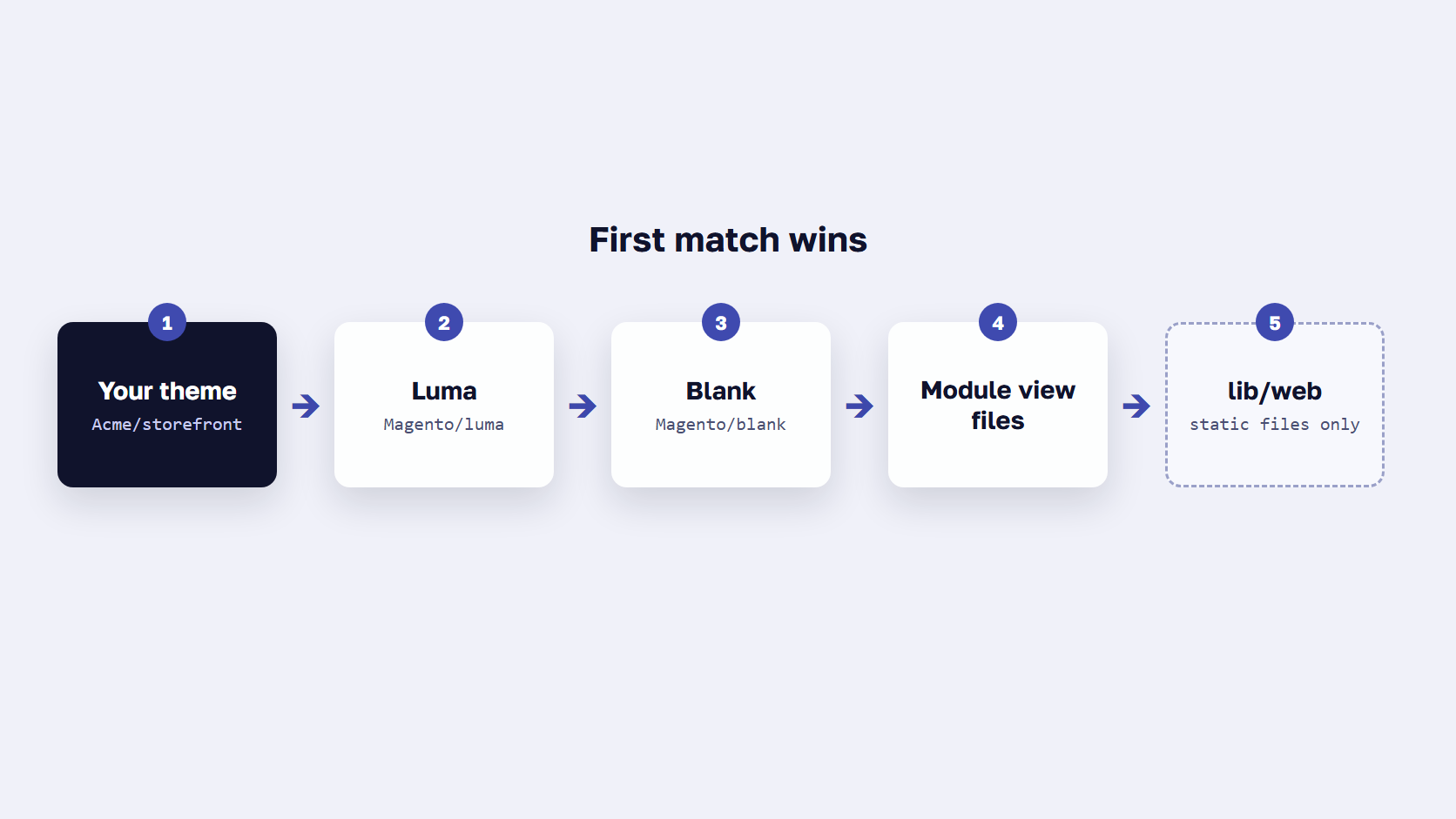
Magento 2 theme development means building a theme of your own instead of editing the ones Magento includes. A theme is a folder of layouts, templates, styles, and images under app/design/frontend. A custom theme names a parent, usually Blank, Luma, or Hyvä, and inherits every file it doesn’t replace. When Magento needs a file, it looks in your theme first, then in each parent theme, then in the module’s own view files.
Most of Magento theme development is deciding which files to replace and which to leave to the parent, because every file you copy is one more to re-check after an upgrade.
How theme inheritance and fallback work
Theme inheritance works through a fallback mechanism: Magento checks each level in turn, and the first match wins. For static files such as CSS, JavaScript, fonts, and images, the last stop after the module is Magento’s library in lib/web.
A Magento child theme on Luma therefore starts with every Luma file, and through Luma every Blank file, until you add a copy of your own. That chain is the basis of theme development in Magento. Layouts are the one exception: Magento collects the layout files from every level and merges them, which is why a layout can be extended with a small file instead of being replaced.
Why you shouldn’t edit Luma or Blank directly
Because an upgrade can erase the work. Adobe’s docs say: “We strongly recommend not to change the default Luma and Blank theme files, because if you do edit the default files, your changes can be overwritten by the new version of the default files during upgrades.” Each time you upgrade Magento, Adobe’s new copies of those files arrive, and your edits don’t come with them. The same applies to Hyvä’s files in vendor/hyva-themes, which is why Hyvä’s docs recommend a child theme for every customization.
🚀 Quick takeaway
Theme inheritance has no depth limit. Adobe’s docs say “the level of theme inheritance is not limited,” so a seasonal theme can inherit from your brand theme, which inherits from Luma, and change only the few files that differ.
Choose a parent theme: Blank, Luma, or Hyvä
Pick Blank when the design will be fully custom, and Luma when its finished look is close to what you want and you only need to restyle it. Both run on Magento’s LESS, RequireJS, and Knockout stack, so most extensions work with them as they are. Pick Hyvä for a new build where browser speed matters most. It replaces that stack with Tailwind CSS and Alpine.js, and extensions with frontend code need a Hyvä compatibility module.
| Parent | Frontend stack | How you style it | Start here when |
|---|---|---|---|
| Magento/blank | LESS, RequireJS, jQuery, Knockout | _extend.less and _theme.less | The design is fully custom |
| Magento/luma | Same stack, inherits from Blank | LESS, overriding Luma’s variables | Luma’s layout is close to the brand |
| Hyva/default | Tailwind CSS, Alpine.js | Tailwind classes, built in web/tailwind | A new build, browser speed first |
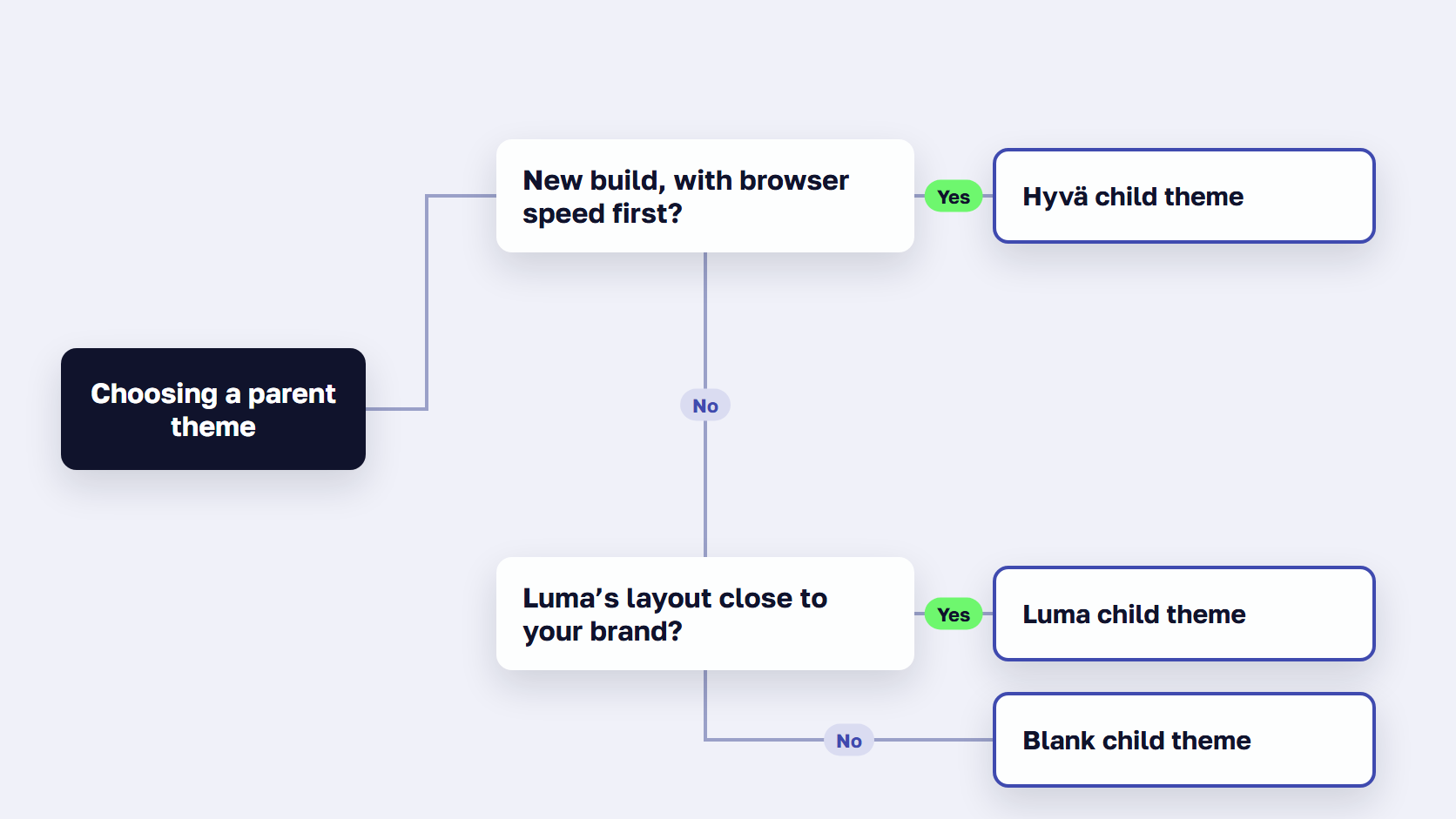
Hyvä’s default theme has no parent of its own, so nothing from Luma or Blank carries over into a Hyvä child theme: templates, layouts, and styles start fresh. The parent decides the stack your Magento custom theme runs on, so settle it before you write the first template.
This guide covers Magento Open Source and Adobe Commerce on cloud infrastructure or on-premises. Adobe Commerce as a Cloud Service doesn’t support Luma storefronts.
If you’re still weighing ready-made options, our ranking of the best Magento themes compares them.
How to create a custom Magento theme, step by step
To create a custom theme in Magento 2:
- Create the folder app/design/frontend/<Vendor>/<theme>.
- Declare the theme and its parent in theme.xml.
- Register it in registration.php.
- Add composer.json if you will install it as a package.
- Set product image sizes in etc/view.xml, or inherit the parent’s file.
- Add web/ folders for styles, fonts, images, and scripts, plus a logo.
Then open the Admin so Magento registers the theme.
The Magento 2 custom theme below uses the vendor name Acme, the theme name storefront, and Luma as the parent. Every file follows the Luma files in Magento 2.4.9’s own code and Adobe’s create-storefront guide.
Step 1: Create the theme folder
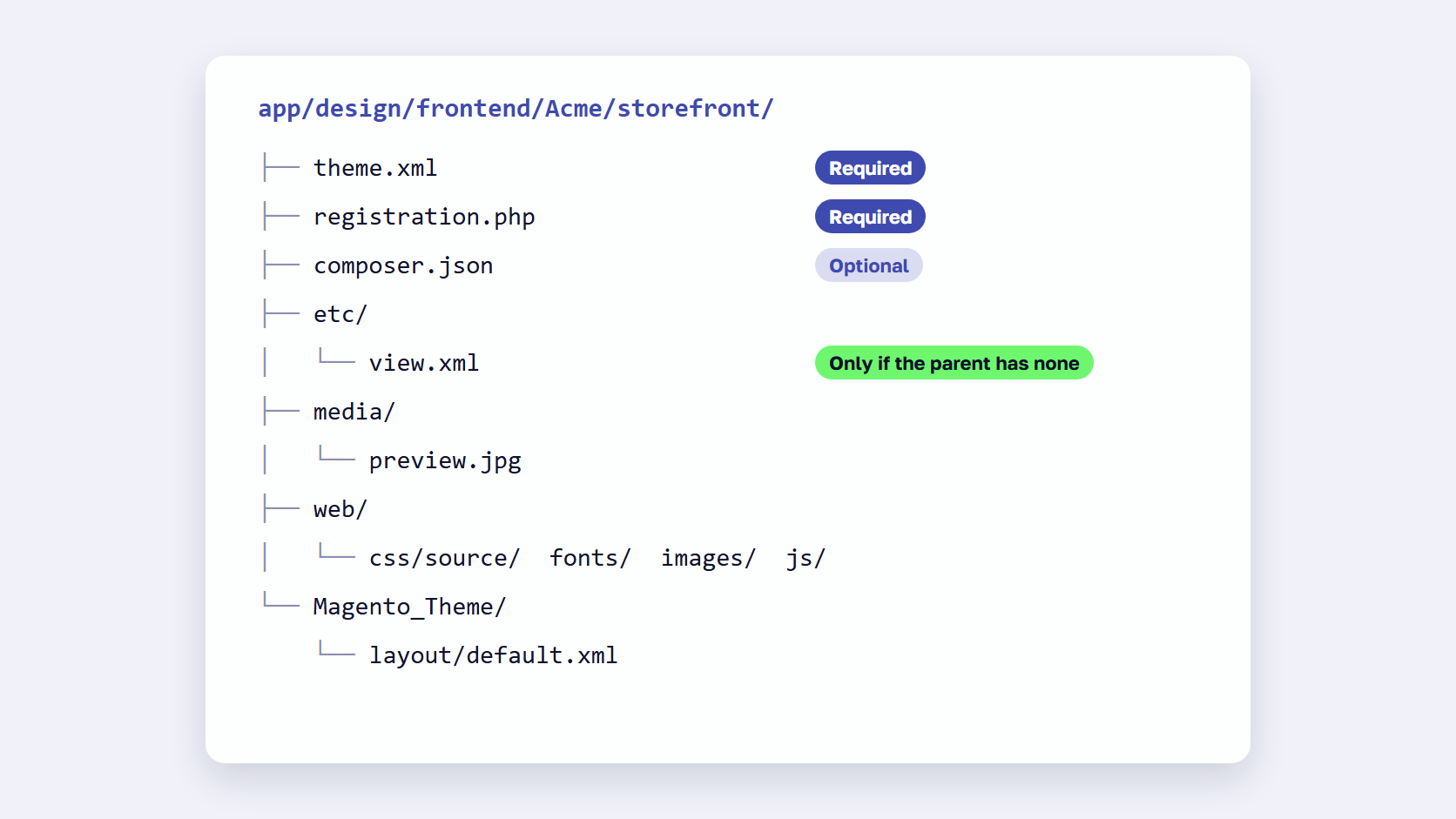
Create app/design/frontend/Acme/storefront. The Magento 2 theme structure puts everything the theme owns in that one folder: configuration in etc, a preview image in media, static files in web, and the declaration files in the root. The vendor and theme names you pick here reappear in registration.php, so decide them once:
app/design/frontend/Acme/storefront/
├── etc/
│   └── view.xml
├── media/
│   └── preview.jpg
├── web/
│   ├── css/source/
│   ├── fonts/
│   ├── images/
│   │   └── logo.svg
│   └── js/
├── composer.json
├── registration.php
└── theme.xml
Step 2: Declare the theme in theme.xml
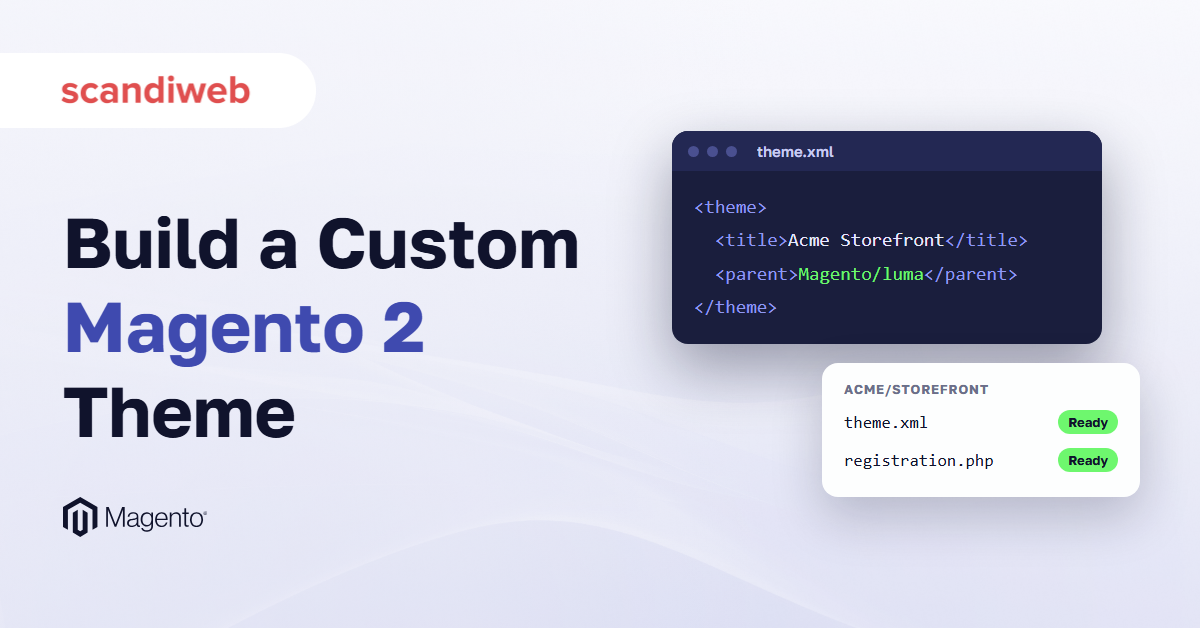
theme.xml declares the theme as a component. <title> is the name shown in the Admin, and <parent> names the theme you inherit from, here Magento/luma. If you don’t have a preview image yet, remove the whole <media> node. If you change the title or the parent after Magento has registered the theme, open or reload any Admin page so the change reaches the database.
<theme xmlns:xsi="http://www.w3.org/2001/XMLSchema-instance" xsi:noNamespaceSchemaLocation="urn:magento:framework:Config/etc/theme.xsd">
    <title>Acme Storefront</title>
    <parent>Magento/luma</parent>
    <media>
        <preview_image>media/preview.jpg</preview_image>
    </media>
</theme>
Step 3: Register the theme with registration.php
registration.php tells Magento’s component registrar that this folder is a theme. The path string must match the folders exactly, frontend/Acme/storefront for app/design/frontend/Acme/storefront, and the file must be in the theme’s root folder.
<?php
use Magento\Framework\Component\ComponentRegistrar;

ComponentRegistrar::register(ComponentRegistrar::THEME, 'frontend/Acme/storefront', __DIR__);
Step 4: Add composer.json (optional)
Add composer.json only if you will install the theme as a package through Composer, PHP’s package manager. The name must follow <vendor-name>/theme-<area>-<theme-name>. The versions below match Luma’s own 2.4.9 composer.json: magento/framework 103.0.* and the Luma theme 100.4.*. The PHP constraint follows Adobe’s 2.4.9 support statement, where PHP 8.5 is fully supported and 8.4 is allowed for upgrades only. Older tutorials still print PHP 5.x or 7.x constraints, so don’t copy them.
{
    "name": "acme/theme-frontend-storefront",
    "description": "Acme storefront theme",
    "type": "magento2-theme",
    "require": {
        "php": "~8.4.0||~8.5.0",
        "magento/framework": "103.0.*",
        "magento/theme-frontend-luma": "100.4.*"
    },
    "autoload": {
        "files": ["registration.php"]
    }
}
Step 5: Set image sizes in etc/view.xml
etc/view.xml holds the product image sizes and other storefront image settings. Copy the whole file from Luma’s etc folder, or from Blank’s, then change only the elements that differ. The excerpt below makes category grid images square at 250 by 250 pixels. If your sizes match the parent’s, skip the file: it is required for a theme but optional when the parent already has one.
<image id="category_page_grid" type="small_image">
    <width>250</width>
    <height>250</height>
</image>
Step 6: Add static files, a logo, and a preview image
Static files are the CSS, JavaScript, fonts, and images sent to the browser as they are. Each type gets its own subfolder of web: css/source, js, fonts, and images. Put logo.svg in web/images and Magento picks it up as the theme logo automatically. A logo with another name or format is declared in an extending Magento_Theme/layout/default.xml, with the logo_file, logo_width, logo_height, and logo_alt arguments on the logo block. Add media/preview.jpg and the Admin theme list shows it.
How to apply your theme and see changes while you work
Work in developer mode, where Magento writes static files to pub/static on demand instead of waiting for a deploy. After adding the theme, open or reload any Admin page so Magento registers it, then open Content > Design > Configuration, edit the row for your store view and pick your theme under Applied Theme. When a change doesn’t show, clear pub/static and var/view_preprocessed, run bin/magento cache:clean and reload the page.
Switch to developer mode
Developer mode is Magento’s mode for building and testing. In it, static files aren’t cached but written to pub/static on demand, so the next page load writes a fresh copy of whatever you edited. Switch with bin/magento deploy:mode:set developer and confirm with bin/magento deploy:mode:show. Developer mode isn’t supported on Adobe Commerce Cloud environments, which use their own deploy flow.
Register and apply the theme
Magento registers a theme when you open or reload any Admin page. bin/magento setup:upgrade runs the same recurring theme registration, which suits a deploy script. Check that the theme is listed under Content > Design > Themes.
It isn’t applied automatically. To apply a theme in Magento 2, edit your store view’s row under Content > Design > Configuration, pick the theme under Applied Theme on the Default Theme tab, save, and clear the cache. Each store view has its own row, so different store views can run different themes.
Clear static files and cache after each change
After you change a static file, Magento keeps showing the old copy until you clear pub/static and var/view_preprocessed and reload the page. Run bin/magento cache:clean first, and cache:flush only when cleaning doesn’t help. If a change still doesn’t show, redeploy the theme’s static files with setup:static-content:deploy and -f, which deploys in any mode and writes the actual files in place of symlinks.
bin/magento deploy:mode:set developer
bin/magento setup:upgrade
bin/magento cache:clean

# when a change doesn't show
rm -rf pub/static/frontend/Acme/storefront/* var/view_preprocessed/pub/static/frontend/Acme/storefront/*
bin/magento setup:static-content:deploy en_US --theme Acme/storefront -f
🚀 Quick takeaway
Reach for cache:clean before cache:flush. Cleaning removes items from Magento’s enabled cache types only, while flushing purges the whole cache storage, which other applications on the same storage may be using too.
How to customize a Magento theme: layouts, templates, and styles
Customize a Magento theme by adding files to your own theme, never by editing the parent’s. Extend a layout with a same-name XML file in <Vendor>_<Module>/layout, and replace one completely only from layout/override. Override a template by copying it to the same path under <Vendor>_<Module>/templates and editing the copy. For styles, add LESS to web/css/source/_extend.less, or copy the parent’s variables into _theme.less to change them.
Magento theme customization comes down to where you put the file. The parent’s copy stays untouched, and your theme adds a file in the right place.
Extend a layout, or override it
Extend by default. A layout is the XML that places blocks on a page, and Magento merges every layout file it finds for a page, so a small file in your theme can remove, move, or add a block. Put it under <theme_dir>/<Vendor>_<Module>/layout/ with the same name as the file you are changing. The example below, at Acme/storefront/Magento_Theme/layout/default.xml, removes the footer copyright block.
<page xmlns:xsi="http://www.w3.org/2001/XMLSchema-instance" xsi:noNamespaceSchemaLocation="urn:magento:framework:View/Layout/etc/page_configuration.xsd">
    <body>
        <referenceBlock name="copyright" remove="true"/>
    </body>
</page>
Override only when the changes are too large to express as an extension. A module layout is overridden from layout/override/base/, a parent theme’s layout from layout/override/theme/Magento/luma/, each under the module folder in your theme. Adobe advises against overriding, and whichever route you take, never rename blocks or change handle inheritance.
Override a template
A template is the .phtml file that renders a block’s HTML. To change one, copy it from the module into the same path under <Vendor>_<Module>/templates in your theme and edit the copy. The minicart template at Magento_Checkout/view/frontend/templates/cart/minicart.phtml, for example, is overridden by Acme/storefront/Magento_Checkout/templates/cart/minicart.phtml, because your theme comes first in the fallback chain. Prefer a layout change whenever it can do the job: every overridden template is a file you re-check against the module’s new version after each upgrade.
Change styles with _extend.less and _theme.less
Blank and Luma are styled in LESS, a CSS preprocessor. To add custom CSS, create web/css/source/_extend.less in your theme and write your rules there. Magento compiles it together with the parent’s styles, and the rules and variables in _extend.less take precedence over those in _theme.less. To change the parent’s variables, create _theme.less instead, and copy every variable you need from the parent’s file, because your _theme.less replaces the parent’s file completely.
.action {
    &.primary {
        background-color: #3f4aaf;
        border-color: #3f4aaf;
    }
}
Server-side compilation is the default and the only option in production mode. Client-side compilation compiles LESS in the browser on every page load: Adobe’s docs mark it as recommended for theme development, and it slows every page, so keep it off live stores. The Grunt tasks for compiling LESS still come with Magento 2.4.9.
How to customize the Luma theme in Magento 2
Create a child theme with Magento/luma as the parent in theme.xml, register and apply it, and change only your copies. Luma’s colors and fonts are variables in its _theme.less, so a _theme.less in your theme replaces that file, and you copy across every variable you keep. Luma’s own files stay as Adobe delivered them, and the next upgrade can’t touch your work.
How to install a Magento 2 theme from a vendor
Install a ready-made theme with Composer when the vendor provides it as a package: run composer require with the package name, then bin/magento setup:upgrade. A theme that comes as an archive goes into app/design/frontend/<Vendor>/<theme> instead. Either way, open the Admin to register it, then apply it under Content > Design > Configuration. Composer themes are stored in vendor/ and can’t be edited there, so your changes go into a child theme.
composer require vendor/theme-frontend-name
bin/magento setup:upgrade
bin/magento cache:clean
Replace vendor/theme-frontend-name with the package name from the theme’s documentation. The steps match how you install a Magento 2 extension.
If the theme comes as an archive, copy its <Vendor>/<theme> folder into app/design/frontend so the structure matches. We prefer Composer where the vendor offers it, because updates and versions are then managed with the rest of the project. Adobe describes both methods and recommends neither.
Installing a Magento 2 theme finishes in the Admin either way: register it, check Content > Design > Themes, and apply it. Your own changes go into a child theme with the vendor theme as the parent. For example, Satoshi for Hyvä, scandiweb’s open-source theme built on Hyvä, installs as the Composer package scandiweb/satoshi.
When to build on Hyvä instead
Build on Hyvä when you are starting a new storefront or a full redesign, and speed in the browser matters more than reusing Luma templates. The child theme is created the same way, with Hyva/default as the parent in theme.xml. Then you copy Hyvä’s web folder into it and build the CSS with Tailwind from web/tailwind. The Hyvä core has been free and open source since version 1.4.0, released on November 10, 2025.
In theme.xml, set <parent>Hyva/default</parent>, and in registration.php use the path frontend/Acme/hyva. Then copy the default theme’s web folder and build the CSS:
mkdir -p app/design/frontend/Acme/hyva/web
cp -r vendor/hyva-themes/magento2-default-theme/web/* app/design/frontend/Acme/hyva/web/
cd app/design/frontend/Acme/hyva/web/tailwind
npm ci --ignore-scripts
npm run build
The build reads web/tailwind/hyva.config.json. Add the parent theme to its include list, as Hyvä’s docs show:
{
    "tailwind": {
        "include": [
            { "src": "vendor/hyva-themes/magento2-default-theme" }
        ]
    }
}
npm run build writes web/css/styles.css. Hyvä’s docs on building your theme cover the rest, and our guide on how to work with Hyvä walks through the install and setup that come before this point. Check Hyvä’s requirements page against your Magento and PHP versions before you commit to it on a new release.
Extensions built for Luma or Blank need a compatibility module to work on Hyvä, and access to those modules comes with the free license key. Version 1.4.0 is also the release where Hyvä went open source, under the OSL and AFL licenses. scandiweb’s Hyvä theme development team works as a Hyvä Platinum Partner.
🚀 Quick takeaway
Hyvä 1.4.0 and newer need Node.js 20 on development machines to run the Tailwind build, and npm run build-prod was removed in that release. Use npm run build for production CSS and npm run watch while you work.
How your theme choice affects store speed
A theme decides what the shopper’s browser downloads and runs, so a lighter theme makes pages appear and respond sooner once they arrive. It doesn’t change how long Magento’s server takes to build each page before sending it, the step where Magento runs code and database queries to put the page together. That step works the same way under Luma, Blank, Hyvä, or the custom theme you just built.
In scandiweb’s September 2026 study of Chrome’s field data, Magento stores on Hyvä had a good server response time 23.2% of the time, against 23.0% for Magento overall. Our guide to how to speed up Magento covers that server step.
If pages are slow before the browser starts drawing them, Expedio Theme works on that server step. It makes Magento at least 2x faster, and the same server handles 3x more traffic before response times start to rise. It works under your theme, in the server-side work that builds each page, whether that is Luma, Hyvä, or a custom theme like the one in this guide. As its product page puts it, “Custom themes and the extensions that touch their templates get adapted and tested.”
Frequently asked questions about Magento 2 theme development
Should I use Blank or Luma as the parent theme?
Use Blank when the design is fully custom, because it gives you Magento’s base layouts and styles without Luma’s look to undo. Use Luma when its layout is close to what you want and you mostly need new colors, fonts, and a few changed blocks. Both run on the same LESS and RequireJS stack, and Luma itself inherits from Blank, so a Luma child theme carries both.
What files does a Magento 2 theme need?
Two files are required: theme.xml, which declares the theme’s title and parent, and registration.php, which registers the theme under frontend/<Vendor>/<theme>. etc/view.xml, which sets product image sizes, is required unless the parent theme already has one. composer.json is optional and only needed when you distribute the theme as a Composer package. Layouts, templates, and web/ assets are added as you customize.
Why doesn’t my new theme show up in the Admin?
Magento registers a new theme when you open or reload a page in the Admin, so reload one first. If the theme still isn’t listed under Content > Design > Themes, check that registration.php uses ComponentRegistrar::THEME with the path frontend/<Vendor>/<theme>, that the folder names match that path, and that theme.xml is in the theme’s root folder.
Why are my theme changes not showing on the storefront?
Magento keeps serving old copies of static files until they are cleared. Delete the theme’s files in pub/static and var/view_preprocessed, run bin/magento cache:clean and reload the page. If that doesn’t help, redeploy with bin/magento setup:static-content:deploy, adding -f outside production mode. In production mode, static files are never generated on demand, so every change needs a fresh static content deploy.
How do I customize the Luma theme in Magento 2?
Create a child theme with Magento/luma as the parent in theme.xml, register it and apply it, then make every change in the child theme. Put style changes in web/css/source/_extend.less, change Luma’s layouts with same-name XML files under <Vendor>_<Module>/layout, and copy any template you need to change into <Vendor>_<Module>/templates. Adobe warns that edits to Luma’s own files can be overwritten during upgrades.
How do I add custom CSS to a Magento 2 theme?
Create web/css/source/_extend.less in your theme and add your rules there. Magento compiles it with the parent theme’s styles, and rules and variables in _extend.less take precedence over those in _theme.less. While you work, clear pub/static and var/view_preprocessed after each change, or use the Grunt LESS tasks that still come with Magento 2.4.9 to recompile and reload automatically.
Should I install a theme with Composer or by copying it into app/design?
Use Composer when the theme vendor provides a package, because updates then arrive through Composer with the rest of your dependencies. Copy the files into app/design/frontend/<Vendor>/<theme> only when the theme comes as an archive. Adobe notes that Composer-based themes are stored in vendor/ and can’t be modified directly, so keep your own changes in a child theme either way.
Can I create a Hyvä child theme the same way?
Mostly. A Hyvä child theme uses the same folder, theme.xml, and registration.php, with Hyva/default as the parent. You then copy the web folder from Hyvä’s default theme into yours, point web/tailwind/hyva.config.json at the parent theme, and run npm ci and npm run build in web/tailwind to generate styles.css. Styling happens in Tailwind classes instead of LESS.
Where to start with Magento 2 theme development
Magento 2 theme development starts with two required files, theme.xml and registration.php, and one habit: every change goes into your own theme, never into the files of Luma, Blank, or Hyvä. Pick the parent first, because it decides the stack you build on, how much of the design you inherit, and which extensions work without extra frontend work. Extend a layout before you override it, and copy a template only when a layout change can’t do the job. When something doesn’t show on the storefront, clear pub/static and var/view_preprocessed before you look anywhere else. Custom Magento theme development is also work our team does on Luma, Blank, and Hyvä stores, as a Hyvä Platinum Partner with 894+ Adobe certifications.
Need a custom Magento theme built, or a Luma store moved to Hyvä? Talk to our Magento team.