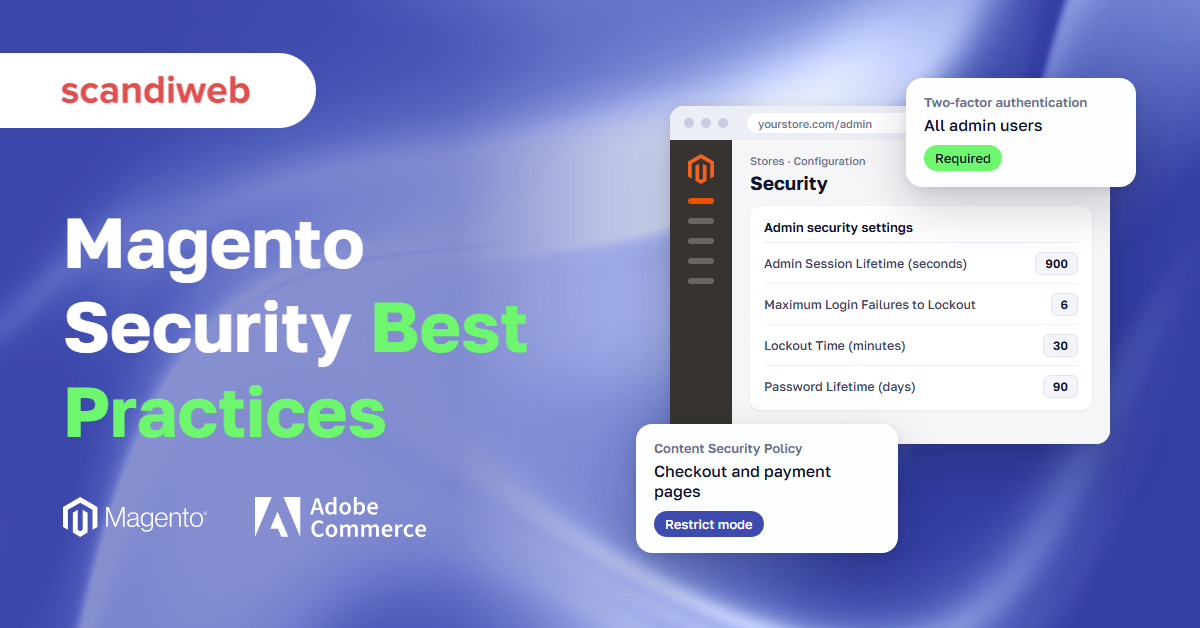

Adobe’s own list of Magento security best practices is short: five top priorities, led by two-factor authentication, a second sign-in step for everyone who uses the store’s admin. Magento (Adobe Commerce) has even switched that step on by default since version 2.4.0.
Each item still turns into settings in the admin, the back office where the store is run, plus commands on the server and decisions with your host. The same Adobe page says most compromises “are not due to an innovative attacker.” In 2019, we investigated a card skimmer on a client’s store where the intruder had one admin login, made 11 changes inside 20 minutes, and put a fake card form on the checkout.
Which of those jobs comes first on your store, and what does each one take?
What should I do to secure my Magento store?
To secure a Magento store, work through ten Magento 2 security best practices in priority order, starting with security patches and admin access. They apply to Adobe Commerce and Magento Open Source alike, with edition and hosting differences marked where they come up.
- Apply every security patch and stay on a supported version
- Lock down admin access
- Control extensions and custom code
- Control the scripts on your payment pages
- Put a firewall and bot protection in front of the store
- Scan for malware, from outside and on the server
- Protect and rotate the encryption key, tokens, and AI agent access
- Harden the server: PHP version, production mode, and file permissions
- Keep backups and a disaster recovery plan
- Log and monitor admin and server activity
We chose this order: 1 and 2 close the causes Adobe names first, 3 and 4 cover the code and scripts you add, 5 and 6 catch what gets past those, and 7 to 10 limit the damage.
Our Magento 2 security guide explains the risks behind these Magento security tips, and the Magento security checklist verifies each practice in the same order.
Which Magento security best practices come first?
The Magento security best practices that come first are patching and admin access. Adobe’s security best practices page names unpatched flaws, poor passwords, and weak ownership and permission settings as the usual causes, and patches and tighter admin roles close the first two.
1. Apply every security patch and stay on a supported version
An unpatched known flaw is the first cause on Adobe’s list, and a patch, the fix Adobe publishes for a security hole, closes it.
Adobe’s isolated security patches for both editions come out on Patch Tuesday, the second Tuesday of each month. Under Adobe’s monthly patch policy, you first move to the latest -p release (Adobe’s security-only release, such as 2.4.8-p5), then apply each monthly patch in order, on staging before production. Hotfixes for a zero-day, a flaw attacked before a fix exists, arrive separately.
To see which monthly patches are missing, run the Commerce Version Tool with php vendor/bin/patch-status from the project root. Adobe’s article on the tool covers Adobe Commerce only, so we do not know whether Magento Open Source gets it.
On Adobe Commerce on cloud infrastructure, Adobe’s cloud security page requires patches within 30 days of release. We work to tighter limits: the same day for a fix to an actively exploited flaw, a week for critical-rated fixes, and 30 days for the rest. Adobe also advises signing up for its security notifications.
See how to apply a Magento security patch for the procedure and Magento end of life dates for supported versions, or hand the monthly slot to our Magento support team.
🚀 Quick takeaway
Run php vendor/bin/patch-status after each Patch Tuesday. If the command is missing, the July 2026 patch file is not installed.
2. Secure the Magento admin with two-factor authentication, roles, and sign-in rules
One admin login is enough to change what your checkout shows customers. In a 2019 card-skimming case we investigated, an intruder used one admin account to put a script in the Scripts and Style Sheets field that showed some visitors a fake card form. Our post says the attack works on any store where every admin user can reach the configuration area and two-factor authentication is missing.
To close that gap:
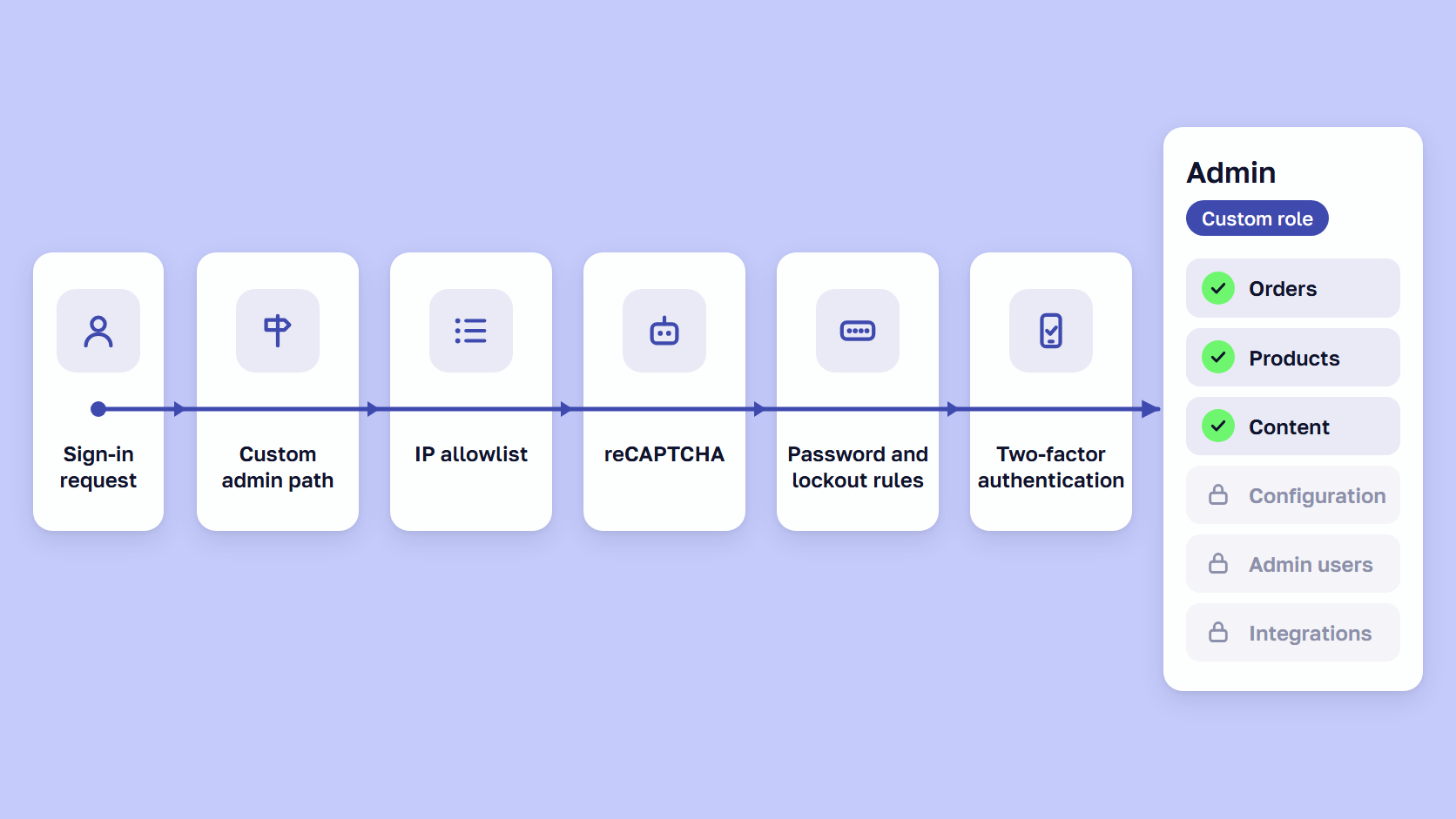
- Keep two-factor authentication on, with providers such as Google Authenticator set at Stores > Settings > Configuration > Security > 2FA
- Give each person their own account and a custom user role at System > Permissions > User Roles, with Role Resources set to Custom
- Set the admin security settings below at Stores > Settings > Configuration > Advanced > Admin > Security
- Add reCAPTCHA to Admin Sign In at Stores > Settings > Configuration > Security > Google reCAPTCHA Admin Panel
- Restrict the admin to known IP addresses through your host
- Set a custom admin path
| Setting | Adobe’s default | What we set |
|---|---|---|
| Admin Account Sharing | Not stated | No, so one account cannot be signed in on several devices at once |
| Add Secret Key to URLs | Yes | Keep Yes |
| Maximum Login Failures to Lockout Account | 6 | Keep a number, because blank means unlimited |
| Login is Case Sensitive | Not stated | Yes |
A locked user gets back in with bin/magento admin:user:unlock {username}, one of Adobe’s admin commands.
Adobe “strongly recommends against disabling the 2FA module” in its Magento two-factor authentication FAQ. To reset a user’s two-factor authentication, open the user at System > Permissions > All Users, click Reset on the 2FA tab, and save the user.
Adobe’s store URL guide says a custom Magento admin URL “does not directly protect your site from a determined bad actor.” Set it at Stores > Configuration > Advanced > Admin or with bin/magento setup:config:set --backend-frontname="your_path", after checking with your host, since a mistake locks you out until it is fixed on the server. The way back is php bin/magento config:set admin/url/use_custom 0 and php bin/magento config:set admin/url/use_custom_path 0, then a cache flush.
🚀 Quick takeaway
Open System > Permissions > All Users and check that every account belongs to one named person who still works with you.
How do you control the code and scripts running on a Magento store?
On a Magento store, you control the code by limiting and updating extensions and custom code, and the scripts by allowing only approved ones on payment pages. Content Security Policy (CSP) and Subresource Integrity are the browser checks for those pages.
3. Keep extensions and custom code under control
Every extension adds code that has to be patched as fast as the core. On June 12, 2026, the vendor of an order attributes extension fixed a critical file upload flaw (CVE-2026-53787), and Sansec blocked the first attack attempt hours after the fix was published. We do not know how many stores the attack reached.
Adobe’s rules are to get extensions only from the Adobe Commerce Marketplace or your solution integrator, use few extensions and vendors, review code before installing where possible, and check that an integrator’s license can transfer to you. Adobe says to audit the server for leftovers such as .git directories, database dumps, and phpinfo files.
We advise updating extensions on the core schedule, treating a critical extension fix like a critical core fix, and removing unused ones. Our guide to Magento security plugins and extensions covers vetting a vendor, and our Magento security audit reviews third-party modules and custom code.
4. Protect payment pages with Magento 2 Content Security Policy
A script added to the checkout can copy card numbers as customers type them, as the 2019 skimmer did.
Content Security Policy is a set of rules the store sends to the browser about which script sources to trust. Adobe’s CSP overview calls it a defense against cross-site scripting (XSS), an attacker’s script running on your pages, which we covered in how we verified XSS audit findings.
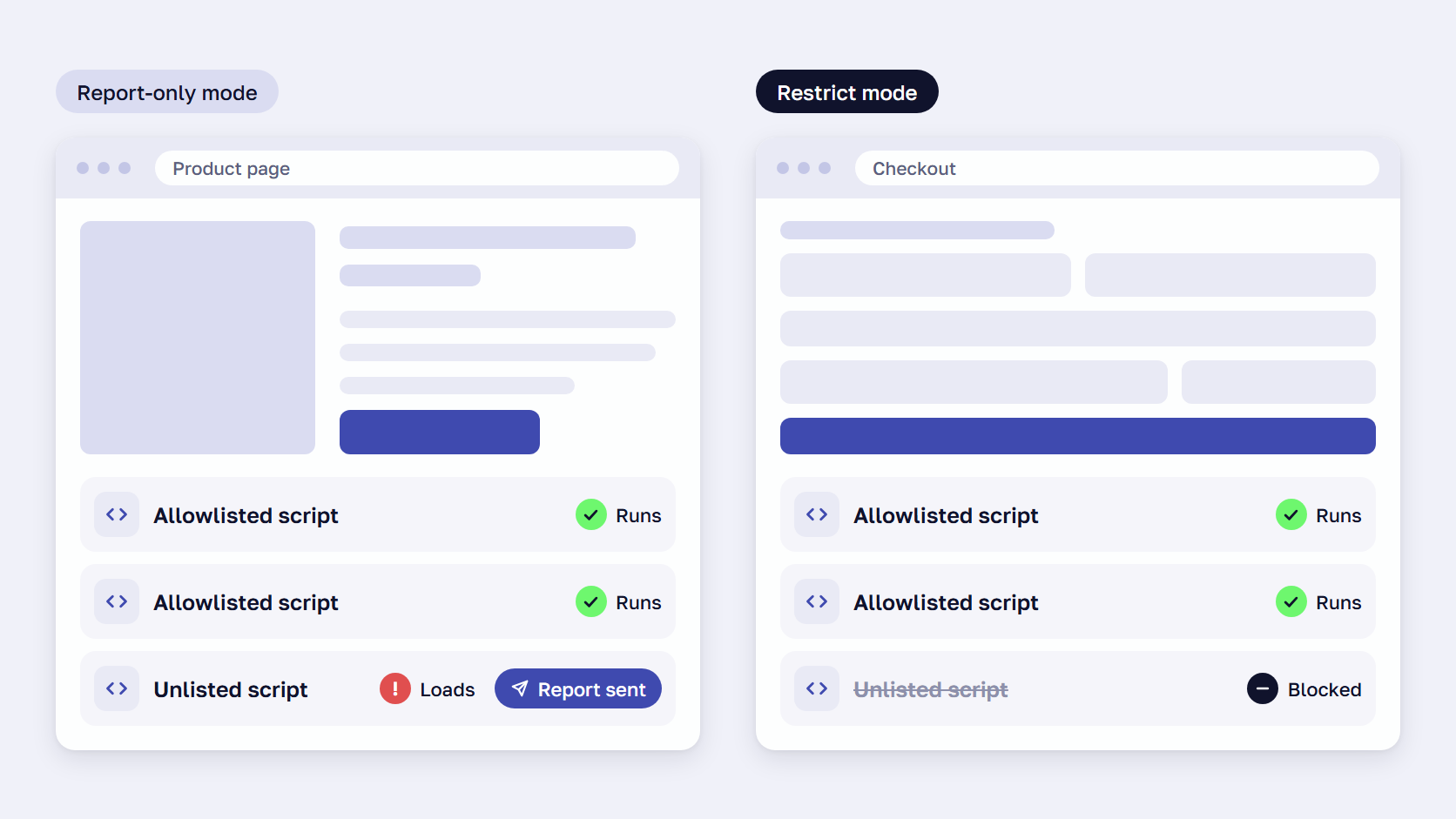
CSP arrived in Magento 2.3.5 in report-only mode, and 2.4.7 set these defaults for both editions.
| Content Security Policy mode | What the browser does | Where Magento 2.4.7 and later uses it by default |
|---|---|---|
| Report-only | Loads the content and reports anything that breaks the policy | Every page except payment pages |
| Restrict | Blocks anything that is not on the allowlist | Payment pages: storefront checkout and Admin order creation |
On payment pages, inline scripts run only if a developer whitelists them, following Adobe’s CSP developer guide:
- Add allowed domains and inline-script hashes (fingerprints) to a custom module’s
csp_whitelist.xml - Set the mode per area with the
report_onlysetting in the module’setc/config.xml: 1 for report-only, 0 for restrict - From 2.4.7, use
CspNonceProviderto add a nonce, a one-time code that lets one inline script run
Violations show only in the browser console until you set a report URI, the address where browsers send violation reports, at Stores > Settings > Configuration > Security > Content Security Policy.
A blocked script shows as a blank or incomplete checkout with missing payment methods, per Adobe’s checkout troubleshooting article. Adobe’s fix is a whitelist entry: a hash, a nonce, or Magento’s SecureHtmlRenderer. We advise keeping payment pages in restrict mode even when a payment method breaks.
Subresource Integrity checks that a script file still matches its stored SHA-256 hash. It is on by default on payment pages from 2.4.7 and in the 2.4.4-p9, 2.4.5-p8, and 2.4.6-p6 security releases, and Adobe added it “to comply with PCI 4.0 requirements.” Custom remote JavaScript is not covered.
PCI DSS requirements 6.4.3 and 11.6.1, in effect since March 31, 2025, ask merchants to authorize every payment page script, check its integrity, and watch for tampering. The PCI SSC removed both requirements for merchants who validate with SAQ A, the shortest PCI self-assessment questionnaire, but they remain in the standard, and our PCI DSS SAQ guide shows which SAQ keeps them.
🚀 Quick takeaway
If the checkout goes blank, open the browser console. A “Refused to execute inline script” message means CSP blocked a script that needs a whitelist entry.
How do you block and detect attacks on a Magento store?
A web application firewall, a filter in front of the store that blocks known attack patterns, and bot controls stop attacks before they reach a Magento store, even when no fix exists yet. Malware scanning then finds what got through.
5. Put a web application firewall and bot protection in front of the store
A firewall can block an attack pattern on the day it becomes known, before any patch is installed.
On Adobe Commerce on cloud infrastructure, Fastly’s firewall is included, and Adobe can update its rules to “virtually patch” a flaw. Bot management and advanced rate limiting need the paid Advanced Security add-on. On Magento Open Source or self-hosted Adobe Commerce, the firewall comes from your host or CDN, the network that serves the store’s pages from servers near the shopper.
When StyleSmuggler became public on September 5, 2026, with no Adobe fix yet, our firewall rules were live on ReadyMage, our managed Magento hosting, the same day, as our StyleSmuggler response describes.
Against bots, turn on Magento reCAPTCHA for checkout and coupon code forms at Stores > Settings > Configuration > Security > Google reCAPTCHA Storefront.
From Adobe Commerce 2.4.7, payment rate limiting slows card testing, where bots check stolen card numbers through your checkout. It is off by default, at Stores > Configuration > Sales > Sales > Rate Limiting, and we do not know whether Magento Open Source has it. Our Magento fraud prevention guide has the full setup.
6. Scan for malware from outside and on the server
An injected script can run on the checkout until someone looks for it.
Adobe recommends running its free Security Scan Tool weekly. It covers both editions with over 21,000 security tests and sends requests to ports 80 and 443 only, so it sees what a visitor could see.
For the rest, Adobe’s incident guidance names file integrity monitoring, which alerts you when files change, and says to check the HTML header and footer settings at every scope for JavaScript you did not add.
We advise a weekly scan, continuous server-side malware scanning, and a check of the Scripts and Style Sheets field after any unplanned admin change, since the 2019 skimmer used that field. Our Magento Security Scan Tool guide covers what the scan misses.
How do you limit what an attacker can do and recover fast?
To limit what an attacker can do on a Magento store, protect the keys and tokens they would steal and take write access away from the code. To recover fast, keep backups you have restored at least once and logs that show what changed.
7. Protect the encryption key, tokens, and AI agent access
Keys and tokens an attacker already copied still work after you patch. Sansec’s CosmicSting analysis found that in the 2024 attacks, existing secret keys were not invalidated when stores installed the update.
The encryption key protects passwords and other sensitive data. Since 2.4.8, encryption key rotation runs from the command line only.
- Turn on maintenance mode with
bin/magento maintenance:enableand disable cron - Make sure
app/etc/env.phpis writable - Run
bin/magento encryption:key:change - Flush the cache, re-enable cron, and turn maintenance mode off
An integration token, the credential another system uses to reach the store’s API, lasts until someone revokes it. In the integrations admin at System > Extensions > Integrations, set Resource Access to Custom, use Reauthorize to issue a new token, and delete integrations nobody recognizes.
Keep “Allow OAuth Access Tokens to be used as standalone Bearer tokens” off at Stores > Configuration > Services > OAuth > Consumer Settings, because Adobe’s token guide warns of “a never-expiring access token.” Admin API tokens last 4 hours by default.
Our rule for AI agents: one integration each, with Custom resource access, deleted when the project ends.
To make a setting read-only in the admin, use bin/magento config:set --lock-env <path> <value> from Adobe’s configuration commands.
After a break-in, rotate admin passwords, integration tokens, payment gateway and database credentials, and SSH keys at their source, because rotating the encryption key alone does not cancel credentials an attacker already copied. For a decoupled frontend, see PWA and headless storefront security.
🚀 Quick takeaway
Rotating the encryption key signs out every admin and customer at once. Schedule it for a quiet hour and warn customer service.
8. Harden the server: PHP version, production mode, and file permissions
A writable code folder or an unsupported PHP version gives an attacker more to work with.
Adobe’s system requirements pair 2.4.9 with PHP 8.5, 2.4.8 with 8.4 and 8.3, 2.4.7 with 8.3 and 8.2, and 2.4.6 with 8.2 and 8.1. PHP 8.2 stops getting security fixes on December 31, 2026, and our Magento upgrade services can plan the move.
Run the store in production mode, the mode meant for live stores, with bin/magento deploy:mode:set production from Adobe’s mode commands. Switching does not set Magento 2 file permissions, so for a two-user setup Adobe’s file permissions guide gives these commands to remove write access from code directories.
find app/code lib pub/static app/etc generated/code generated/metadata var/view_preprocessed \( -type d -or -type f \) -exec chmod g-w {} +
chmod o-rwx app/etc/env.php
On cloud, code is deployed on a read-only file system. Adobe’s list also asks for HTTPS on every page and secured server access.
9. Keep backups and a disaster recovery plan you have tested
Adobe asks for a disaster recovery plan because a clean restore point is how a compromised store comes back quickly.
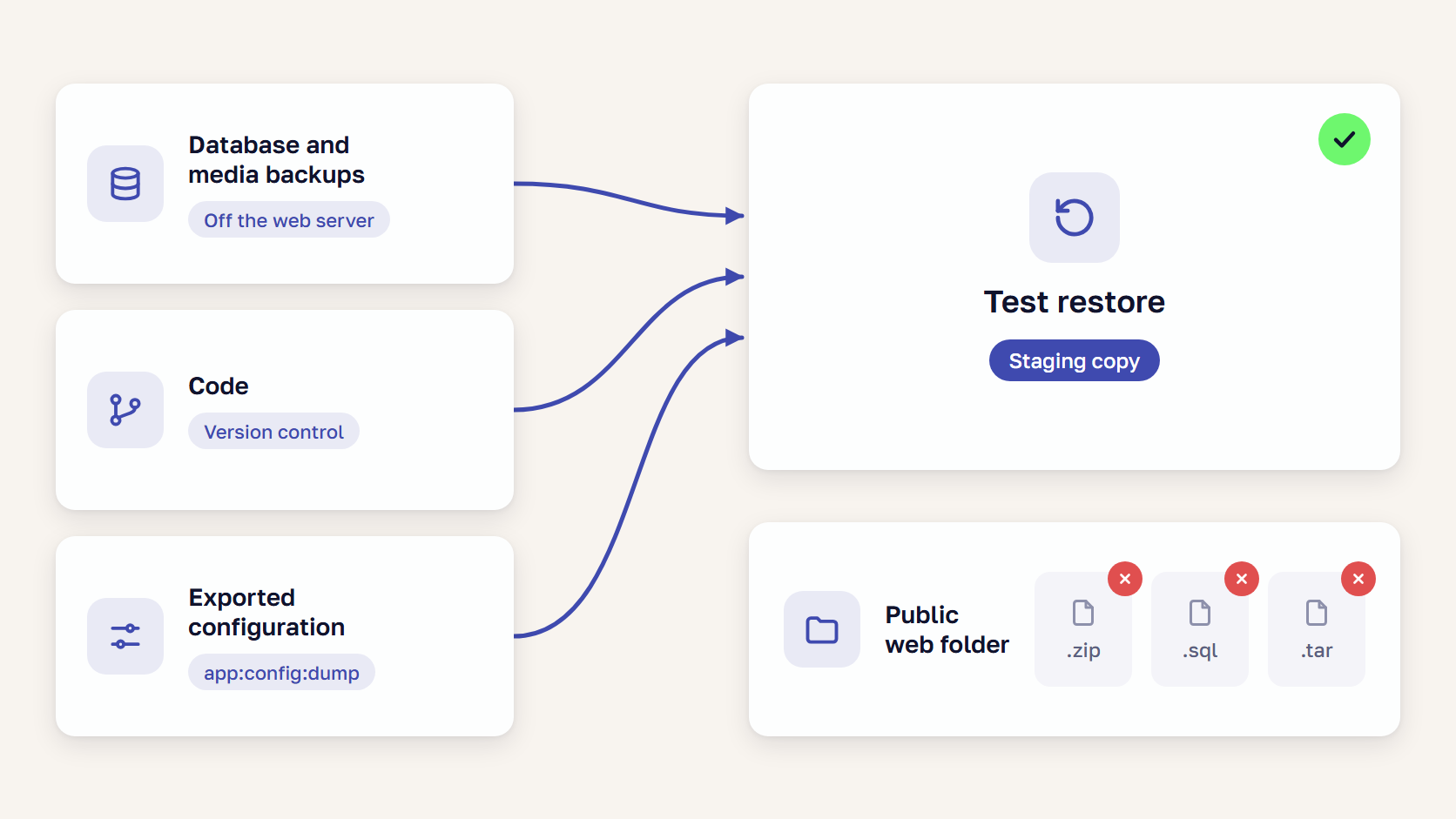
Magento’s built-in backup is deprecated and disabled by default, and Adobe points to tools like Percona XtraBackup. On cloud, a snapshot holds the database plus the var, pub/media, and app/etc folders, and the code stays in Git.
To make redeployment easier, Adobe recommends exporting the configuration: bin/magento app:config:dump writes shared settings to app/etc/config.php for source control.
Sansec checked 2,037 stores in 2023 and found backup archives in the public web folder of 250, holding database passwords, API keys, and customer data.
Our advice is to keep backups off the web root and the server, code in version control, and a restore tested on a staging copy before you need it. Name who decides to restore and who tells customers.
🚀 Quick takeaway
Search the public web folder for .zip, .sql, and .tar files and move any you find off the server. Attackers try thousands of file names to find them.
10. Log admin and server activity and watch it
Without logs, you cannot tell what an intruder changed. In the 2019 case, the access logs showed that 11 changes were made but not what they were.
Action Logs exist only in Adobe Commerce and record every admin action by default. Configure them at Stores > Settings > Configuration > Advanced > Admin > Admin Actions Logging and read the report under System > Action Logs. Adobe’s page does not state the default retention for archived entries, so set it at Stores > Settings > Configuration > Advanced > System > Admin Action Log Archiving.
On Magento Open Source, the server access logs are the record. Adobe’s incident guidance says to preserve critical logs, and cloud Pro projects include New Relic Logs.
We advise sending logs somewhere the web server cannot delete them, with alerts for new admin users, changes to the Scripts and Style Sheets field or payment settings, and spikes in failed sign-ins.
Magento security best practices for enterprise Adobe Commerce teams
For a larger team, the answer to “what are Adobe Commerce security best practices” is the same ten practices plus company sign-in for admin users, tighter access on cloud, and penetration testing of the customized store. Most depend on Adobe IMS or cloud hosting.
- Adobe IMS sign-in (Adobe Commerce 2.4.5 and later), where admin users sign in with an Adobe ID and the native admin login and two-factor authentication are switched off
- Single sign-on, one company login for every tool, through Adobe IMS and Federated ID accounts tied to the company’s identity provider, set up in the Adobe Admin Console because Adobe has no Commerce-specific guide
- Two-factor authentication for SSH on cloud, which Adobe Commerce Support turns on at the account owner’s request
- An admin IP allowlist on cloud, built with a Fastly Edge ACL and a custom VCL snippet
- Action Logs and the Advanced Security add-on, covered in practices 10 and 5
- Penetration testing of your customized application, the customer’s job on cloud
Enable Adobe IMS with bin/magento admin:adobe-ims:enable once two-factor authentication is enforced for the whole Adobe organization, and save the native admin and two-factor credentials first, as Adobe’s IMS setup guide advises.
Frequently asked questions
What are the Magento security best practices?
The ten Magento security best practices, in priority order, are to apply security patches, lock down admin access, control extensions and custom code, control payment page scripts, add a firewall, scan for malware, protect keys and tokens, harden the server, keep tested backups, and log activity.
How do I secure the Magento admin?
Secure the Magento admin by keeping two-factor authentication on for everyone and giving each person their own account with a role limited to their job. Then set a lockout limit, add reCAPTCHA to the sign-in form, and restrict access to known IP addresses.
What is Content Security Policy in Magento 2?
Content Security Policy in Magento 2 is a set of rules the store sends to the browser about which script sources to load. It arrived in 2.3.5 in report-only mode, and since 2.4.7 payment pages block any script not whitelisted in csp_whitelist.xml.
How often should I update Magento?
Update Magento every month, after Adobe’s Patch Tuesday release. The monthly patches go on in order, on top of the latest -p release, Adobe’s security-only release. Install an emergency fix for an actively exploited flaw the same day, and every other patch within 30 days.
Main takeaway
Apply Magento security best practices from the top of the list down. Current patches and a locked-down admin close the first two causes Adobe names, and each practice after those limits what an attacker can reach or shortens the recovery.
This week, book a recurring slot after each Patch Tuesday to test and apply that month’s patch, and check that every admin user has two-factor authentication set up on a personal account. Neither job needs a developer.
Most of the remaining work needs a developer or server access. Hand the commands and admin paths in this post to whoever runs your server, in the same order, and confirm each practice with the security checklist before you move on to the next one.
If practices 1 to 4 are still open on your store, ask our Magento team to go through them with you, and bring your Magento version, hosting setup, and number of admin accounts.





























Share on: