
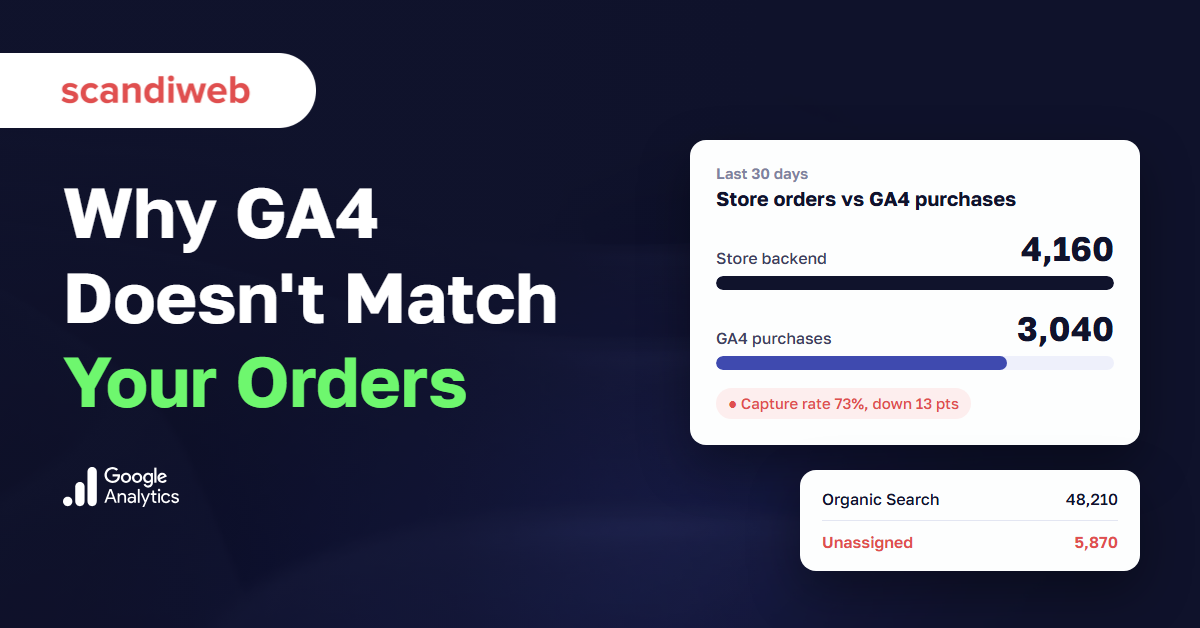
If your store backend shows more orders than GA4 again this month, or if the Unassigned row in your traffic report keeps growing, you’re probably asking one question: is this a tracking problem, or are we really selling less?
GA4 unassigned traffic, (not set) values, and missing purchases usually point at the same few causes: consent, blocked tags, payment pages that send shoppers back as referrals, purchase events that fire twice or not at all, and bots. Below, we go through each cause and how to confirm it in your own reports. The guide ends with a monthly check that compares GA4 with your order database, so the next gap gets caught in weeks.
Is the gap between GA4 and your orders normal?
GA4 will never match your order database exactly, and it isn’t meant to. The backend records every paid order. GA4 records the purchases it was allowed to see and managed to receive. A stable gap is normal. A gap that suddenly grows, sits on one payment method, or comes with a jump in GA4 unassigned traffic usually means something in the tracking broke.
Gaps you should expect
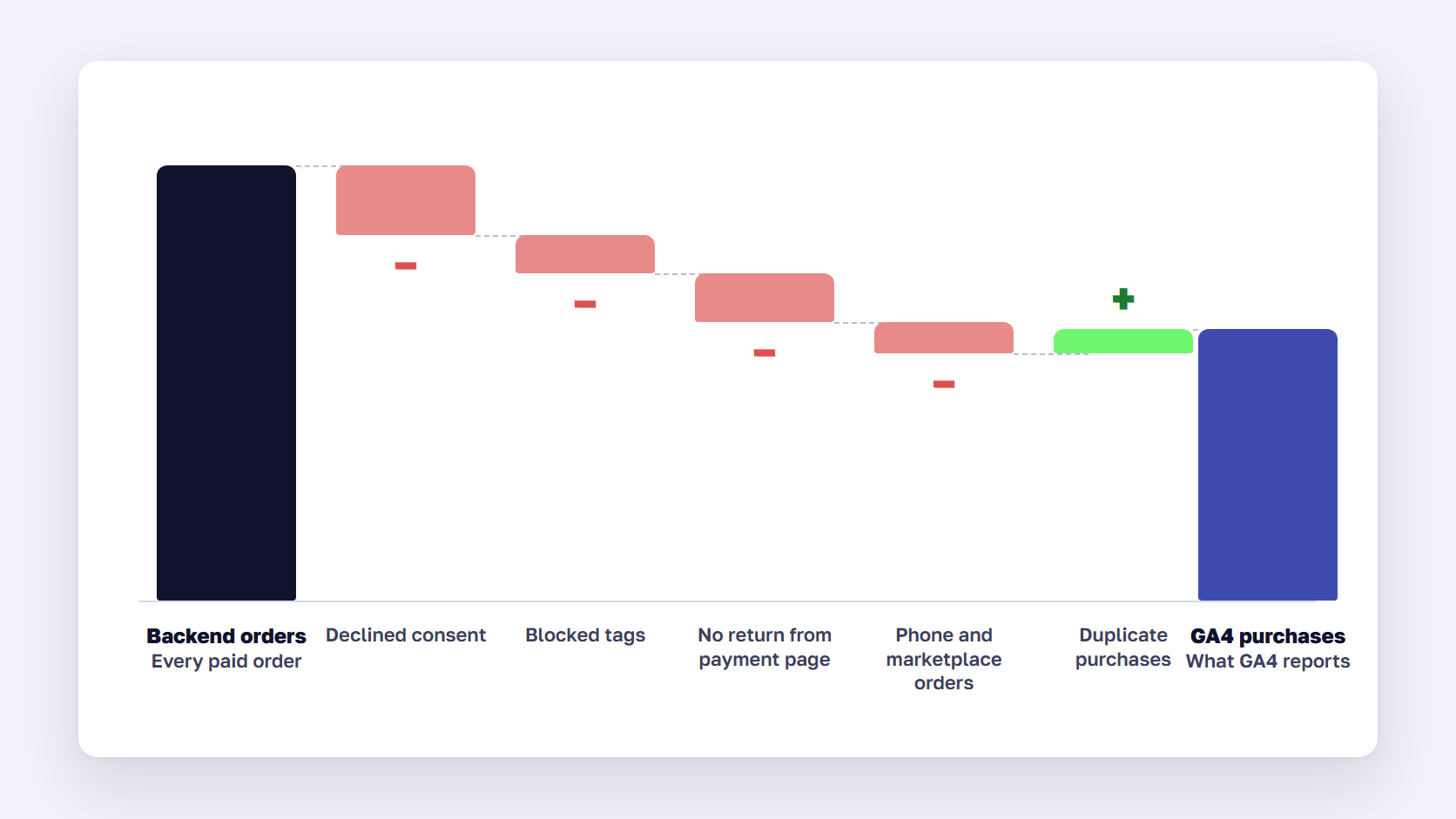
Some orders never reach GA4 by design.
- Shoppers who decline analytics cookies, when consent mode blocks the Google tag
- Browsers and extensions that block requests to Google Analytics
- Phone, marketplace, and manually created orders that never pass through the website
- Orders completed on a payment provider’s page when the shopper never comes back to the confirmation page
Other differences come from how each system counts. GA4 reports in the property’s time zone, so orders placed near midnight can land on a different day than in the backend. Standard GA4 properties also keep processing data for 24–48 hours, so yesterday’s numbers may still change. And refunds or cancellations only reduce GA4 revenue if your store sends a refund event.
Signs the gap is a tracking problem
| What you see | What it usually means |
|---|---|
| The gap jumps after a theme, checkout, or app release | The purchase tag or dataLayer changed |
| GA4 shows more purchases than the backend | Purchase events fire twice, often on confirmation page reloads |
| The gap sits on one payment method | Shoppers don’t return from that provider’s page |
| paypal.com or a bank domain appears as a referral | Payment domains are missing from the unwanted referrals list |
| Unassigned or (not set) share grows month over month | Tags fire in the wrong order, or UTM values don’t match channel rules |
| Revenue matches but order counts don’t | Transaction IDs are missing or reused |
If the gap opened right after a replatform, start with tracking before you look at rankings. The traffic-drop triage in our SEO migration checklist puts the same check first.
🚀 Quick takeaway
Watch how the gap moves from month to month. If consent costs you around 15% of orders every month, that’s your baseline. If the gap jumps from 8% to 20% in one week, look for a broken tag.
What is unassigned traffic in GA4?
Unassigned traffic in GA4 is traffic that GA4 couldn’t place in any default channel. Google defines Unassigned as “the value Analytics uses when there are no other channel rules that match the event data.” It usually appears when a UTM source or medium doesn’t match any channel rule, or when events reach GA4 without the session or user details that attribution needs.
Direct is a separate channel with its own rule: the source has to be exactly “(direct)” with no medium. A session lands in Unassigned when GA4 got a source it couldn’t match to any rule, or got no usable source at all.
Common causes of GA4 unassigned traffic
The most common cause is campaign tagging. GA4 puts a session in Email only when the source or medium is “email”, “e-mail”, “e_mail” or “e mail”, so a link tagged utm_medium=newsletter matches no rule and lands in Unassigned. Medium values like “banner” or “influencer”, or a campaign name typed into the medium field, end up in the same place.
The other causes are technical.
- Purchase or lead events sent from your server through the Measurement Protocol, without the browser’s client ID and session ID, can’t be joined to a session
- Custom events that fire before the Google tag’s config command can’t be tied to a session properly, and Google lists this as a cause of both unassigned and (not set) values
- A cookie prefix that differs between pages, or a cross-domain linker that changes the client ID, splits one visit into short sessions that GA4 can’t attribute
How to fix unassigned traffic in GA4
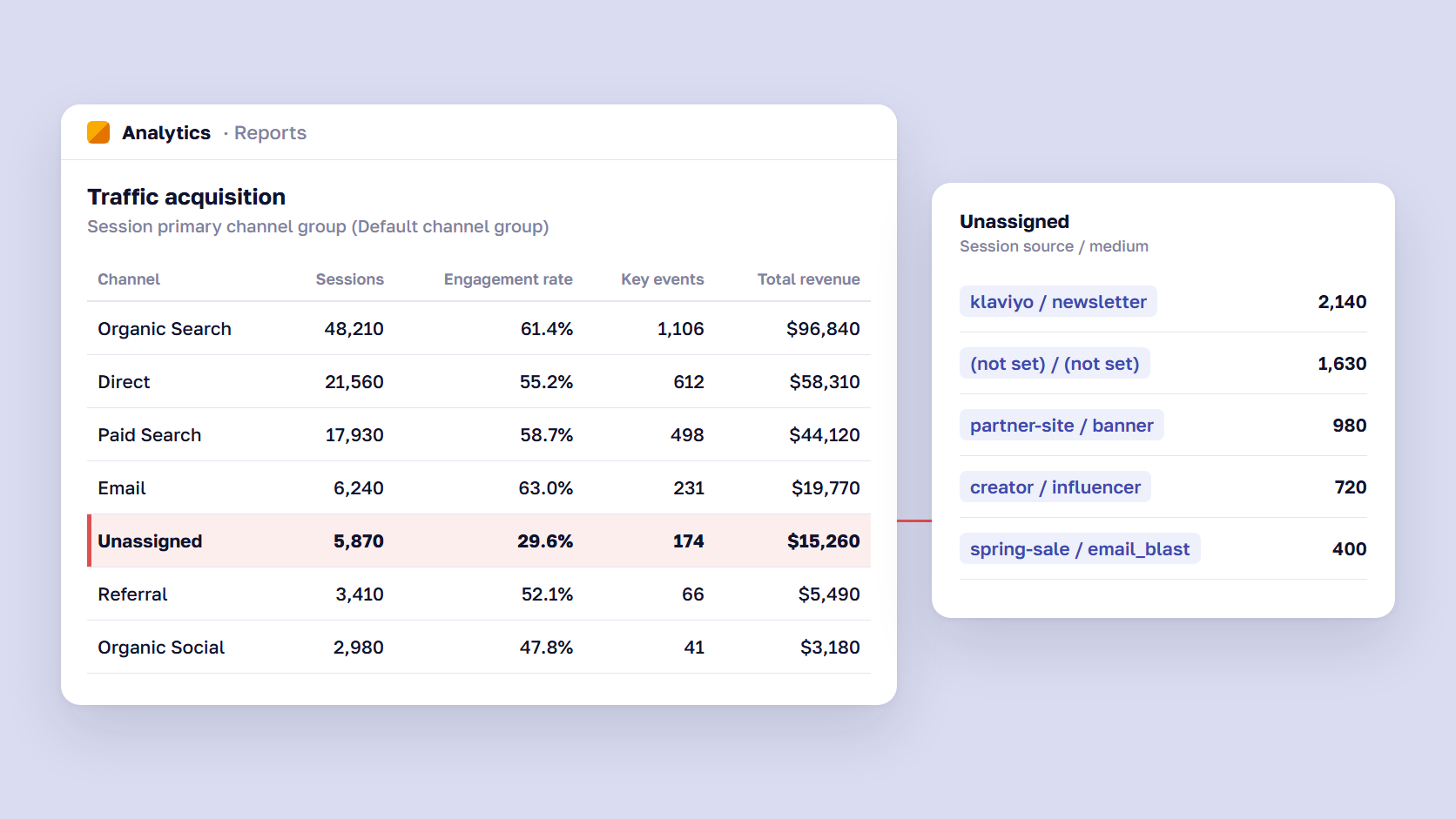
Start by finding out what is inside the Unassigned row. In Reports, open Acquisition, then Traffic acquisition, and change the primary dimension to Session source / medium while filtering for Unassigned. Each row points to a cause.
- Readable source and medium values, such as “klaviyo / newsletter”, mean your UTM naming doesn’t match GA4’s rules. Agree a naming convention with the marketing team and fix the links at the source. A custom channel group can relabel these sessions in reports, but the links stay wrong until someone retags them.
- “(not set) / (not set)” usually means missing session data. Check that the Google tag fires first, on the Initialization trigger in Google Tag Manager, before any event tags.
- Unassigned traffic that rises around purchase or lead events usually comes from server-side events. Send the client ID and session ID with every Measurement Protocol event.
🚀 Quick takeaway
Check the campaign links before you touch the tags. A one-page UTM naming guide for everyone who builds links, agencies included, often clears more of the Unassigned row than a developer can.
What does (not set) mean in GA4?
(not set) in GA4 means a dimension had no value: GA4 received the data without a piece of information it expected. The same label appears in many reports, and the cause depends on which dimension shows it, so check the dimension before changing any tags.
- In Session source / medium, (not set) means the session has no session_start event, and Google’s fix is to fire the Google tag on the “Initialization – All pages” trigger in Google Tag Manager
- In Landing page, it means the session has no page_view event, which happens when a session starts with another event, such as a purchase sent from a server
- In Google Ads dimensions, it means the Ads account isn’t linked to GA4 or auto-tagging is off
- In a newly registered custom parameter, it can show for the first 24 hours
Consent settings can also cause (not set). Google notes that calling the consent default command again when a shopper changes their choice, instead of the update command, can drop the session_start event. Sending events marked as denied after the shopper has accepted cookies does the same. If your consent banner went live around the time (not set) appeared, check how it sends consent changes. Our guide to Google Consent Mode v2 covers the setup itself.
Why GA4 is missing transactions
When GA4 shows fewer purchases than your backend, the cause is usually one of three things: the shopper didn’t come back from the payment page, consent or a blocker stopped the tag, or the purchase event fired wrongly. Check them in that order, because the first one leaves the clearest trace in your reports.
Payment redirects and self-referrals
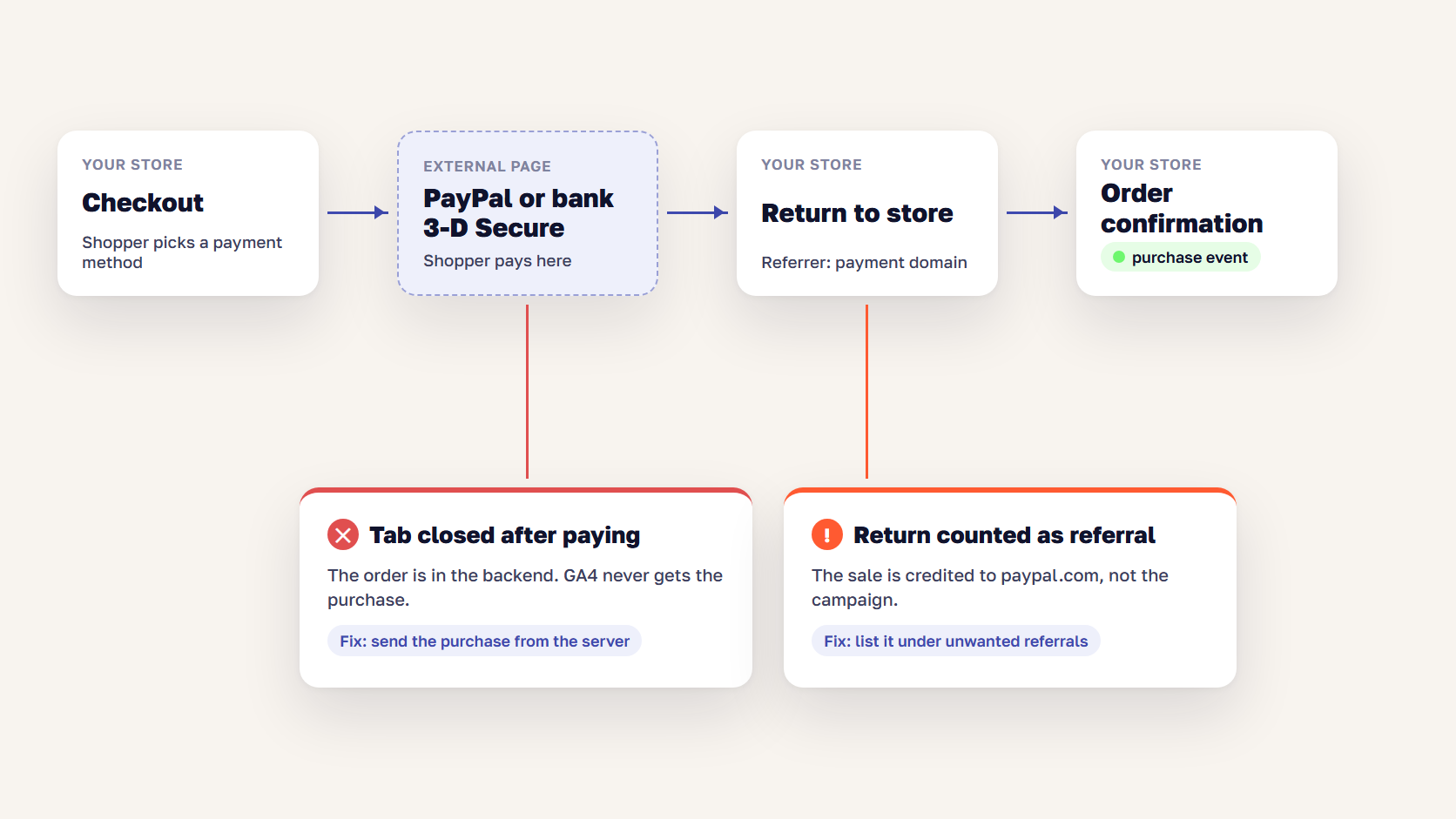
Many payment flows send the shopper away from your store: PayPal, Klarna, bank transfer pages, or a bank’s 3-D Secure check. Two things can go wrong.
The shopper pays but closes the tab before the confirmation page loads, so the purchase event never fires. The order exists in the backend and is missing from GA4.
Or the shopper returns, and GA4 treats the payment domain as a new referral. The purchase then gets credited to paypal.com instead of the ad or email that brought the shopper in. To stop that, add every payment and 3-D Secure domain to the unwanted referrals list in the GA4 data stream settings. GA4 allows up to 50 conditions per stream. The list only works going forward, so sessions already credited to those domains stay as they are.
For the orders that never reach the confirmation page, the only full fix is to send the purchase from your server when the order is created, through the Measurement Protocol, with the shopper’s client ID and session ID attached. Without those IDs, the purchase shows up in GA4 as unassigned.
Consent, ad blockers, and short cookies
Shoppers who decline analytics cookies, or browse with a blocker, don’t send observed purchases to GA4. That gap is real and permanent. With advanced consent mode, GA4 can model some of the missing behavior, but only once the property passes Google’s thresholds: at least 1,000 events a day with analytics consent denied for 7 days, and at least 1,000 daily users who accepted on 7 of the last 28 days. Smaller stores often never qualify.
Safari also limits cookies set by JavaScript to seven days. A shopper who comes back after two weeks looks like a new user, and the earlier campaign gets no credit for the sale. The order still reaches GA4, but the campaign that won it shows up as Direct.
How much consent costs you depends on your markets and your banner. Compare the gap for EU countries with the gap for countries where you don’t show a banner, and you’ll see the size of it. The consent mode guide explains the basic and advanced options.
Purchase events that fire twice or not at all
GA4 removes duplicate purchases when they share the same transaction ID, but only for the same user and only on web data streams. That covers most confirmation page reloads. These four problems get through anyway.
- An empty transaction ID: Google says GA4 deduplicates every purchase sent with transaction_id=””, so they collapse into one and you undercount
- Two tags for one purchase, such as a platform app and a Google Tag Manager tag, where only one of them sends the transaction ID
- A cart ID or quote ID sent in place of the order number, which makes different orders look like duplicates
- A purchase tag that fires on page load before the order data is in the dataLayer, so it sends no value or no items
Test this with real orders. Place orders with each payment method in GA4’s DebugView and compare the transaction ID, value, and currency with the backend. Our guide to dataLayer QA covers the checks for each eCommerce event.
🚀 Quick takeaway
Export a month of GA4 transaction IDs and match them against backend order numbers. The orders that are missing tell you more than the totals do: if most of them used one payment method, you’ve found the leak.
How to spot and filter bot traffic in GA4
GA4 removes traffic from known bots and spiders automatically, using Google’s research and the IAB’s International Spiders and Bots List. You can’t turn this off, and you can’t see how much it removed. Bots that aren’t on the list still get through, and they often appear as sudden spikes in Direct, Unassigned, or Referral traffic.
GA4 bot traffic usually follows a pattern you can see in an exploration.
- A spike in sessions with no matching rise in orders or add-to-carts
- Average engagement time close to zero and an engagement rate far below normal
- Most sessions from one city, often near a data center, or from one unusual screen resolution
- One landing page, or a hostname that isn’t your store
Once you’ve confirmed a spike, you have three options. For reporting, build a segment or a report filter that excludes the pattern, which hides it without deleting anything. For future data, GA4’s data filters cover internal traffic, developer traffic, and traffic from other hostnames. Those filters are permanent and only apply from the day you activate them, so test them on a copy of the report first. For the bots themselves, block them at your CDN or firewall, before they reach the store.
Bots don’t only inflate traffic. Card-testing bots also create real failed or fraudulent orders in your backend, which makes the GA4 gap look worse than it is. Our guide to Magento fraud prevention explains how to spot card testing.
A monthly GA4 reconciliation routine
A monthly reconciliation compares GA4 with your order database on the same terms, so you know your normal gap and spot a new one within weeks. Once the exports are scheduled, it’s a short monthly job.
- Export last month’s paid orders from the backend, without test orders, and with the order number, payment method, country, and total
- Export GA4 purchases for the same month with transaction ID, payment method if you send it, country, and purchase revenue
- Set both exports to the same time zone and currency before comparing
- Calculate the capture rate: GA4 purchases divided by backend orders
- Match transaction IDs to order numbers and list the missing orders by payment method and country
- Check for transaction IDs that appear more than once in GA4
- Record the share of Unassigned and (not set) sessions, and note any traffic spikes
- Compare everything with the last three months, next to a log of site releases and changes to the consent banner or payment methods
On Magento, the order export can be scheduled, so step 1 runs on its own. Our guide to exporting orders in Magento 2 shows the options.
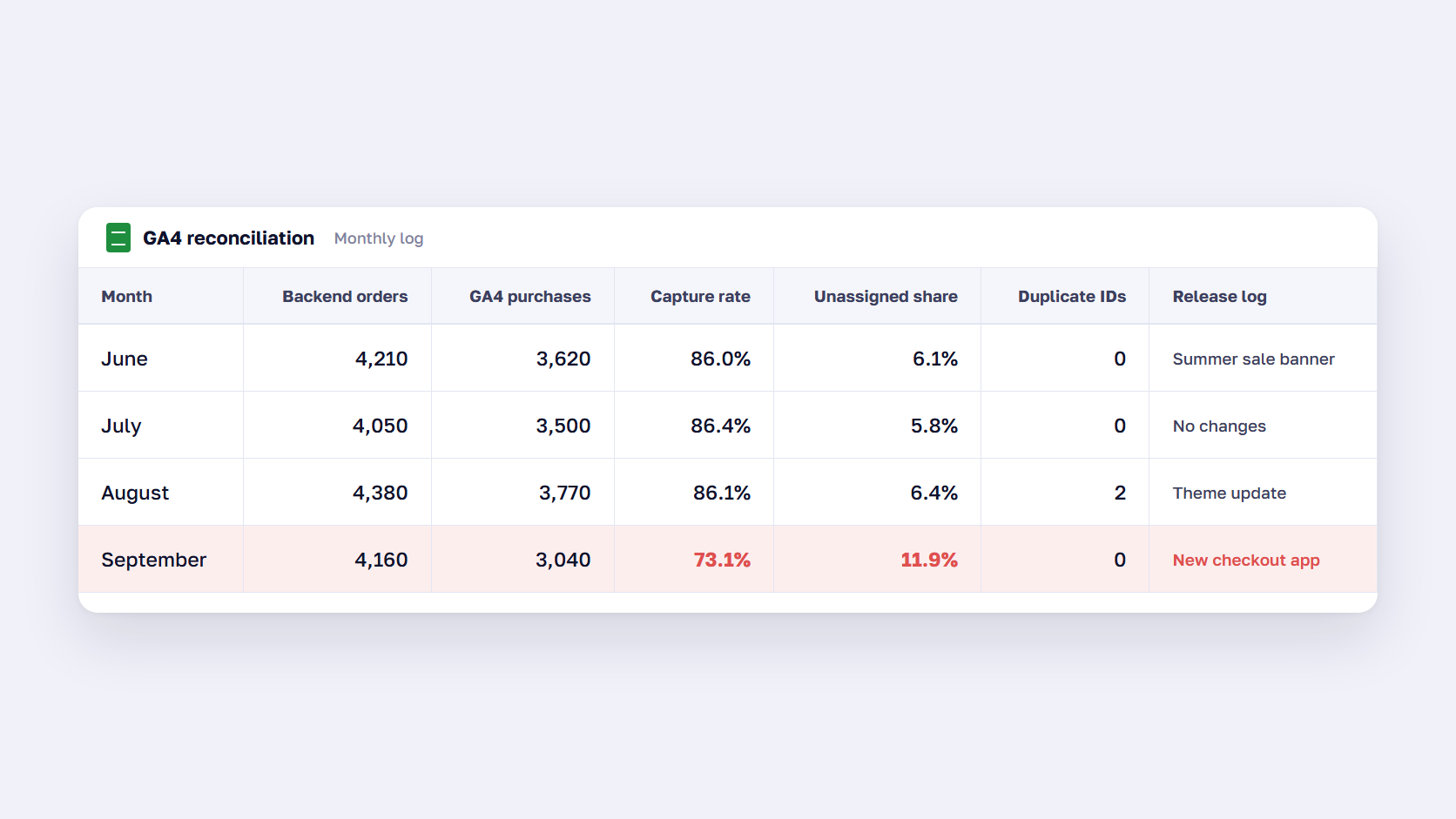
When the capture rate moves by more than a few points from its three-month average, treat it as a tracking incident first. Most of the time, the cause is in the release log from the same week.
🚀 Quick takeaway
Add a column for the release log to the reconciliation sheet. When the capture rate drops, the cause is usually listed a row above it, as a theme update or a new checkout app.
Frequently asked questions about GA4 unassigned traffic
Why is GA4 showing unassigned traffic?
GA4 shows unassigned traffic when it can’t match a session’s source and medium to any default channel rule. The most common cause is UTM tagging that doesn’t follow GA4’s naming, such as utm_medium=newsletter instead of email. Server-side events without a client ID and session ID, and tags that fire before the Google tag’s config command, also create unassigned sessions.
What does (not set) mean in Google Analytics 4?
(not set) means GA4 received data without a value for that dimension. For session source / medium, the session is missing its session_start event. For landing page, the session has no page_view event. For Google Ads dimensions, the Ads account isn’t linked. The fix depends on the dimension, so check which report shows it before changing tags.
Why doesn’t GA4 revenue match Shopify or Magento?
GA4 revenue rarely matches Shopify or Magento because the store records every paid order, while GA4 only records purchases it is allowed to see. Declined consent, blocked tags, shoppers who don’t return from payment pages, time zone differences, and refunds that aren’t sent to GA4 all widen the gap. A stable gap is normal, and a sudden change points to a tracking fault.
Does GA4 filter bot traffic automatically?
Yes, GA4 automatically excludes known bots and spiders using Google’s research and the IAB International Spiders and Bots List. You can’t turn it off or see how much traffic it removed. Bots that aren’t on the list still get through, so spikes with near-zero engagement time need a segment, a data filter, or blocking at your CDN or firewall.
How do I stop PayPal from showing as a referral in GA4?
Add paypal.com, and every other payment or 3-D Secure domain your checkout uses, to the unwanted referrals list in your GA4 web data stream settings. GA4 then ignores those domains as traffic sources when shoppers return to your store. The change only applies to new data, so sessions already credited to PayPal stay in past reports.
How much difference between GA4 and backend orders is normal?
There is no single normal figure, because it depends on your markets, consent banner, and payment methods. Stores that show a consent banner to EU shoppers can expect a bigger gap than stores without one. What matters is that the gap stays stable from month to month. Track the capture rate each month and investigate when it moves by more than a few points.
Tracking problem or real drop: how to tell
GA4 unassigned traffic, (not set) values, and missing orders are almost always tracking questions before they are sales questions. Check the gap against your own baseline, look inside the Unassigned row, follow the missing orders by payment method, and filter out bots before anyone cuts a budget. If the capture rate holds steady while orders fall in both systems, the drop is real, and the conversation can move on to demand and pricing.
Not sure whether your GA4 gap is tracking or real? Send us your last month's numbers, and we'll show you where the orders go missing.