
If you’ve just forwarded a Search Console email to your developer asking “is this bad?”, or you’re looking at thousands of URLs marked “Duplicate without user-selected canonical”, you probably want one answer: is any of it costing the store sales?
On most online stores, the answer is no. Google’s own help page says that not indexed “is not necessarily bad”, and a store creates far more URLs than it wants in search: color variants, sorted and filtered categories, tracking parameters, cart and account pages. This guide goes through the statuses that stores see most, with a store example for each, a verdict on whether to act, and the fix when you should.
What the Page indexing report is telling you
The Page indexing report in Google Search Console lists every URL Google knows on your site and sorts the ones it didn’t index by reason. Google’s stated goal is to get the canonical version of every important page indexed, and it says you should not expect all URLs on your site to be indexed. So the useful question for each status is whether the URLs in it are pages you want customers to find.
| Status | What it means | Store example | Act on it? |
|---|---|---|---|
| Duplicate without user-selected canonical | Google found a duplicate without a canonical tag and indexed another URL instead | A color variant URL or a sorted category | Only if a page you sell from is in it |
| Duplicate, Google chose different canonical than user | Google ignored your canonical tag | A category whose canonical points to a page with other products | Yes |
| Alternate page with proper canonical tag | Your canonical tag worked | A filtered URL pointing to the main category | No |
| Crawled – currently not indexed | Google read the page and left it out | A category with two products or a manufacturer-copy product page | Only for pages that should rank |
| Discovered – currently not indexed | Google knows the URL but hasn’t crawled it yet | Thousands of new filter URLs after a launch | Yes, if the count keeps growing |
| Soft 404 | The page looks empty or missing but returns a 200 status | A sold-out product page that only says “unavailable” | Yes |
| Not found (404) | The URL returns a 404 | A discontinued product with no replacement | No |
| Page with redirect | The URL redirects to another page | Old product URLs after a migration | No |
| Excluded by ‘noindex’ tag | The page asks Google not to index it | Cart, account, and internal search pages | No |
| Blocked by robots.txt | robots.txt stops Google from crawling the URL | Checkout or filter URLs you blocked on purpose | No |
| Server error (5xx) | Your server failed or timed out when Google crawled | The store slowing down during a sale | Yes |
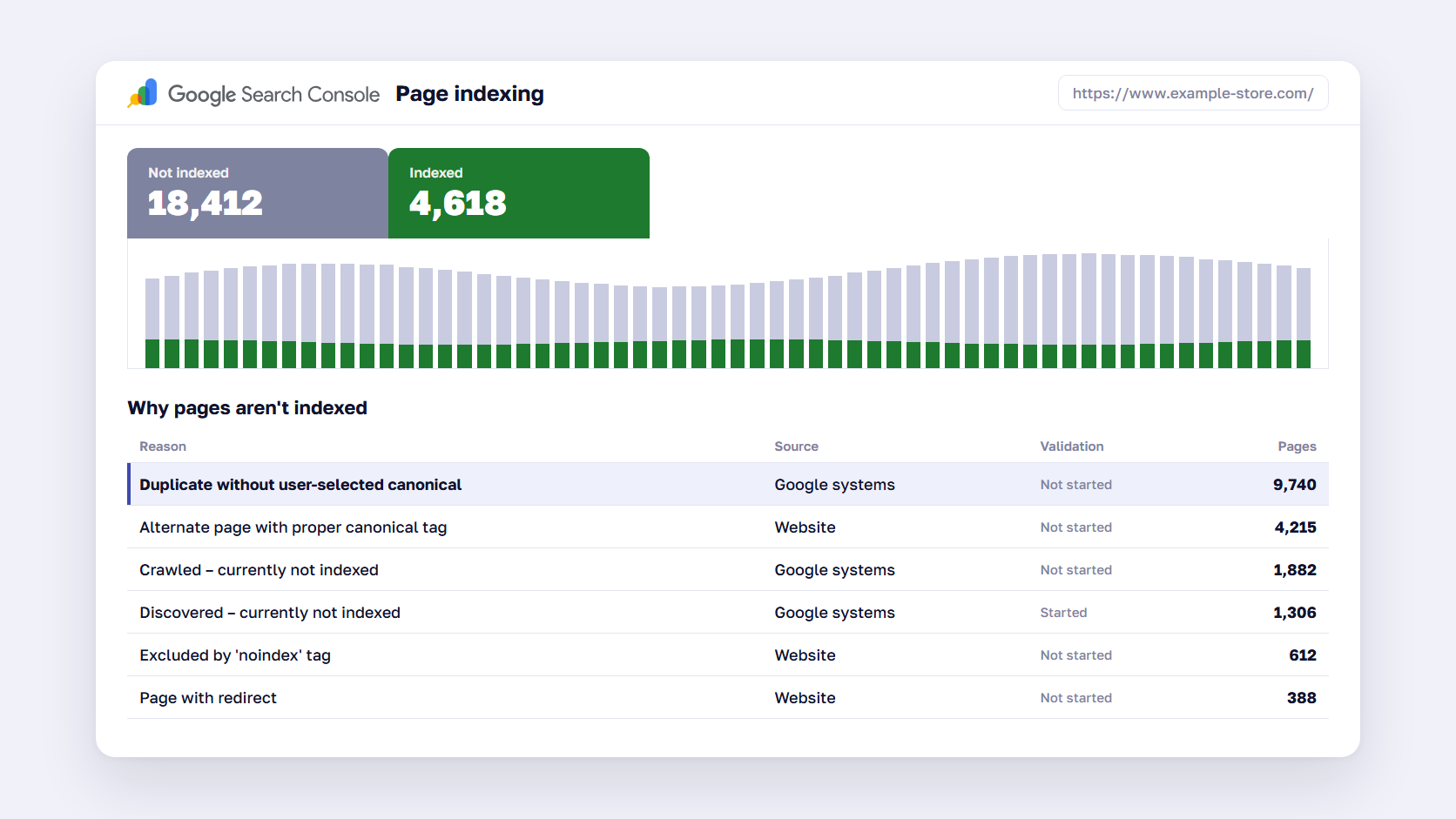
Start with two numbers before reading any status. Compare the count of indexed pages with the number of products and categories you actually sell, then check whether the indexed count dropped recently. A store with 4,000 products and 400 categories that has 4,600 pages indexed is in decent shape, whatever the not indexed column says.
Duplicate without user-selected canonical on an online store
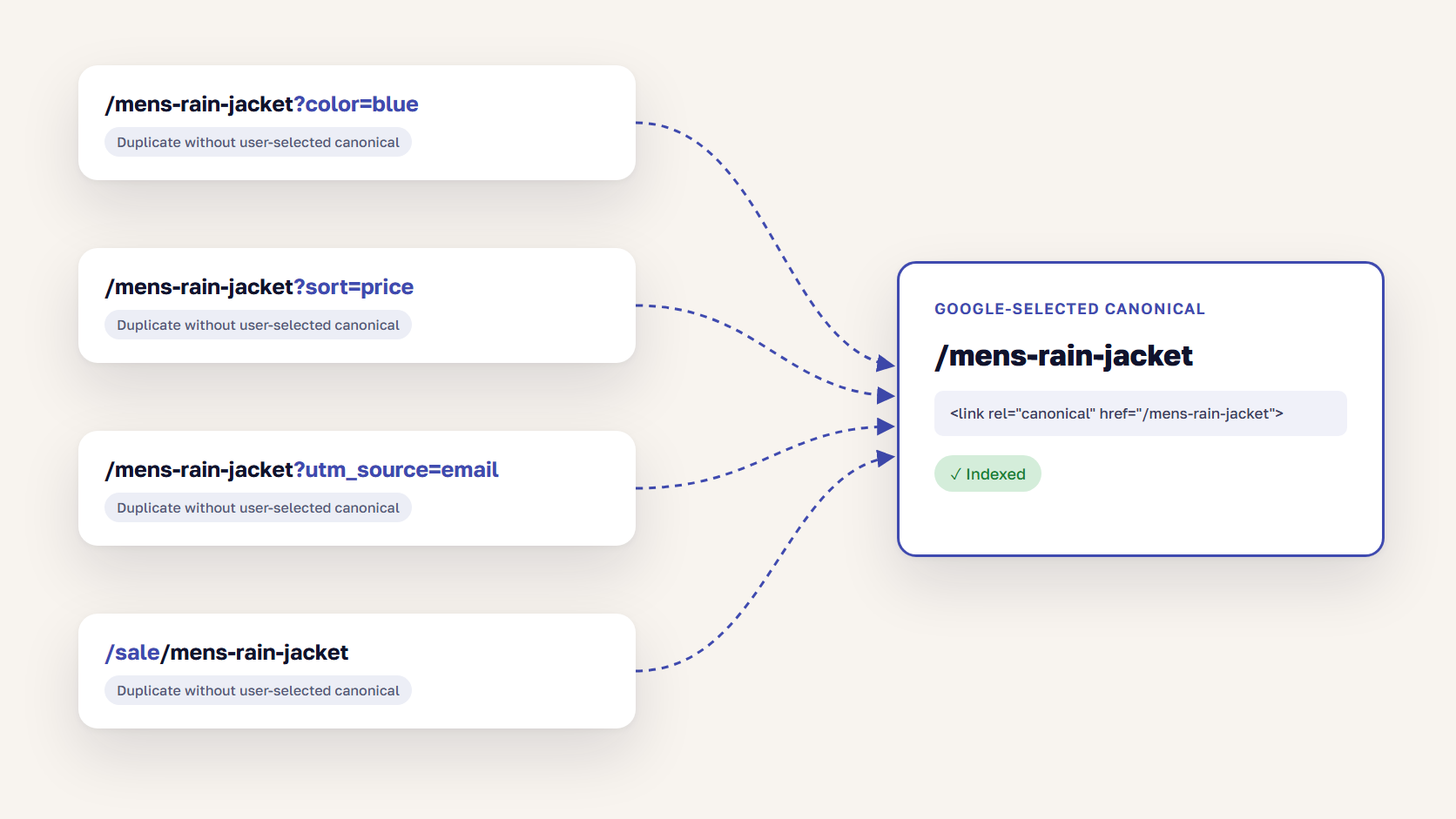
“Duplicate without user-selected canonical” means Google found a page that is a duplicate of another page, the page has no canonical tag saying which version you prefer, and Google picked a different URL to index. Google says this is not an error and is working as intended, because it doesn’t show duplicate pages in search. On a store, it mostly collects parameter URLs for variants and sort orders.
Google groups pages by how similar their content is. Every URL in the group except the one it chose as canonical lands in this status, so a big count often just means your store generates a lot of URL versions of the same page.
Product variants and color URLs
Many platforms and themes create a URL per variant, such as /rain-jacket?color=blue or /rain-jacket?size=m. If the only difference is the selected swatch, Google treats those URLs as copies of the main product page and indexes one of them. That is usually fine, as long as the URL it keeps is the clean product URL.
It becomes a choice when the variants are different enough to earn their own searches. A sofa sold in eight fabrics may deserve separate pages for “green velvet sofa”, while a T-shirt in five sizes doesn’t. Decide per product type, then make the canonical tags follow that decision.
Sorted, filtered, and tracking URLs
Sorting a category by price, showing 48 products per page, or arriving from a newsletter link with a utm_source tag adds a parameter to the URL while the products shown stay the same. Google’s own documentation uses a category URL with a gclid ad parameter as its example of a duplicate. These URLs belong in this status.
Filters are different, because some filter pages match real searches. If “black leather boots” brings in buyers through a filter URL, that page needs its own canonical and a place in your internal links. Our guide to layered navigation explains how to choose which filter pages stay indexable.
Products assigned to several categories
On Magento (Adobe Commerce) in particular, a product that sits in three categories can be reachable at three category paths, such as /men/jackets/rain-jacket and /sale/rain-jacket. Without a canonical tag, Google picks one of them. Platform settings can add a canonical tag to product pages or drop category paths from product URLs entirely, and either one keeps the count down. The duplicate content guide covers the other sources of duplication on stores, from trailing slashes to manufacturer descriptions.
When this status is a problem
Look at the example URLs in the status and filter for the ones you care about. It’s a problem in two cases. Your main product or category URL appears in the list, which means Google indexed a parameter or variant URL instead of it. Or the same content is indexed under the HTTP and HTTPS, or www and non-www, versions of your domain, which points to a redirect gap our guide to HTTP and WWW in URLs explains.
How to fix it
- Inspect one affected URL with the URL Inspection tool and read the “Google-selected canonical” line
- If Google chose the right page, leave it, because the status is working as intended
- If Google chose the wrong page, add a self-referencing canonical tag to the page you want indexed and point the duplicates at it
- Link to the canonical URL in menus, breadcrumbs, and product grids, so internal links stop pointing at parameter versions
- List only canonical URLs in your XML sitemap
Google treats redirects and canonical tags as strong signals and sitemaps as a weak one, so the canonical tag and internal links do most of the work. Google also advises against using robots.txt or noindex to handle duplicates. A blocked duplicate can still be indexed without its content, and noindex removes the page from search altogether. For stores with several countries or languages, each version needs its own canonical and matching hreflang, which our hreflang and canonical guide walks through.
Duplicate, Google chose different canonical than user
This sister status means you did set a canonical tag, and Google indexed a different URL anyway. It is worth more of your time, because a tag that Google overrules usually points to a mixed signal: the canonical says one URL, while internal links, the sitemap, or redirects point to another. Inspect the URL, compare the “User-declared canonical” with the “Google-selected canonical”, and make every signal point the same way. If two categories really have the same products, merging them is often the cleaner fix.
🚀 Quick takeaway
A high duplicate count is mostly a measure of how many URL versions your platform creates. The number to watch is how many of your real product and category URLs appear in the examples.
Crawled – currently not indexed
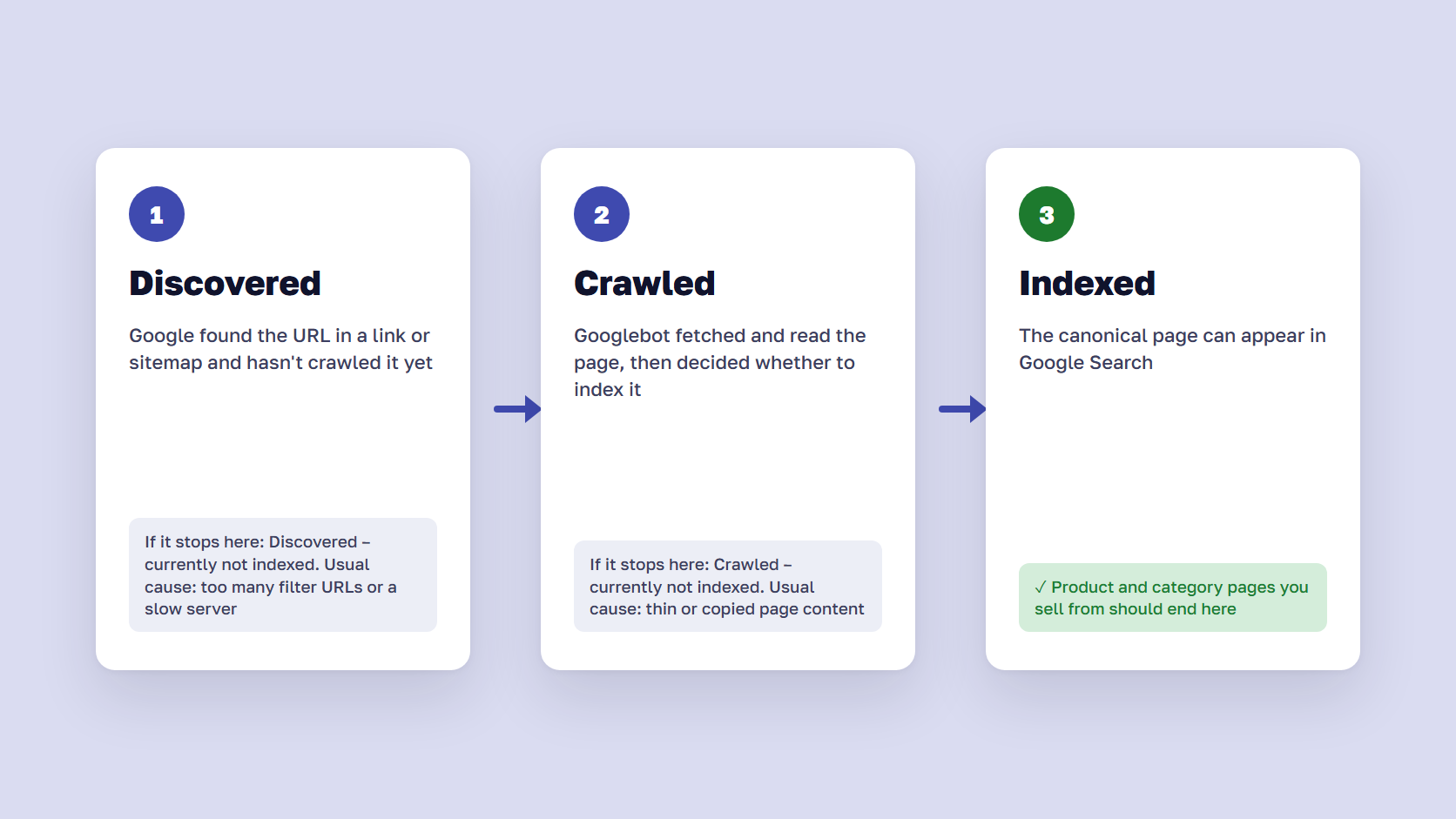
“Crawled – currently not indexed” means Googlebot fetched and read the page, then decided not to add it to the index for now. Google says the page may or may not be indexed in the future and that there’s no need to resubmit it. On a store, this status usually collects thin or near-identical pages.
Google doesn’t give a reason per URL, so read the list for patterns. In store audits, the same groups come up again and again.
- Categories or brand pages with one or two products and no copy
- Product pages that use the manufacturer’s description, which hundreds of other retailers also publish
- Tag, archive, or internal search pages that repeat the category listings
- Out-of-stock products that show little more than a name, a price, and a “notify me” button
- New pages that Google crawled once and hasn’t come back to yet
If the list holds pages you’d never link from a campaign, leave it. If it holds bestsellers or main categories, the fix is to make the page worth indexing: write category copy that answers what buyers compare, rewrite product descriptions for your top sellers, link to the page from the menu or related categories, and merge categories too small to stand on their own. Google says there’s no need to resubmit these URLs, so the time is better spent on the page itself.
🚀 Quick takeaway
Sort the crawled but not indexed list by template before reading it. If most URLs share one template, such as tag pages, the fix is a single decision about that template.
Discovered – currently not indexed
“Discovered – currently not indexed” means Google knows the URL exists, usually from a link or a sitemap, but hasn’t crawled it yet. Google says it typically postponed the crawl because crawling at that moment was expected to overload the site, which is why the report shows no last crawl date. On a store, a growing count points to too many URLs, a slow server, or both.
A few hundred URLs here after a product launch is normal and clears as Google catches up. A count that keeps climbing is a sign Google is spending its crawl on URLs that don’t matter. Google’s crawl budget guide is written for sites with more than a million pages, sites with 10,000+ pages that change daily, and sites where a large share of URLs sit in this exact status, which can include a mid-size catalog with layered navigation.
These are the usual causes on a store, each with its fix.
- Filter combinations can create millions of crawlable URLs. Block crawling of the ones you don’t want indexed in robots.txt, as Google’s faceted navigation guide recommends, and return a 404 for filter combinations that show no products
- The server is slow or returns errors under load. Check the Crawl stats report in Search Console for slow response times, then fix hosting or caching first
- Soft 404s and long redirect chains keep getting recrawled, so fix those and Google has more crawl left for real pages
- The XML sitemap lists filtered, redirected, or noindexed URLs. Keep it to canonical, indexable product and category pages
- Important new pages have few internal links. Link new categories and products from the menu, the homepage, or a parent category
If you run Magento, our guide to a Magento robots.txt setup shows which paths are safe to block.
🚀 Quick takeaway
Rewriting a page in “Discovered” changes nothing until Google crawls it, so start with crawl waste and server speed. Content work pays off on pages in “Crawled”, because Google has read them and passed.
Other statuses stores see, and the fix for each
The remaining statuses are mostly confirmations that your setup works. Two of them, soft 404 and server errors, need action on most stores.
Alternate page with proper canonical tag
This page points to another page as canonical, and Google indexed that page. Google says there is nothing you need to do. Filtered categories, sorted views, and variant URLs with a correct canonical tag all belong here, so a large count is a good sign.
Soft 404
A soft 404 is a page that looks like a “not found” page to Google but returns a 200 status code. On stores, the usual cases are empty categories, internal search pages with no results, and sold-out products whose page only says the item is unavailable. Keep temporarily sold-out products live with their full description, a stock message, and alternatives. Return a real 404 or 410 for products gone for good, or 301 redirect them to a replacement. Google’s crawl budget guide notes that soft 404 pages keep getting crawled, so they cost crawl as well as rankings.
Not found (404)
Google says 404s are not necessarily a problem if the page was removed without a replacement. Discontinued products with no successor can stay 404. Act when the list includes URLs that still get traffic or backlinks, or old URLs that moved, which should 301 redirect to the new page. Our guide to 404 page tracking shows how to spot the ones that still get visits.
Page with redirect
The URL redirects to another page, so Google indexes the target instead. After a migration, this status fills up with old product and category URLs, which is exactly what should happen. Check that the redirects go straight to the final URL in one hop, and that the SEO migration checklist steps for your redirect map were done.
Excluded by ‘noindex’ tag
The page carries a noindex directive, so Google left it out. Cart, checkout, account, wishlist, and internal search pages should be here. Look through the examples for product or category templates. A staging noindex left on after go-live also shows up here.
Blocked by robots.txt and indexed, though blocked
“Blocked by robots.txt” means Google didn’t crawl the URL because your robots.txt file disallows it, which is expected for checkout, account, and filter paths you blocked on purpose. Robots.txt only controls crawling, so a blocked URL with links pointing to it can still appear in search without its content. Google files those under “Indexed, though blocked by robots.txt”. To keep a page out of search, remove the robots.txt block and use noindex instead, since Google can only see a noindex tag on a page it is allowed to crawl.
Server error (5xx)
Googlebot couldn’t reach the page because the server failed, timed out, or was busy. Treat it as a hosting problem first. Match the dates in the report against traffic peaks, deployments, and sales, because a store that slows down every time a campaign starts is also slow for customers.
🚀 Quick takeaway
Of the statuses in this section, soft 404 is the one most likely to contain pages that sell. Check its examples for product URLs before any of the others.
When to ignore a Search Console status
Ignore a status when the URLs in it are pages you don’t want in search, or when Google indexed the right version of the page under another URL. Act when your product, category, or content pages that should earn traffic appear in the examples, or when the indexed page count drops while the store’s catalog didn’t shrink.
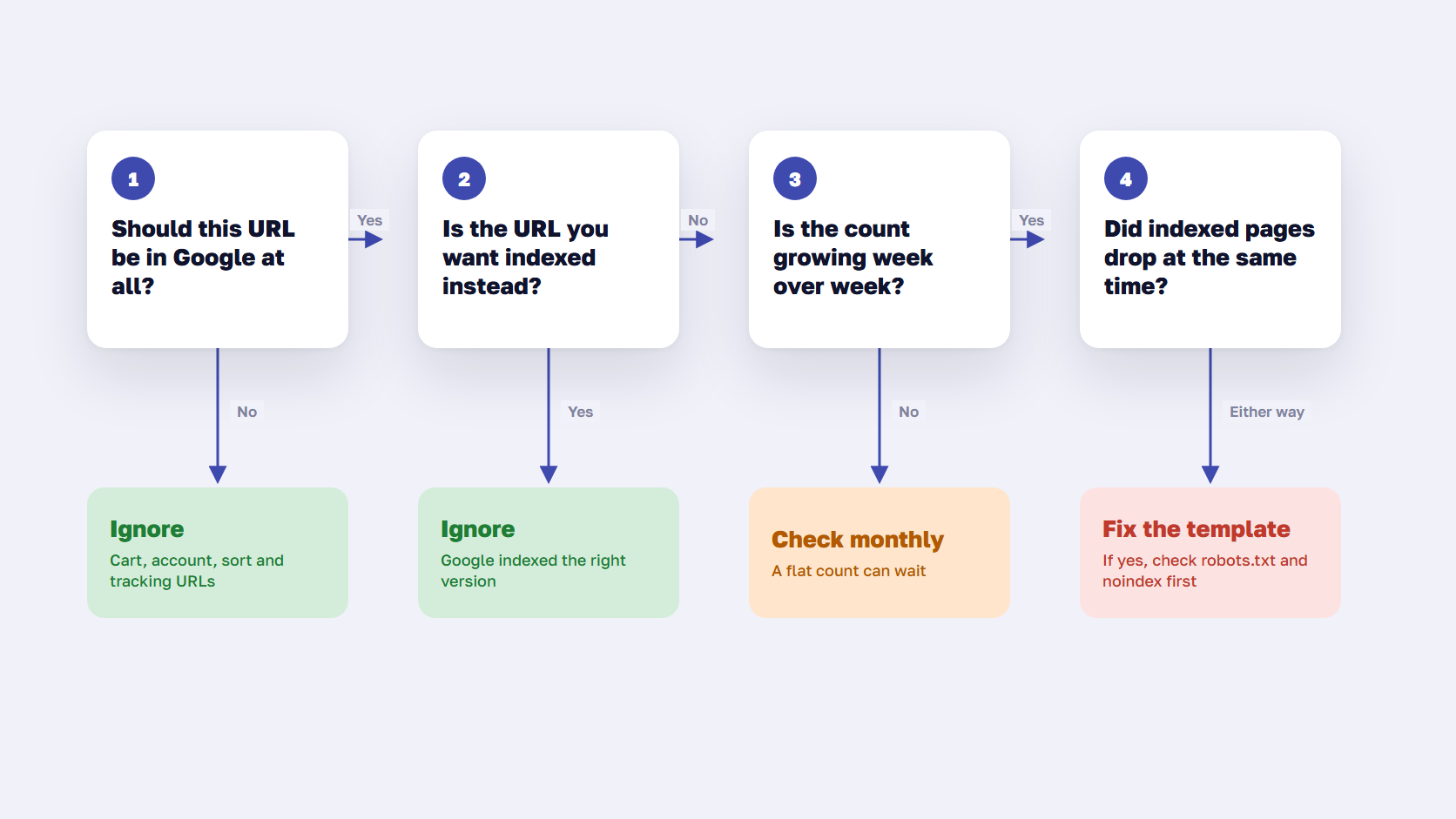
Run each status through the same four questions, in this order.
- Should this URL be in Google at all? Cart, checkout, account, search results, sort orders, and tracking parameters: no, so leave them
- Is the page indexed under another URL? Inspect it and read the Google-selected canonical. If that is the URL you want, you’re done
- Is the count growing week over week? A flat count can wait, while one that grows every week needs a look
- Did the indexed page count drop at the same time? Google suggests looking for a matching rise in not indexed URLs, and checking robots.txt, noindex tags, and login requirements first
🚀 Quick takeaway
Search Console emails you whenever a reason is new, whether or not it affects traffic. Before anyone opens a ticket, check whether a single product or category URL you care about is in the examples.
How to fix and validate an indexing issue
Fix the cause on the template, then tell Google. On a store, one setting or theme file usually produces thousands of affected URLs, so one change clears the whole group.
- Open the status and export the examples. The list is limited to 1,000 rows, so treat it as a sample of the full set
- Group the URLs by template or pattern, such as product, category, filter parameter, or search page
- Inspect two or three URLs per group with the URL Inspection tool to see the live status and the Google-selected canonical
- Fix the template, setting, or rule behind the group, and test it on a few URLs with a live test
- Click “Validate fix” in the report. Google says validation typically takes up to about two weeks and sometimes longer
If the same statuses keep coming back after every release, add them to your release checks. A technical SEO audit checks canonicals, robots rules, and status codes across every template in one pass, and it’s where our eCommerce SEO team starts when a store’s indexing numbers look wrong.
🚀 Quick takeaway
Export before you validate. The example list changes as Google rechecks URLs, so a saved copy is the easiest way to compare before and after.
Frequently asked questions about Search Console indexing errors
Is duplicate without user-selected canonical bad for SEO?
Usually not. Google says duplicate without user-selected canonical is not an error, because it means Google found a copy of another page and indexed the other version. On a store, those copies are mostly variant, sort, and tracking URLs. It’s only a problem when your main product or category URL is the one left out, which you can check with the URL Inspection tool.
How do I fix crawled – currently not indexed?
Make the page worth indexing. Google crawled it and decided to leave it out, so resubmitting the URL doesn’t help. On a store, add unique copy to thin categories, rewrite manufacturer product descriptions for your bestsellers, link the page from menus or related categories, and merge categories with only a few products. Ignore the status for pages you never wanted in search.
How long does Google take to index pages after a fix?
Google says a Validate fix request in Search Console typically takes up to about two weeks, and sometimes longer. Individual pages can be indexed sooner, especially ones with strong internal links. Large stores take longer because Google has to recrawl many URLs. Fix the template first and validate once, which saves requesting indexing for pages one at a time.
Should out-of-stock products be noindexed?
No, not if they’re coming back. Keep temporarily out-of-stock products indexed with their full description, a clear stock message, and alternatives, so they keep their rankings. A page reduced to a short “unavailable” message can be treated as a soft 404. For products discontinued for good, redirect to a replacement or the closest category, or return a 404 or 410.
Does blocking a page in robots.txt keep it out of Google?
Not reliably. Robots.txt stops Google from crawling a page, but the URL can still be indexed without its content if other pages link to it. Google lists those under “Indexed, though blocked by robots.txt”. To keep a page out of search results, allow crawling and add a noindex tag, because Google can only read the tag on a page it can crawl.
Why does Google show the wrong snippet for my product page?
Google builds snippets mostly from the page content and uses your meta description only when it describes the page better for that search. If the snippet shows old text, a shipping banner, or a cookie notice, rewrite the meta description to match the page, and make sure the main description appears early in the HTML. The data-nosnippet attribute keeps parts of the page out of snippets.
Why does Google show the wrong price or currency for my products?
Google reads price and currency from your product structured data and from Merchant Center. Wrong values usually come from markup that lists the default variant’s price, a price loaded with JavaScript after the page renders, or one currency used for every country. Test the page with the Rich Results Test and check that the price and priceCurrency match what customers see. Our product structured data guide lists the fields Google uses.
Why are my products disapproved in Merchant Center?
The cause stores run into most is a mismatch between the feed and the product page, usually on price or availability. Merchant Center checks the feed against your page and its structured data, so a sale price missing from the feed or a variant URL that shows another price can trigger it. Update the product feed more often, fix the markup, and use the right currency per country. Google recrawls disapproved products within hours or days.
Fix the statuses that touch the pages you sell
Duplicate without user-selected canonical, crawled – currently not indexed, and the other Page indexing statuses are mostly Google telling you how it handled the extra URLs your store creates. Start from the pages you sell from, check whether each one is indexed under the URL you want, and fix the template behind any group that includes them. Leave the rest, and check each month whether the counts are growing.
Search Console report full of statuses and no time to sort them? Send us the export, and we'll tell you which ones are costing you traffic.